


Spyware on an Android device is one of the most invasive privacy violations a person can experience in their daily digital life. Your smartphone carries your location history, your communications, your photographs, your banking applications, and the access credentials to virtually every important account you maintain — making it not just a communication device but an extraordinarily comprehensive record of your life. When spyware is running on that device, every element of that record is potentially accessible to whoever controls it. This guide covers everything you need to know to remove spyware from Android phones, from identifying infection symptoms through complete remediation and post-removal recovery steps.
Why Android is particularly vulnerable to spyware
Android’s architecture creates a fundamentally different threat landscape than iOS. The platform’s openness — its allowance of third-party app stores, sideloaded APK files, and far more permissive permissions management than iOS — creates multiple infection vectors that do not exist on Apple’s platform. This openness is also Android’s greatest strength for legitimate purposes: it enables customization, developer access, and software distribution outside corporate-controlled ecosystems. The same openness that makes Android powerful makes it a more complex security environment to manage.
The sideloading problem
Sideloading — installing APK files downloaded directly from websites rather than through the Google Play Store — bypasses Google Play Protect, the security system that scans all Play Store applications for malware before and after publication. A sideloaded APK can contain anything its creator chooses to include, with no vetting process standing between the file and installation on your device. Spyware distributed through sideloading includes stalkerware apps marketed openly to abusive partners, pirated applications modified to include spyware components, and fake utility apps — fake battery optimizers, fake speed boosters, fake antivirus applications — that are themselves the threat they claim to protect against.
Malicious apps that pass Google Play Protect
Even the Play Store’s vetting process is imperfect. Security researchers routinely discover spyware-laden applications that have been available on the Play Store for months before detection, sometimes accumulating tens of thousands of installs. These applications typically disguise their malicious function with a legitimate-seeming primary purpose — a QR code scanner, a file manager, a simple game — while their spyware functionality operates in the background collecting data and transmitting it to remote servers.
Google Play Protect detection has improved substantially over the years, and Play Protect now also performs on-device scanning of already-installed applications looking for behaviors identified as malicious after initial installation. However, sophisticated spyware authors design their applications to behave entirely normally for a period after installation before activating their surveillance capabilities, specifically to evade Play Protect’s dynamic behavioral analysis.
Recognizing spyware symptoms on Android
Android spyware produces characteristic symptoms that, when observed in combination, constitute strong evidence of infection. Familiarity with these symptoms allows for earlier detection before significant data exfiltration has occurred.
Battery drain and thermal performance
A smartphone operating normally with no unusual applications running should maintain predictable battery life consistent with your established usage patterns. Spyware that continuously monitors location, records ambient audio, or transmits collected data creates sustained background CPU and radio activity that consumes battery power and generates heat. If your battery life has deteriorated significantly without a corresponding change in your own usage habits, and particularly if the phone feels warm during periods when you are not actively using it, background processes may be responsible.
Navigate to Settings, then Battery, then Battery Usage, and examine which applications are consuming the most power. Unfamiliar applications consuming disproportionate battery resources, or well-known applications using far more battery than their function requires, deserve investigation.
Unexplained data usage
Spyware must transmit its collected data externally. In doing so, it consumes mobile data. Check your data usage breakdown under Settings, then Network & Internet, then Data Usage, and examine which applications have consumed the most data. Any application consuming significant background data — data transmitted while the app is not actively in use and visible on screen — without a clear functional reason should be investigated. Cloud backup services, navigation applications, and media players have legitimate reasons for background data usage; a calculator application or a simple utility consuming megabytes of background data does not.
Unfamiliar applications and permissions
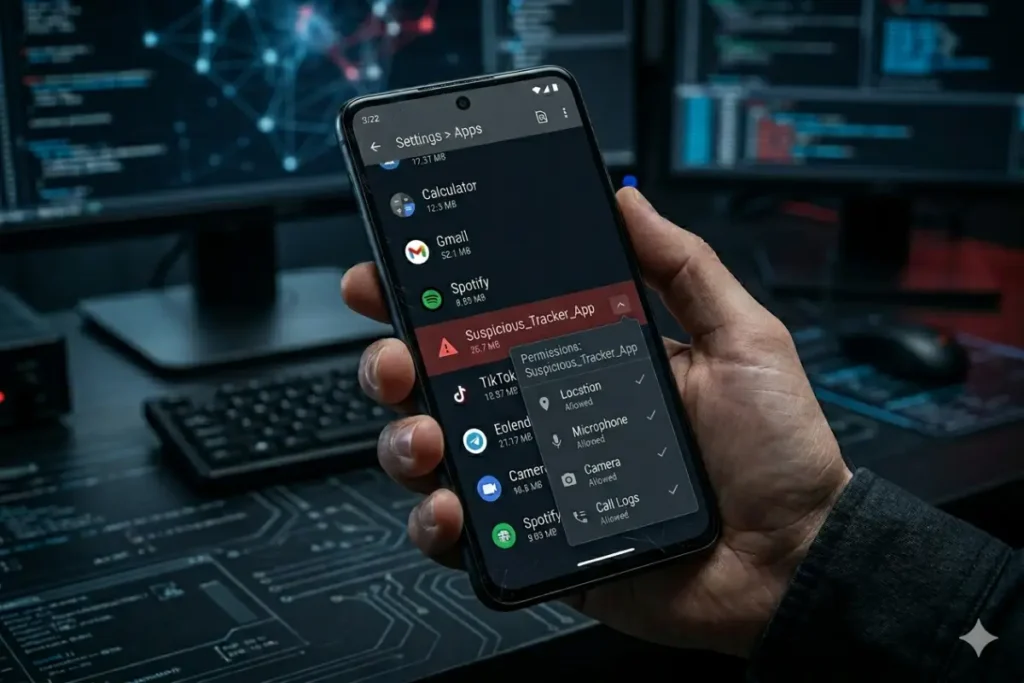
Certain spyware installation methods, particularly those used by stalkerware, require physical access to the device to complete the installation process. If someone has had unsupervised access to your phone — even briefly — it is worth auditing your installed applications thoroughly. Go to Settings, then Apps, then select “All Apps” from the filter menu. Work through the complete list and identify any application you do not recognize or did not install yourself. Stalkerware applications sometimes disguise themselves with names that suggest system functions — names that sound like battery managers, system monitors, or device maintenance tools — specifically to avoid detection during casual browsing of the app list.
Step-by-step spyware removal from Android
The following removal process is organized from the least disruptive to the most comprehensive approach, allowing you to stop at the level that resolves your specific situation rather than always escalating to a full factory reset unnecessarily.
Step 1: Audit and remove suspicious applications
Begin with a comprehensive application audit. In Settings, then Apps, review every installed application and remove anything you cannot positively identify as something you installed intentionally. When removing potentially malicious applications, do not simply uninstall them — first go to the application’s detail page in App Info and check its permissions. Documenting what permissions the application held provides insight into what data it may have collected. After documenting permissions, proceed with uninstallation.
Some spyware applications resist normal uninstallation by requesting device administrator privileges during or after installation. If you attempt to uninstall an application and receive an error indicating that it is a device administrator and cannot be removed, navigate first to Settings, then Security, then Device Admin Apps (the exact path varies by Android version and manufacturer). Find the suspicious application in this list and revoke its administrator privileges. Return to the App Info page and complete the uninstallation.
Step 2: Review and revoke suspicious permissions
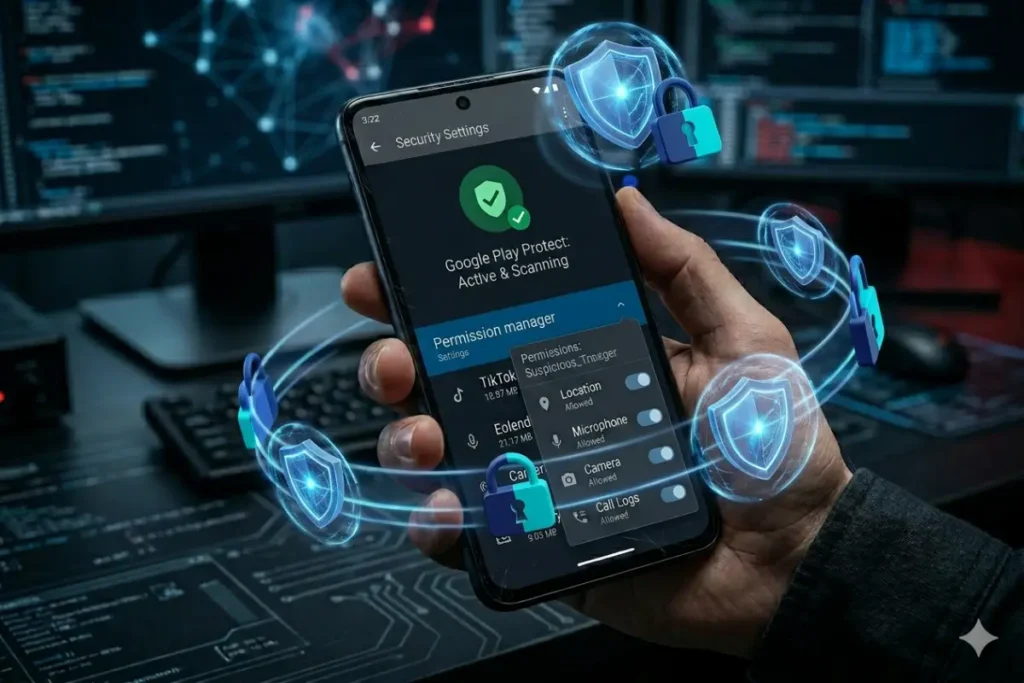
Even after removing clearly malicious applications, audit the permissions held by all remaining applications. In Android 12 and later, navigate to Settings, then Privacy, then Permission Manager. This interface shows every permission category — Location, Microphone, Camera, Contacts, SMS, Call Logs — and lists every application that has been granted access to each. Review these lists with a critical eye: every application in the Microphone and Camera permission lists should have an obvious, legitimate reason for that access. A flashlight application with microphone access, or a simple game with call log access, should be treated as suspicious and investigated further.
Android 12 and later also includes privacy indicators — a small icon in the status bar when an application is actively using the camera or microphone — that can reveal surveillance activity in real time. If you observe these indicators while no obvious application should be using these sensors, check the recent-app switcher and the permission manager for which application holds the relevant permission and is currently running.
Step 3: Run Google Play Protect and a dedicated security scan
Enable Google Play Protect if it is not already active: navigate to the Play Store, tap your profile icon, then Play Protect, then tap the scan button to run an immediate analysis of all installed applications. Play Protect will flag any application it identifies as harmful. While Play Protect runs, also install a dedicated mobile security application from the Play Store — Malwarebytes for Android, Bitdefender Mobile Security, or ESET Mobile Security are all reliable options — and run a full device scan.
The combination of Google Play Protect and a dedicated third-party scanner provides overlapping detection coverage. Since the two systems use different detection technologies and threat intelligence feeds, they have different detection capabilities against specific spyware variants, and using both increases the overall detection probability.
Step 4: Check for harmful device settings modifications
Spyware installation sometimes involves modifying device settings beyond app installation. Check your device administrator list as described above and remove any unfamiliar entries. If your device is running Android 8.0 or later, also check the Accessibility Services settings under Settings, then Accessibility, then Installed Services or Downloaded Apps. Accessibility services have extremely broad system access — they can read screen content, inject input events, and monitor device usage across all applications — and spyware that has obtained accessibility service permissions has essentially unrestricted surveillance capability. Any accessibility service you did not intentionally install should be disabled and the associated application removed.
Also check for unknown device configuration profiles or VPN configurations under Settings, then Network & Internet, then VPN and Advanced, then Private DNS. An unexplained VPN configuration or private DNS entry that you did not create routes your traffic through an external system for potential interception, representing a network-level surveillance mechanism.
Step 5: Check for rooting
A rooted Android device — one on which the user or an attacker has obtained superuser access — is dramatically easier to surveil thoroughly. Root access allows an application to operate without any of Android’s normal permission constraints, giving it unrestricted access to the entire filesystem, all application data, and all hardware interfaces. Spyware that has obtained or relies on root access requires a more thorough remediation approach than standard spyware because it can reinstall itself from locations normal applications cannot reach.
Most rooting detection applications can confirm whether a device has been rooted. If your device shows signs of rooting that you did not initiate, this significantly elevates the severity of your situation and makes a factory reset the strongly recommended approach rather than an option of last resort.
Step 6: Factory reset as the definitive solution
When application removal and settings remediation do not resolve the infection — when symptoms persist, when scanning tools continue to find threats, or when the infection has involved rooting or device administrator-level compromise — a factory reset is the definitive solution. A factory reset returns the device to its out-of-box software state, erasing all data, applications, and settings. It is the only approach that can guarantee the removal of persistent spyware that has embedded itself at the system level.
Before performing a factory reset: back up contacts, photographs, and documents you need to preserve — but do not back up application data, as restoring application data from a backup may restore the spyware alongside it. Note which applications you will need to reinstall. Sign out of all accounts on the device. Then navigate to Settings, then System, then Reset, then Factory Data Reset, and follow the prompts. After the reset, reinstall only applications from the Google Play Store, restore only your personal data (not application data), and reconfigure your security settings before restoring access to sensitive accounts.
Stalkerware on Android: specific considerations
Stalkerware on Android — surveillance applications installed by a partner, family member, or employer without the device owner’s knowledge — is a distinct scenario that requires specific handling. The Coalition Against Stalkerware and the National Domestic Violence Hotline both provide guidance on responding to stalkerware discovery that takes into account the personal safety dimension alongside the technical remediation.
If you are in a relationship where the other party may have installed stalkerware, be aware that removing it will likely alert that person to the removal — many stalkerware applications notify their operator when they are uninstalled. Plan your safety response before removing the software rather than treating removal as the first step. For context on how this threat fits within the broader landscape of spyware threats covered by the full spyware removal guide covering all devices and threat types → Spyware removal guide, the stalkerware section provides additional context and resources.
Preventing Android spyware re-infection
After completing removal, implementing preventive measures reduces the probability of re-infection substantially. Android’s security posture is significantly improvable through configuration changes and behavioral adjustments that do not require any additional software purchases.
Enable Google Play Protect and keep it active
Ensure Google Play Protect is enabled and set to scan device applications automatically. The “Improve harmful app detection” toggle, which sends information about unrecognized apps to Google for analysis, is worth enabling for users who regularly install applications from diverse sources — it contributes to the collective threat intelligence that benefits all Play Protect users.
Restrict sideloading permanently
If you do not have a specific, ongoing need to install applications from sources outside the Play Store, disable sideloading permanently. In Android 8.0 and later, sideloading permission is managed on a per-source basis under Settings, then Apps, then Special App Access, then Install Unknown Apps. Review this list and revoke sideloading permission from any source that does not have a currently active legitimate purpose.
Keep Android and all apps updated
Android security updates address vulnerabilities in the operating system that malware exploits to gain unauthorized access and permissions. Enable automatic system updates in Settings, then System, then Advanced, then System Update, and ensure your applications are set to update automatically through the Play Store. Both pathways together ensure that known vulnerabilities are closed as quickly as possible after patches are released.
Use a mobile VPN for network-level protection
A mobile VPN provides network-level protection that complements application-level security. On public Wi-Fi networks — coffee shops, airports, hotels — a VPN encrypts your traffic from your device to the VPN server, preventing network-level interception of your data. Many mobile VPN applications also include threat intelligence that blocks connections to known command-and-control servers, providing a secondary layer of defense against any spyware that has already been installed before connection to the malicious network.
Review app permissions quarterly
Even applications installed from the Play Store can change their data collection practices through updates. Build a habit of reviewing your permission manager quarterly — perhaps at the same time as other regular security maintenance tasks — to verify that no application has acquired permissions it did not previously hold, and that no application holds permissions it does not have a clear functional need for. This regular review transforms permission management from a one-time setup task into an ongoing security practice.
For the complete strategy covering how to prevent any spyware from reaching your Android device in the first place, the detailed prevention guidance in how to stop spyware before it ever reaches your device → How to prevent spyware infections: a complete protection guide covers both technical controls and behavioral practices that apply specifically to mobile threat scenarios.