


The signs of malware infection on a Windows PC in 2026 are specific enough to point directly to the threat type — if you know what each symptom indicates. A CPU running at 70% with nothing open means something different from a changed browser search engine, which means something different from files that suddenly have unfamiliar extensions. Reading the symptom correctly before running a tool saves significant time and tells you whether you need a standard 5-minute scan or an emergency ransomware isolation procedure.
This guide covers 13 specific malware warning signs, what each one indicates about the likely threat category, how to verify each symptom with a specific diagnostic check, and what to do immediately after confirmation. The full removal procedure for each threat type is in the malware removal guide. This article focuses on the diagnostic layer — recognizing whether you have an infection and narrowing down what kind before any tool runs.
None of the 13 signs below is conclusive on its own. Two or three appearing simultaneously is the pattern that points toward an active infection with confidence. One sign in isolation deserves a scan, not a full incident response.
Signs 1 through 4: performance and process indicators
These four signs are measurable against known baselines. An infected PC’s performance deviates from its normal behavior in specific, quantifiable ways — which means you can compare what you observe against what the machine normally does rather than against a generic standard.
Sign 1: CPU running at 60-80% with no applications open. Open Task Manager with Ctrl + Shift + Esc and go to the Processes tab. Sort by CPU. A Windows 11 system at idle with no browser tabs, no media playing, and no active downloads should show CPU usage below 10%, with brief spikes up to 20-30% when background processes run. Sustained usage at 60-80% with nothing visibly active points to one of two causes: a cryptojacker using your processor to mine cryptocurrency, or fileless malware executing injected code inside a legitimate process like svchost.exe or explorer.exe. Cryptojackers deliberately cap usage at 70-80% to avoid the complete system freeze that would send a user to a repair shop — a deliberate 30-minute slowdown goes uninvestigated for weeks.
Sign 2: RAM consumption elevated with nothing running. Go to Task Manager → Performance → Memory tab. Windows 11 at idle on a clean 8GB system uses 2.5-4GB depending on background services. If idle RAM sits above 5.5-6GB with no browser, no applications, and no visible background tasks, something is occupying that memory without appearing in the standard process list. This is a behavioral indicator of RAM-resident fileless malware — code injected into a legitimate process that consumes memory while running its payload, hidden from casual Task Manager review but visible in Resource Monitor under the Memory tab.
Sign 3: Boot time has increased sharply without a system update or new software. Windows 11 on a standard NVMe SSD boots from power button to fully usable desktop in 15-25 seconds. If that time has increased to 45-70 seconds without a recent Windows update, driver installation, or new program added to startup, something new is in the startup sequence. Go to Task Manager → Startup tab. Any entry showing no publisher name in the Publisher column, a file path inside AppData\Roaming, AppData\Local, or the %Temp% directory, or a random alphanumeric string as its name is a candidate for investigation. Malware places itself in the startup sequence to guarantee it reloads on every reboot — persistence is the operational priority after initial installation.
Sign 4: Unfamiliar processes in Task Manager consuming resources. In Task Manager → Details tab (not the simplified Processes view), examine the Name and Description columns. Right-click any suspicious process and select Open file location. Three locations that legitimate Windows processes never occupy: the %Temp% directory, AppData\Roaming, and AppData\Local\Temp. Any executable running from one of those three paths is suspicious by location alone. Additionally, legitimate Windows system processes always have a verified publisher name in their Description. A process with a blank Description field, a zero-byte file size, or a file path that leads to a directory that doesn’t exist on the drive has been planted by an external installer, not Windows itself.
Signs 5 through 7: browser behavior your settings did not cause
Browser-targeting malware produces three distinctive symptom patterns. Each maps to a different component of the hijacker’s installation, which is why checking all three produces a fuller picture than checking one alone.
Sign 5: Your browser’s search engine changed without you changing it. Open Chrome and go to Settings → Search engine. Open Firefox and navigate to about:preferences, then scroll to Search. Open Edge and check Settings → Privacy, search, and services → Address bar and search. If the default search engine shows anything other than what you explicitly set — specifically names like “Search Marquis,” “Nearbyme.io,” “Conduit,” or any URL-format string — a hijacker has written a registry entry overriding your browser’s default search provider. The browser’s own settings interface shows the new value as if you set it, because the hijacker writes directly to the registry key that the browser reads. Changing it back through the browser settings dialog often reverts on next launch because the registry key has not been cleaned.
Sign 6: Browser extensions appeared that you did not install. Go to the Extensions page in each browser you use — chrome://extensions in Chrome, about:addons in Firefox, edge://extensions in Edge. Review every entry. Legitimate extensions installed by reputable software have a recognizable name, a visible icon, a description of their function, and a link to their publisher. Suspicious characteristics include: a generic name using a category term rather than a product name (“PDF Helper,” “Search Assistant,” “Quick Tabs”), no visible icon, a “Managed by your organization” badge on a personal non-work machine, or an extension you do not specifically remember installing. These injected extensions serve as persistence mechanisms — they survive a basic browser settings reset because they exist as installed extensions rather than just registry entries.
Sign 7: Your browser redirects to websites you did not request. This symptom has four distinct forms, each indicating a slightly different installation point. Search redirects pass your query through a third-party domain before reaching your actual search result — the URL bar shows a brief flash of an unfamiliar domain during each search. Homepage redirects open the browser to a page you did not set. New tab hijacks replace the new tab page with an unfamiliar search interface. Pop-up ads appearing on sites that do not normally show them — news sites, government sites, Wikipedia — indicate ad-injection code running in the browser context. The first three forms are typically caused by registry modifications and extension installations. The fourth, ad injection, sometimes involves a hosts file modification that routes specific site requests through an ad-injection proxy.
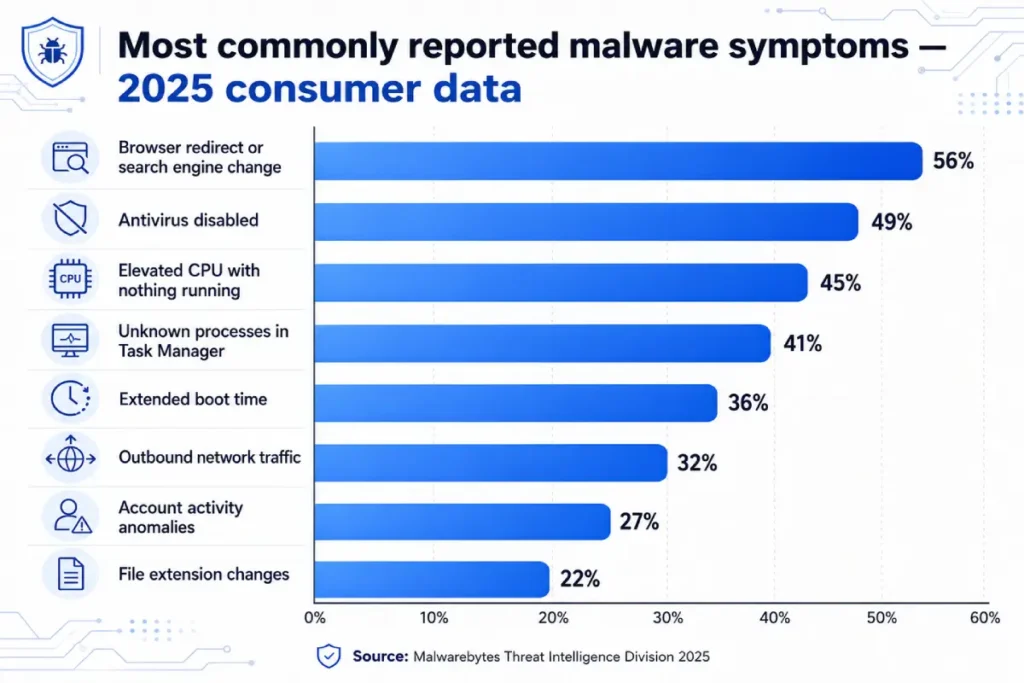
Signs 8 through 10: security software and system setting changes
These three signs indicate that an infection is actively working against the machine’s defenses — modifying or disabling the tools designed to detect and remove it. Their presence moves the diagnosis from “possible infection” to “likely active and defensive malware.”
Sign 8: Antivirus software disabled and unable to re-enable. Open Settings → Windows Security → Virus & threat protection. If the real-time protection toggle shows Off and clicking it produces no response, or if a message reads “Your IT administrator has limited access to some areas of this app” on a personal machine that has no IT administrator, malware has written registry keys blocking the Windows Security Center. Go to Registry Editor (Win + R, type regedit) and check HKEY_LOCAL_MACHINE\SOFTWARE\Policies\Microsoft\Windows Defender for a key named DisableAntiSpyware with a value of 1. That key does not exist on a clean consumer Windows installation — its presence means external software wrote it specifically to disable Defender. Ransomware, rootkits, and advanced trojans place this key as an early action because a disabled antivirus cannot generate detections or interrupt the attack.
Sign 9: Windows Firewall turned off with no user action. Go to Settings → Windows Security → Firewall & network protection. The firewall has three profiles: Domain, Private, and Public. On a standard home PC, Domain Network is typically not applicable. Private Network and Public Network should both show “Windows Firewall is on.” If either shows off and you did not disable it, malware has modified the firewall settings to ensure its outbound communication is not blocked. The specific threat profile here is command-and-control trojans and botnet components that require unrestricted outbound network access. A firewall disabling itself is a stronger infection indicator than most users realize because Windows 11 will not turn off its own firewall without a deliberate user action or a Group Policy change — neither of which happens automatically.
Sign 10: System Restore points missing or System Restore disabled. Go to Control Panel → System and Security → System → System Protection. Click the Configure button for the C: drive. If System Protection shows Off, or if you click System Restore and the wizard shows no available restore points, malware has modified your recovery options. On a clean machine running Windows 11, System Protection creates automatic restore points at Windows Update installation, driver installation, and on a rolling schedule. The absence of any restore points on a machine that has been running for more than a few weeks is not a normal state. Ransomware specifically targets Shadow Volume Copies and System Restore points as early actions in the attack sequence — deleting them eliminates the fastest free recovery path before encryption begins.
Signs 11 through 13: network traffic and account indicators
These three signs indicate that an infection has already produced an impact outside the local machine — either data has been transmitted, credentials have been compromised, or file encryption has begun.
Sign 11: Sustained outbound network traffic with no active downloads. Open Task Manager → Performance → Open Resource Monitor → Network tab. The Network Connections section at the bottom shows every active network connection by process name, remote address, and port. A clean idle machine on a home network shows a handful of Windows Update, Defender cloud query, and time sync connections that open briefly and close. Any process maintaining a persistent open connection to an external IP address — visible as a connection that stays in the Send/Receive column across multiple manual refreshes — is actively transmitting data. Ports commonly used by command-and-control malware: 4444 (Metasploit and RAT default), 8080, 1080, 6666, and any port in the dynamic range above 49152 with sustained traffic. The combination of an unfamiliar process name, a non-standard port, and continuous traffic is a strong spyware or trojan indicator.
Sign 12: Account activity or messages you did not create. Spyware and keyloggers that capture credentials produce this symptom after the captured data has been used. The pattern appears as: a login notification email from a service you use (bank, email provider, social media) for an access event you did not initiate; a password reset email you did not request; outgoing emails in your sent folder that you did not write; or social media posts you did not create. The malware does not need to remain active to produce these signs — the credentials were captured while it ran and are being used independently from an attacker-controlled device. Discovering this symptom means the credential capture has already occurred and the priority shifts immediately to password changes and 2FA activation on every account that was logged in while the infection was present.
Sign 13: Files renamed with unfamiliar extensions or files that will not open. This sign appears in two distinct forms with very different responses. Form one: files have an additional extension appended (.locked, any four-character random string like .mosk, .djvu, .cosd) and they open as corrupted or unreadable. This is ransomware that has completed an encryption cycle. Do not restart the machine — disconnect from the internet immediately and follow the emergency procedure in the how to remove ransomware guide. Form two: files have changed names or extensions but still open normally. This is typically adware or a PUP using cosmetic file modifications as a scare tactic — an attempt to convince the user they are more seriously infected than they are to push them toward a fake paid removal tool. A standard Malwarebytes scan resolves this type.
How to confirm signs of malware infection with a targeted diagnostic scan
Identifying two or more signs from the list above justifies running a scan before drawing a conclusion. Running a scan after observing one sign is reasonable. Running a scan before observing any signs and finding nothing does not rule out an active infection — fileless malware leaves no file for an on-demand scanner to detect, and a rootkit can falsify what the scanner reports.
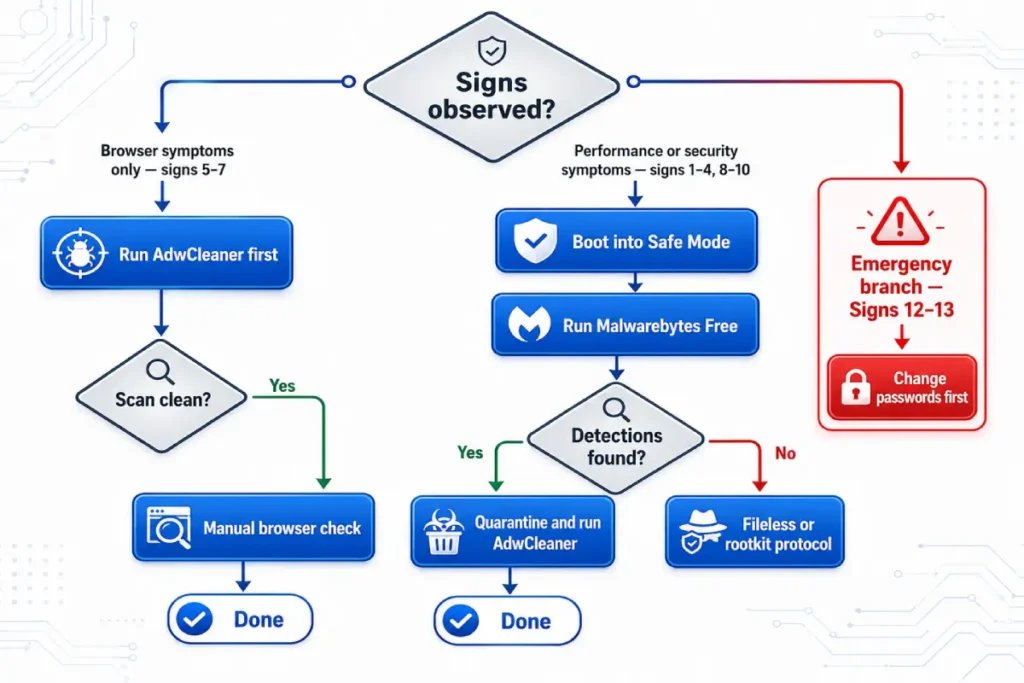
The scan sequence for detecting malware on PC depends on which symptoms you observed. Browser symptoms only (signs 5-7): run AdwCleaner first. It is faster than Malwarebytes and specifically targets the browser-level components those symptoms indicate. Runtime: under 3 minutes. Performance or process symptoms (signs 1-4): run a Malwarebytes Free Threat Scan in Safe Mode. Safe Mode prevents most malware from loading alongside Windows, making its processes visible to the scanner. Runtime: 4-8 minutes. Security software tampering (signs 8-10): run Malwarebytes in Safe Mode, then follow with a HitmanPro cloud scan as a second-opinion pass. A threat sophisticated enough to disable Windows Defender may also be sophisticated enough to evade single-engine detection.
For sign 11 (sustained outbound traffic), a Malwarebytes scan in Safe Mode combined with running Windows Defender’s offline scan covers the most likely candidates. If both return clean against confirmed sustained outbound traffic, the infection may be fileless — in which case the behavioral detection procedure covered in the full malware removal guide applies.
For the computer malware check following signs 12 or 13: the credential-compromise and ransomware protocols take priority over scanning. Change passwords from a clean device before running any scan tool on the compromised machine. A compromised machine that remains connected to accounts during the cleanup phase creates additional exposure.
The tools used in the scan sequence are covered fully in the best free malware removal tools guide.
What each symptom tells you about the specific threat type
Mapping symptoms to threat families before running a scan determines which tool to use and what a clean result actually means.
Signs 1 and 2 together — elevated CPU and RAM with nothing running — point most directly to fileless malware or a cryptojacker. The distinction between them: cryptojackers show a single process consuming the majority of resources when sorted in Task Manager, and CPU usage tracks closely with your machine’s processor generation (higher usage on older hardware, moderate on current-gen). Fileless malware shows injected code inside a legitimate process — high resource usage associated with explorer.exe, svchost.exe, or powershell.exe rather than an identifiable standalone process.
Signs 3 and 4 together — slow boot and unfamiliar Task Manager processes — indicate persistence-focused malware: spyware, trojans, and adware that prioritize surviving reboots over concealment. These threat types are generally detectable by Malwarebytes Free because they write files and registry entries that signature-based scanning finds reliably.
Signs 5, 6, and 7 together constitute a browser hijacker profile. All three appearing simultaneously means the hijacker installed an extension, modified the default search engine registry key, and potentially modified browser shortcuts or the hosts file. AdwCleaner resolves this combination more efficiently than a full Malwarebytes scan because its detection logic specifically targets these three installation points.
Signs 8, 9, and 10 together indicate a threat specifically designed to disable defenses before or during its primary attack. Ransomware commonly produces all three: disabling antivirus, disabling the firewall for C2 communication, and deleting System Restore points to eliminate free recovery paths. The simultaneous presence of these three signs on a machine where no files have been encrypted yet suggests the ransomware is in its pre-encryption phase. Immediate isolation from the network is the correct action, followed by a bootable scanner rather than an in-Windows scan.
Signs 11, 12, and 13 indicate impact has already extended beyond the local machine. Sign 11 alone means data is transmitting now. Signs 12 and 13 mean data has already been used (credentials) or files have already been processed (ransomware). Each of these three requires immediate action before any scan.
What to do next after identifying signs of malware infection: the complete triage guide
Three triage paths cover every combination of symptoms above.
Path one: browser and performance symptoms (signs 1-7). These represent the most common consumer malware scenarios — adware, browser hijackers, PUPs, spyware, and cryptojackers. Disconnect from the internet. Boot into Safe Mode with Networking. Run Malwarebytes Free (Threat Scan, 4-8 minutes). Run AdwCleaner immediately after (3 minutes). Clean each browser manually — extensions, search engine, shortcut Target field. Reconnect to the internet and confirm symptoms are resolved over the following 48 hours. This path resolves the overwhelming majority of consumer infections with free tools in under 30 minutes.
Path two: security software tampering (signs 8-10). The threat has actively modified system defenses. This indicates a more sophisticated infection than standard adware. Disconnect immediately from the internet. Boot into Safe Mode. Run Malwarebytes Free and quarantine all detections. Run HitmanPro as a second-opinion cloud scan. If both return clean against active symptoms, run a Windows Defender offline scan (runs outside Windows before the OS loads). If symptoms persist after three clean scan results, move to the bootable scanner protocol using Bitdefender Rescue CD or Kaspersky Rescue Disk 18, both covered in the main malware removal guide.
Path three: data transmission and impact indicators (signs 11-13). These require a different first action than scanning. Signs 11 and 12: change passwords immediately from a clean, separate device — not from the infected machine. Enable 2FA on all accounts that were active during the infection period. Then run the Path One scan protocol. Sign 13 with inaccessible encrypted files: disconnect from the internet immediately, do not restart the machine, photograph the ransom note, and follow the ransomware emergency procedure. Sign 13 with cosmetically renamed files that still open: run Path One. The cosmetic rename is adware behavior, not encryption.
The single most important variable in triage is: which signs appeared together. One sign in isolation gets a scan and observation. Two or more signs from the same category indicate an active infection with specific characteristics. Three signs spanning multiple categories suggests a more sophisticated multi-component infection that may require escalation beyond the standard two-tool protocol.
Recognizing signs of malware infection on Mac versus Windows
The 13 signs above are Windows-specific. Mac infections produce a partially overlapping but distinct symptom set.
On a Mac, the CPU and RAM indicators (signs 1 and 2) apply identically — open Activity Monitor (Command + Space, type Activity Monitor) and check CPU and Memory tabs. The same 60-80% CPU with nothing open is the same suspicious pattern. The same RAM consumption elevation against a normal idle baseline applies.
Mac browser symptoms (signs 5-7) appear in the same forms but through Safari instead of Chrome or Edge as the primary browser. Safari Preferences → Search → Search engine is the check point for sign 5. Safari Preferences → Extensions covers sign 6. Browser redirect behavior (sign 7) is identical across platforms.
What Mac malware rarely produces: the security software tampering signs (8-10). Mac-specific security architecture, System Integrity Protection, and Gatekeeper function differently from Windows Defender and Windows Firewall, and the malware targeting Mac systems in 2026 — predominantly adware and spyware rather than ransomware and trojans — does not attempt the same defensive suppression that Windows-targeting malware does.
The file encryption sign (sign 13) for Macs: while widespread Mac ransomware targeting home users has not materialized at the scale of Windows ransomware as of 2026, the behavioral indicator is identical — files with appended extensions that open as corrupted data warrant the same immediate isolation and non-restart response.
For Android-specific malware symptoms — battery drain, unexpected data usage, unfamiliar apps appearing, and elevated background data transmission — the detection and removal procedure differs significantly from both Windows and Mac, covered separately in Satellite 5 of this content cluster.

All 13 signs in this guide map to a specific threat type and a specific first action. The most reliable rule across all of them: observe, then document, then disconnect, then scan — in that order. Scanning before documenting loses the behavioral evidence that points to the threat category. Scanning while still connected to the internet allows active malware to continue communicating, update its evasion routines, and potentially exfiltrate data during the scan itself. Two or more signs from the same category with a confirmed clean scan result after the standard protocol means escalating to a second-opinion scanner. A confirmed clean scan with resolved symptoms means monitoring for 48 hours before considering the incident closed.