


This iPhone security guide targets the 15 configuration changes that address the actual attack vectors responsible for most iOS compromises in 2026 — not theoretical risks, but the specific methods documented in real incident reports. A Zimperium 2025 Global Mobile Threat Report found that 63% of mobile phishing attempts in Q3 2025 specifically impersonated Apple, making iPhone owners the most targeted group in credential theft campaigns across any mobile platform.
The default iOS configuration is not enough. Apple ships iPhones with reasonable baseline security, but several of the most effective protections — Advanced Data Protection, Stolen Device Protection, USB Restricted Mode — are either off by default or require deliberate activation through settings menus most users have never opened. This iPhone security guide walks through each one, names the specific risk it addresses, and gives the exact menu path in iOS 18.
Why iPhones get compromised in 2026 (and what the threat actually looks like)
Three attack categories account for the majority of real-world iPhone security failures in 2026. The first is iCloud account takeover through phishing. AI-generated Apple Support emails now achieve open rates above 34% according to Proofpoint’s 2025 Mobile Threat Intelligence Index, because language models synthesize Apple’s visual design with personalized details pulled from data broker databases. When a user hands over their Apple ID credentials, the attacker gains access to iMessages, photos, location history, and every saved password in iCloud Keychain — without ever touching the physical device. The iCloud security and two-factor authentication sections of this iPhone security guide directly address this vector with specific configuration steps.
The second category is physical theft combined with passcode observation. Apple’s own Stolen Device Protection documentation describes a pattern in which thieves watch users enter their passcode in public before stealing the phone. With that passcode in hand, an attacker can change the Apple ID password, disable Face ID, turn off Find My, and remove trusted two-factor authentication devices in under five minutes. Before iOS 17.3 introduced iPhone data protection through Stolen Device Protection, this attack sequence permanently locked the original owner out of their Apple ID with no practical recovery path available.
Network interception is the third major category — less frequent than phishing but increasingly automated. Rogue access points at airports, hotels, and cafes run man-in-the-middle attacks that intercept unencrypted traffic or redirect users to phishing login pages. On an unprotected iPhone, HTTP session data is readable in plaintext. Even over HTTPS, DNS requests expose browsing patterns and can be hijacked on networks the user does not control. The best VPN for iPhone article covers protocol comparisons and kill switch reliability in full — the short answer from this iPhone security guide is that WireGuard or IKEv2 with a confirmed kill switch closes the network layer before any application-level attack can begin.
State-sponsored attacks represent a fourth category, small in volume but worth understanding. NSO Group’s Pegasus spyware exploited zero-click vulnerabilities in iMessage and WebKit between 2021 and 2022, delivering its payload through a single crafted message requiring no user interaction. Apple patched the BLASTPASS exploit under CVE-2023-41064 in September 2023 after Citizen Lab disclosed active exploitation against journalists and activists. For most users, Pegasus-grade attacks are not a realistic risk. Their existence does explain why Apple built Lockdown Mode and why it belongs in any complete iOS security discussion.
App-level data harvesting is less dramatic but more common than any category above. An app with legitimate permissions for location, microphone, and photo access can build a detailed behavioral profile that feeds data broker pipelines even during sessions when the user is not actively using the app. Apple’s App Tracking Transparency framework cut cross-app tracking rates by 64% in its first year, but iPhone data protection at the app permissions layer still requires manual audits in 2026 — those iOS security tips are covered in a dedicated section below, because the settings do not self-update over time.
The passcode and Face ID settings most users ignore
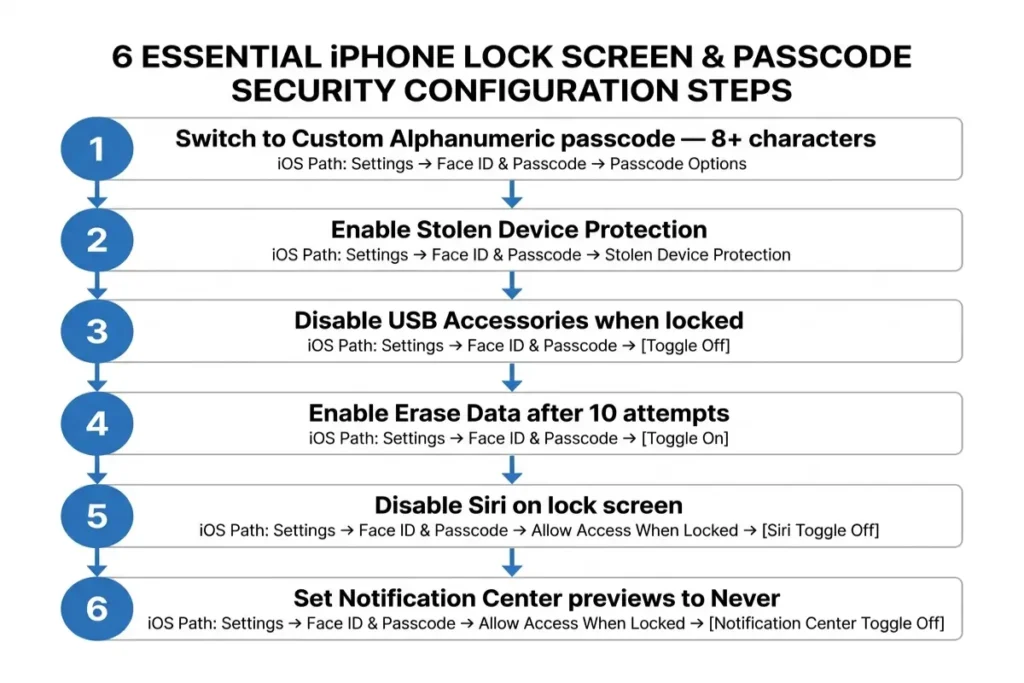
The six-digit numeric passcode iOS defaults to during initial setup is not adequate for a device holding banking credentials, personal communications, and cloud-connected account access. Six digits produces one million possible combinations. A dedicated brute-force device operating without USB Restricted Mode active can exhaust that space in under 22 hours. An eight-character alphanumeric passcode reaches approximately 218 trillion combinations under the same conditions. The gap is not incremental — it separates a device that falls to a weekend attack from one that resists indefinitely. To change yours: Settings → Face ID & Passcode → Change Passcode → Passcode Options → Custom Alphanumeric Code. A four-word passphrase is easier to enter accurately under pressure than a random character string.
USB Restricted Mode prevents any USB accessory from exchanging data with the iPhone more than 60 minutes after the screen was last unlocked. Without it active, forensic extraction tools — including commercially available hardware used in law enforcement contexts — can pull data from a locked device by exploiting the Lightning or USB-C data channel. The setting is at Settings → Face ID & Passcode in the “Allow Access When Locked” section, labeled USB Accessories. The toggle should read off, meaning no data transfers occur while locked. If you regularly use USB accessories, unlock the device before connecting them — the habit costs seconds and eliminates a physical-access attack vector entirely.
Erase Data, located in the same settings menu, wipes the iPhone to factory state after 10 consecutive failed passcode attempts. It defaults to off. Enabling it prevents an attacker with physical possession from methodically cycling through combinations. The practical consideration: households with children, shared devices, or users who regularly mistype their passcode face a genuine accidental-lockout risk. An up-to-date iCloud backup converts any post-wipe recovery from data loss into a 20-minute restoration. Complete a backup at Settings → [Your Name] → iCloud → iCloud Backup → Back Up Now, verify the timestamp updates, then enable Erase Data.
Stolen Device Protection changes the time dynamics of an account takeover even when an attacker has the passcode — and this is the setting every iPhone security guide published after iOS 17 should treat as the single highest-impact addition. Without it, an attacker with the passcode can change the Apple ID password in seconds. With Stolen Device Protection on and the device away from a recognized location, that same change requires a Face ID scan, a mandatory one-hour delay, then a second Face ID confirmation. No passcode bypass exists during the waiting period. Apple calculates recognized locations entirely on-device using frequently-visited-place analysis, without sending location data to Apple’s servers.
Enable Stolen Device Protection at Settings → Face ID & Passcode → Stolen Device Protection. A complete breakdown of edge cases — including what happens if Face ID fails, how emergency bypass works, and how the feature interacts with Medical ID — is in the stolen device protection iPhone article.
The Allow Access When Locked controls in the Face ID & Passcode menu determine which iPhone security settings and features remain exposed to anyone holding the unlocked screen. Each toggle there exposes either information or functionality without requiring authentication. Notification Center shows message previews and calendar entries by default. Siri answers questions about contacts, saved messages, and appointments from the lock screen without biometric confirmation. Reply with Message sends texts from the device without unlocking it.
A full secure your iPhone audit of the Allow Access When Locked section takes under four minutes. Disable Siri on the lock screen unless an accessibility need requires it. Set Notification Center previews to “Never” rather than removing the notification indicator entirely — this preserves the alert without exposing its content. Turn off Reply with Message and Return Missed Calls unless both are active parts of your workflow. None of these iOS security tips cost any functionality when the device is unlocked — they reduce lock screen exposure with no trade-off during normal use.
iCloud security — the gap most iPhone security guides leave open
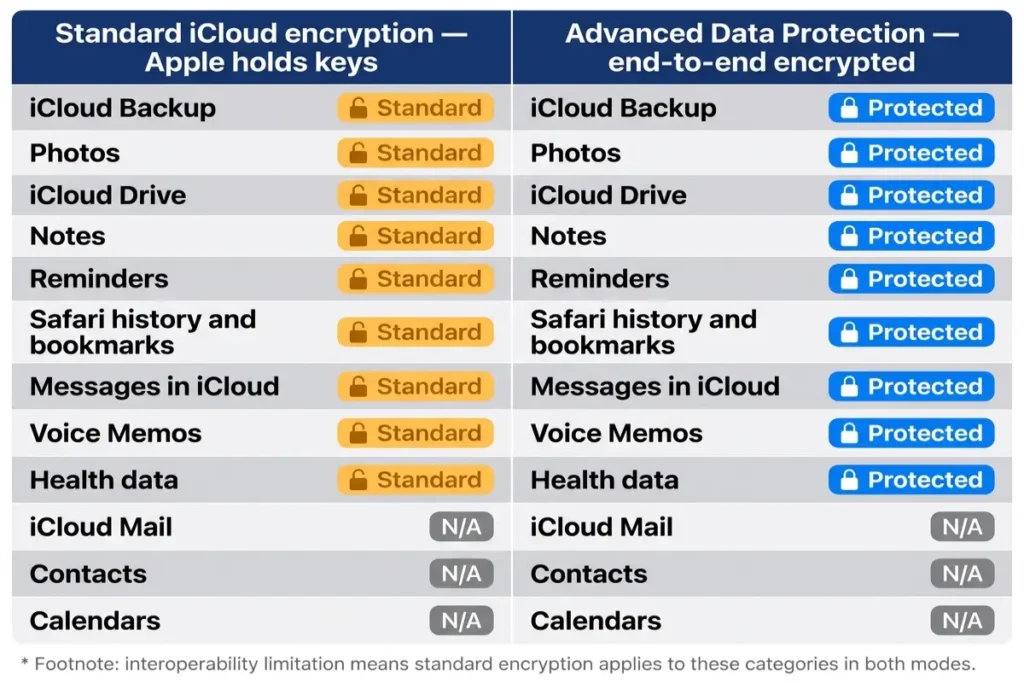
Without Advanced Data Protection enabled, Apple holds the encryption keys to most iCloud data categories — including your backup. That matters in two concrete ways. First, Apple can produce your iCloud Backup, Photos, Notes, and iMessage history in response to a valid legal request. Second, a breach of Apple’s infrastructure exposes data stored under standard encryption. iCloud Backup captures photos, messages when iCloud Messages is enabled, app data, device settings, call history, and health data. Most users assume iCloud backup is as private as data stored only on the device itself — a distinction most iPhone security guides don’t address in practical terms, and the most consequential iPhone data protection gap in the default iOS configuration.
Advanced Data Protection extends end-to-end encryption to 23 iCloud data categories. After enabling it, Apple cannot read your iCloud Backup, Photos, iCloud Drive files, Notes, Reminders, Safari history and bookmarks, Messages backup, Voice Memos, or Wallet passes — regardless of any legal demand or server-side compromise. Three categories remain under standard encryption: iCloud Mail, Contacts, and Calendars. Those three stay outside the end-to-end umbrella because interoperability with third-party email and calendar servers requires Apple to handle decryption on behalf of those external systems. For everything else, the encryption keys live only on your trusted devices. Enabling ADP is the single most effective step to secure your iPhone backup against server-side exposure.
Enable it at Settings → [Your Name] → iCloud → Advanced Data Protection → Turn On Advanced Data Protection. Before the toggle activates, iOS requires configuring either a Recovery Contact or a Recovery Key. The Recovery Key is a 28-character alphanumeric string generated on the device; if you lose the key and lose access to every trusted device simultaneously, Apple cannot recover the account or its data — the loss is permanent. A Recovery Contact is a trusted person who receives a verification request if you ever need account access restored. This iPhone security guide recommends choosing a Recovery Contact over holding the Recovery Key alone for most users, because simultaneous loss of the key and all trusted devices is a realistic scenario for anyone who travels frequently.
Two-factor authentication is mandatory for Apple ID accounts on iOS 18, but the strength of the second factor varies considerably. SMS-based 2FA sends a six-digit code to a phone number — a delivery channel vulnerable to SIM swapping, where an attacker convinces a carrier to transfer the phone number to a SIM card they control. The FTC’s 2024 consumer fraud database documented over 68 Apple ID-targeted SIM swapping incidents in that calendar year. Apple’s built-in Code Generator, available since iOS 15, generates TOTP codes entirely on-device and stores them in iCloud Keychain under end-to-end encryption when ADP is active. Access it at Settings → Passwords → select an account → Set Up Verification Code, or use a dedicated authenticator app such as Authy or 1Password’s built-in TOTP generator.
Third-party apps accessing iCloud — calendar clients, email apps, and cloud storage managers — require app-specific passwords since Apple’s December 2022 policy change. Each app-specific password is a unique credential connecting that specific app to iCloud without exposing the main Apple ID password. Generate them at appleid.apple.com → Sign-In and Security → App-Specific Passwords. Revoking one credential has no effect on any other. Separately, the “Allow access to iCloud data on the web” toggle at Settings → [Your Name] → iCloud controls whether icloud.com can be accessed through any browser session. Disabling it closes the browser-based attack surface for any attacker who compromises Apple ID credentials without having a trusted device in hand.
App permissions: the silent data leak on every unprotected iPhone
App Tracking Transparency requires apps to request explicit permission before tracking behavior across other apps and websites — 75% of users decline those requests as of Q1 2026, per AppsFlyer’s State of Partner Marketing report. But ATT does not stop apps from collecting behavioral data within their own ecosystem. A mapping app with “Always On” location access logs every trip, route, and dwell time throughout the day. A shopping app with Contacts permission harvests the full name, phone number, email, and address of everyone in your address book — not just your own information. iPhone data protection at the permissions layer requires manual review because no single toggle closes all of these exposures simultaneously. The app permissions audit in this iPhone security guide starts here because it catches data collection that no technical exploit is needed to enable — legitimate app permissions are the mechanism.
Location permissions carry the highest data value of any iOS permission category. Settings → Privacy & Security → Location Services shows every app’s current access level: Never, Ask Next Time, While Using the App, or Always. “Always” grants background location access continuously, including when the device is in a pocket and the app is not visible on screen. The “Precise Location” toggle per app — available when you tap any app in that list — restricts the app to an approximate 3-mile radius rather than GPS-level coordinates when switched off. Weather apps, social platforms, and most shopping apps function correctly on approximate location for every feature except turn-by-turn navigation. Review every app showing “Always” access and downgrade to “While Using” any app without a documented background tracking use case.
Full photo library access exposes more than images. EXIF metadata embedded in each photo includes GPS coordinates for every picture taken with location services enabled, precise timestamps, and object recognition labels that iOS generates on-device. An app with full library access can map where you live, work, and travel by reading this metadata without displaying a single photo. iOS 14 introduced “Selected Photos” mode, allowing per-app grants to specific images rather than the entire library. The path to audit existing permissions: Settings → Privacy & Security → Photos → select any app showing “All Photos” → change to “Selected Photos.” Social media apps, messaging apps, and food delivery platforms handle their actual functions correctly under Selected Photos access — full library is rarely a legitimate requirement for these categories.
App Privacy Report produces the clearest picture of how apps behave against actual iPhone security settings rather than their stated permissions. Enable it at Settings → Privacy & Security → App Privacy Report. The report logs every sensor access and every network domain contact over a 7-day rolling window — showing which apps accessed the camera, microphone, location, contacts, and photo library, and how recently. It also surfaces which external domains each app contacted, revealing advertising and analytics SDKs embedded in apps that advertise no tracking function. After 48 hours of active logging, most users find two to five apps with sensor accesses or advertising network contacts that contradict the app’s stated purpose. This iPhone security guide treats App Privacy Report as a mandatory self-audit because it surfaces data flows invisible to any permissions setting review alone. A full step-by-step permissions audit for every iOS category is at iPhone privacy settings.
Microphone, Contacts, and Pasteboard access round out the permissions categories with direct data exposure risk. The orange dot in the iOS status bar activates whenever any app opens the microphone — if it appears during a session in an app with no audio feature, revoke the permission immediately at Settings → Privacy & Security → Microphone. Contacts access is one of the highest-value permissions for data brokers because it exposes a full social graph: every person’s name, number, email, and address in the address book, regardless of that person’s own privacy settings. The clipboard notification introduced in iOS 16 shows a banner alert when an app reads clipboard contents without a triggered paste action. If an app triggers that alert unprompted, revoke clipboard access at Settings → Privacy & Security → Pasteboard — the app has no legitimate reason to read content you copied in another app
Network security and VPN essentials for iPhone users
HTTPS adoption exceeds 95% of web traffic according to Google’s HTTPS Transparency Report, which eliminates most content-level interception on public networks. The remaining threats are more targeted but still automated. DNS queries on unencrypted networks expose which domains the device contacts, even when the content of those connections is encrypted. Captive portal attacks redirect users connecting to hotel or airport Wi-Fi toward phishing sign-in pages that mirror legitimate portal screens precisely enough to harvest credentials. Rogue access points can read app traffic from any application that does not enforce certificate pinning on its connections. The network security section of this iPhone security guide addresses each layer as a separate control because closing one does not close the others.
iCloud Private Relay routes Safari browsing through two relay servers in sequence. Apple handles the first relay, knowing who the user is but not the destination. A third-party operator handles the second relay, knowing the destination but not the user’s identity. No single entity can connect the two pieces. Private Relay requires an iCloud+ subscription starting at $0.99 per month and covers Safari browsing and device-level DNS lookups exclusively. It does not encrypt traffic from Chrome, Firefox, third-party email apps, or any other application. To truly secure your iPhone across all network traffic on an untrusted connection, a full VPN covering every app is the right tool — Private Relay handles the Safari browsing case only, and the two controls work alongside each other without conflict.
Three criteria are non-negotiable when selecting a VPN for this iPhone security guide’s purposes. A verified kill switch that blocks all internet traffic if the VPN connection drops — without it, a momentary disconnection exposes the real IP address before reconnection. WireGuard or IKEv2 protocol support, with WireGuard delivering the better combination of lower latency and smaller attack surface on iOS 5G and LTE connections. An independently audited no-log policy confirmed by a named third-party auditor — NordVPN, ProtonVPN, and Mullvad have each published audit results. A 2024 Top10VPN analysis of the top 30 free VPN applications in the App Store found 18 of them sharing user connection data with advertising networks. Free VPN services are incompatible with any serious iPhone data protection posture.
DNS over HTTPS encrypts domain name queries, preventing ISPs and network operators from logging which sites the device contacts even when the underlying connection is encrypted. iOS 18 exposes the configuration directly at Settings → Wi-Fi → tap the connected network name → Configure DNS → select Manual and enter either 1.1.1.1 (Cloudflare) or 9.9.9.9 (Quad9) as the resolver. The “Limit IP Address Tracking” toggle, available per saved network at Settings → Wi-Fi → [network name], reduces the ability of routers and network operators to build a behavioral profile from the device’s IP address across sessions. Enable both controls on every trusted home and office network. Independent network latency testing shows neither setting produces a measurable speed impact on connections above 25 Mbps — these iOS security tips carry no functional cost.
Advanced settings for high-risk users
Lockdown Mode is not a general security enhancement — it is a targeted defense against specific attack classes used by sophisticated adversaries including state-sponsored threat actors and well-funded commercial spyware operators. For most iPhone owners, the settings covered in the previous sections of this iPhone security guide close the realistic threat surface without any Lockdown Mode trade-offs. The target profile for Lockdown Mode is specific: journalists covering national security or organized crime beats, human rights defenders operating in high-surveillance jurisdictions, corporate executives managing sensitive merger negotiations, and legal professionals handling high-value litigation with adversarial parties known to deploy commercial surveillance tools.
When enabled, Lockdown Mode blocks most iMessage attachment formats except images, video, and audio — PDF and document attachments are rejected at the message layer. JIT JavaScript compilation in WebKit is disabled, slowing Safari’s rendering of complex web applications by 15 to 40% in standard benchmark testing. Incoming FaceTime calls from contacts not in the address book are blocked. Wired connections to external accessories except USB charging are rejected. Configuration profile installation and MDM enrollment both require disabling Lockdown Mode first. These restrictions map directly to the attack surfaces Pegasus and its contemporaries exploited through iMessage zero-clicks and WebKit vulnerabilities. Enable or disable at Settings → Privacy & Security → Lockdown Mode. The device restarts to apply the change in either direction.
Sign In with Apple provides credential isolation for every service that supports it. When you authenticate with it, the service receives a unique randomly generated email relay address rather than the real Apple ID address. Each service gets a distinct relay — compromising one service exposes a relay that does not exist in any other account. The relay forwards mail to the real inbox and can be disabled per-service at Settings → [Your Name] → Password & Security → Apps Using Apple ID. For any service offering Sign In with Apple as a login option, it produces better account isolation than a standard email-and-password login with no additional setup cost.
Passkeys, available on iOS 16 and later, replace passwords with a FIDO2 cryptographic key pair. The private key stays on the device and syncs across Apple devices through iCloud Keychain under end-to-end encryption when Advanced Data Protection is active. The public key goes to the service. Authentication requires Face ID or Touch ID and produces no credential that can be intercepted, replicated, or phished — because no password exists to steal. Over 400 major services support passkeys as of Q1 2026, including Google, GitHub, PayPal, and Apple’s own account system. When a service offers passkey enrollment in its security settings, migrating eliminates the phishing attack surface for that account entirely and is the right call regardless of overall threat level.
Five iPhone security guide mistakes that put real users at risk
The most common mistake this iPhone security guide encounters is permanent reliance on SMS-based two-factor authentication after initial Apple ID setup. The six-digit code Apple sends via SMS travels over the cellular network — a channel attackable through SIM swapping, where an attacker convinces a carrier employee to reassign the phone number to a SIM card they control. Moving to Apple’s on-device Code Generator at Settings → Passwords eliminates this vulnerability because the TOTP code is generated locally and never travels through the cellular network or any external server. The migration takes under five minutes per account.
Delayed iOS updates are the second mistake, and the consequences are specific rather than theoretical. Apple patched CVE-2024-23225 — a kernel memory vulnerability allowing arbitrary read and write access at the kernel level, with no sandbox escape required — on March 5, 2024, in iOS 17.4. The release notes stated explicitly that Apple was aware of active exploitation against real devices. Mixpanel device data showed 23% of tracked iPhones still running iOS 17.3 or earlier 30 days after the patch. Every device in that cohort ran with an actively exploited kernel vulnerability for a full month after Apple published the fix. Enable automatic updates at Settings → General → Software Update → Automatic Updates with both Download iOS Updates and Install iOS Updates toggled on.
Sharing a single Apple ID across family members for convenience — typically for shared photo albums or App Store purchases — merges the security perimeters of multiple people into one account. Two-factor authentication codes deliver to whichever device receives the SMS first, which is unpredictable. iCloud Keychain passwords become accessible to anyone with account access. Apple Family Sharing, configured at Settings → [Your Name] → Family Sharing, provides shared photo albums, app purchase access, subscription sharing, and iCloud storage plans across completely separate Apple IDs. Each person keeps their own authentication controls. This is the correct way to secure your iPhone independently while preserving every practical benefit of shared family access.
Ignoring Security Recommendations in iCloud Keychain is the fourth mistake. iOS monitors stored passwords against known breach databases using a privacy-preserving hashing protocol — the password is hashed locally and compared to the database without Apple seeing the actual credential. When a match appears, iOS generates an alert and flags the entry at Settings → Passwords → Security Recommendations. Dismissing those alerts without acting on them leaves known-compromised credentials active against every service using the same password. Tapping any alert in Security Recommendations opens the relevant app or website directly, and iCloud Keychain can generate a unique replacement credential automatically. The entire remediation process per account takes under two minutes.
Installing configuration profiles from untrusted sources is the fifth mistake and the least visible. Configuration profiles — distributed as .mobileconfig files through email attachments, download links, and QR codes — can change DNS settings, install root certificates, restrict device features, or enroll the device in MDM management without the user understanding the scope of what was granted. A malicious root certificate breaks iPhone data protection at the TLS layer for any domain the attacker specifies: the certificate appears valid to iOS while the attacker reads the decrypted content of HTTPS sessions. iOS presents a clear warning dialog when a profile installation is triggered. Tap Cancel unless an IT team from a known employer has explicitly instructed the installation, and audit existing profiles monthly at Settings → General → VPN & Device Management.
How to tell if your iPhone has already been compromised
Following this iPhone security guide is most effective when the device starts from a confirmed-clean state. The Apple ID activity log is the most direct verification tool available without any third-party software. At appleid.apple.com → Devices, every trusted device associated with the account appears with its model, OS version, and approximate sign-in location. Any entry not recognized as a device you own should be removed immediately by tapping the device name → Remove from Account. The removal triggers a notification to that device — a secondary signal that, if received by someone using the account without authorization, confirms their access has been detected. Review this list at least once per quarter and immediately after any suspected phishing attempt.
Background data consumption and battery drain provide behavioral indicators of unwanted processes running without user initiation. Settings → Cellular shows per-app data use for the billing period; an app generating several hundred megabytes of background transfer with no obvious use case warrants scrutiny. The battery usage view at Settings → Battery → Battery Usage By App, on the last 10 days setting, surfaces apps consuming disproportionate power in background mode during sessions you did not start. Neither indicator is definitive in isolation — legitimate analytics SDKs and passive location services generate similar patterns. When both signals appear in the same app alongside unexpected sensor access confirmed through App Privacy Report, delete the app and monitor the iPhone security settings data across the following 48-hour period.
Installed configuration profiles require direct inspection at Settings → General → VPN & Device Management. Any profile not installed deliberately through a known employer, school, or service should be removed immediately. For users with an elevated threat profile, Amnesty International’s Mobile Verification Toolkit (MVT) runs a forensic analysis against published Pegasus and related spyware indicators of compromise. The tool is open-source at github.com/mvt-project/mvt and requires command-line access. iMazing’s desktop application for Mac and Windows provides a more accessible interface running equivalent detection logic — the Security Analysis scan connects locally and does not upload device data to iMazing’s servers. Neither tool detects novel zero-day exploits, but both identify known compromise patterns reliably against current IOC databases.

Your 2026 iPhone security guide checklist
The 7 most impactful iPhone security settings from this iPhone security guide take under 30 minutes with no preparation. At Settings → Face ID & Passcode: enable Stolen Device Protection, change to a Custom Alphanumeric passcode of 8 or more characters, disable USB Accessories in the Allow Access When Locked section, and disable Siri from the lock screen. At Settings → [Your Name] → iCloud: enable Advanced Data Protection after setting up a Recovery Contact, which takes approximately 4 minutes. At Settings → Privacy & Security: enable App Privacy Report and run the Location Services audit, downgrading every “Always” permission to “While Using” unless background access has a specific justification, and disable Precise Location for every app that does not require turn-by-turn navigation.
The remaining 8 iOS security tips require either preparation, more time, or account-by-account migration. Enable Erase Data after verifying the current iCloud backup timestamp at Settings → [Your Name] → iCloud → iCloud Backup. Migrate high-value accounts from SMS 2FA to TOTP at Settings → Passwords → select account → Set Up Verification Code. Review Photo Library, Microphone, Contacts, and Pasteboard permissions per app at Settings → Privacy & Security and revoke access without clear functional justification. Configure DNS over HTTPS on each trusted Wi-Fi network at Settings → Wi-Fi → [network] → Configure DNS. Audit installed profiles at Settings → General → VPN & Device Management and remove any unrecognized entry. Set up passkeys for every supported service, starting with Google and Apple accounts. Verify the Apple ID trusted devices list at appleid.apple.com → Devices and remove any device that is not yours.
A device that completes both tiers has closed the iCloud credential attack surface, the physical theft attack surface, the app-level iPhone data protection gap, and the network interception exposure documented across all sections of this guide. None of the controls require a paid subscription except iCloud Private Relay, available at $0.99 per month through iCloud+. The total configuration time across both tiers is under 90 minutes for a device being audited for the first time.