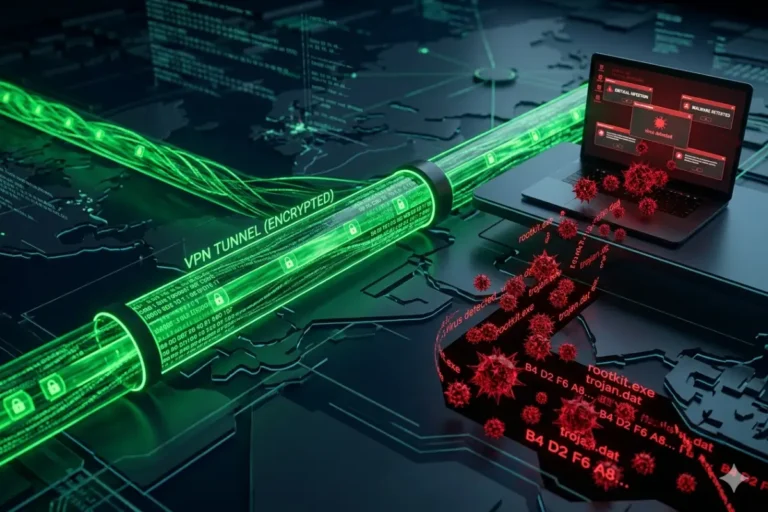


Your mouse moves on its own. Pop-up ads appear even when your browser is closed. Files have strange extensions or won’t open at all. Every sign points to a virus infection. Your heart sinks because family photos, tax documents, and years of work live on that drive. The worst fear is not losing the computer. It is losing the data.
Good news. The vast majority of Windows viruses can be removed completely without deleting a single personal file. The key is following the correct procedure in the right order. One wrong step like reinstalling Windows immediately could wipe everything. Another wrong move like paying ransomware demands might leave you with nothing.
Remove virus from windows without losing data → best antivirus for windows
This guide walks you through every action from recognizing infection signs to final cleanup. No technical expertise required. Just follow these steps exactly as written. You will learn how to isolate the infection, remove every trace of malware, and restore your Windows computer to full health while keeping every document, photo, and video intact.
Step 1: Recognize the Signs of Windows Virus Infection
Before removing anything, confirm you actually have malware. Many performance issues stem from other causes like failing hard drives, insufficient RAM, or outdated drivers. Treating the wrong problem wastes time and may cause additional issues.
Common Virus Symptoms That Warrant Action
Performance-related signs:
- Computer takes 5+ minutes to boot (normal is under 60 seconds for SSD)
- Programs open extremely slowly or freeze frequently
- CPU usage stays at 100% even with no applications running
- Fan runs constantly at high speed
- Battery drains twice as fast as normal
Behavioral signs:
- Browser redirects to strange search engines or ad-filled pages
- New toolbars or extensions appear without your permission
- Pop-up ads appear on desktop (not just in browser)
- Strange icons on your desktop or taskbar
- Emails sent from your account that you never wrote
Security-related signs:
- Antivirus disabled and cannot be re-enabled
- Windows Security Center shows warnings
- Files cannot be accessed or have .encrypted, .locked, or random extensions
- Ransom note appears demanding payment
- Task Manager shows unknown processes with random names
Signs That Are NOT a Virus
Before panicking, rule out these common false alarms:
- Slow performance after Windows update (often fixed by waiting or driver updates)
- Full hard drive causing errors (check storage space first)
- Failing hard drive clicking or making mechanical noises (back up immediately)
- Browser full of tabs consuming memory (close unused tabs)
- Outdated drivers causing crashes (update from manufacturer site)
If you are unsure, proceed with the removal steps anyway. Running a malware scan never harms a clean system. But do not skip to Windows reinstallation until you confirm malware is the real problem.
Step 2: Immediate Actions to Prevent Data Loss
Before running any antivirus scans or removal tools, protect your data. The first rule of virus removal is never trust that the infection won’t delete or encrypt your files during cleanup.
Disconnect from the Internet Immediately
Unplug the Ethernet cable or turn off Wi-Fi. Do this through hardware switches or by disabling the network adapter in Windows. Many modern viruses communicate with command-and-control servers to download additional payloads, upload your personal data, or receive encryption keys for ransomware.
How to disconnect properly:
- Laptop: Physical Wi-Fi switch or airplane mode key + disable via Windows
- Desktop: Unplug Ethernet cable from the back of the computer
- Confirm: Open Command Prompt and type
ping google.com– it should fail
Keep the computer offline throughout the entire removal process except for downloading specific tools as directed.
Do NOT Power Off or Restart Yet
Shutting down or restarting may trigger malware routines that run at boot. Some viruses hide in boot sectors and become more difficult to remove after restart. Additionally, ransomware often activates during shutdown sequences to encrypt files when backups are least accessible.
Leave the computer running, disconnect from the internet, and move immediately to data backup.
Back Up Critical Files While Infected
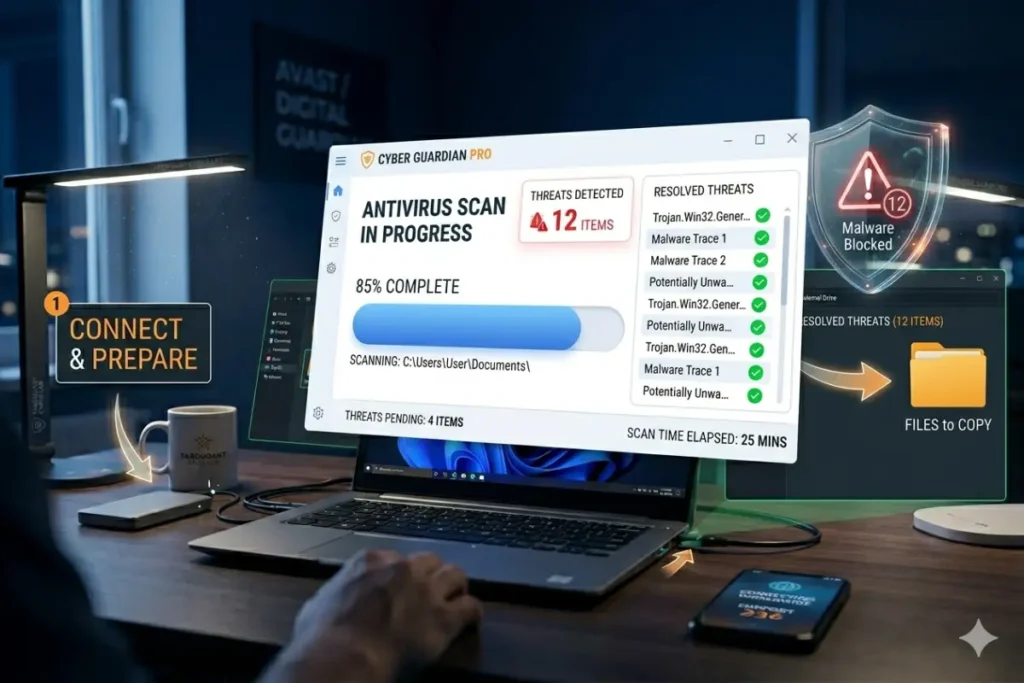
Yes, you can back up data from an infected computer. Copy your most important files to an external drive or USB stick. The risk is low that malware will jump to the external drive if you follow proper procedure.
Safe backup method:
- Connect a USB drive or external hard drive (preferably one with no important existing data)
- Open File Explorer and navigate to your user folders: Documents, Pictures, Desktop, Downloads, Music, Videos
- Copy only personal data files (DOCX, PDF, JPG, MP4, XLSX, PPTX, TXT)
- Do NOT copy executable files (.EXE, .COM, .SCR, .MSI) or unknown file types
- Do NOT copy system folders like Windows, Program Files, or AppData
- After copying, eject the drive properly (right-click → Eject)
Store this backup drive in a safe place. After cleaning your computer, scan the backup drive with your antivirus before copying files back.
For Ransomware: Do NOT Pay Yet
If you see a ransom note demanding Bitcoin payment, do not pay immediately. Paying funds criminal operations and often does not result in file decryption. Many ransomware variants have free decryption tools available from NoMoreRansom.org. First, identify the ransomware family by the file extension or ransom note filename. Then check if a free decryption tool exists. This step happens after disconnecting from the internet but before paying any ransom.

Step 3: Boot Windows into Safe Mode for Virus Removal
Safe Mode loads only essential Windows components, preventing most malware from running. This creates a sterile environment where antivirus tools can remove infections without interference from active viruses.
Accessing Safe Mode in Windows 10 and Windows 11
Method 1: From within Windows (if you can still log in)
- Click Start → Power button
- Hold Shift key and click Restart
- After restart, choose Troubleshoot → Advanced Options → Startup Settings → Restart
- Press 4 or F4 for Safe Mode, 5 or F5 for Safe Mode with Networking
Method 2: From login screen
- At login screen, click the Power icon
- Hold Shift and click Restart
- Follow same menu path as Method 1
Method 3: Force boot into recovery (if Windows won’t start normally)
- Power on the computer
- When Windows logo appears, hold power button to force shutdown
- Repeat this process three times
- On fourth boot, Windows automatically enters Automatic Repair
- Click Advanced Options → Troubleshoot → Advanced Options → Startup Settings → Restart
Which Safe Mode to Use
Safe Mode (no networking): Use this for general virus removal when you already have offline antivirus installers or built-in Windows Defender. Most thorough option because malware cannot download additional components.
Safe Mode with Networking: Use only if you need to download antivirus tools or updates from the internet. Reconnect your Ethernet cable or enable Wi-Fi only after confirming the malware is not network-aware. Safer to download tools on a clean computer and transfer via USB.
Verify Malware Is Not Running
Once in Safe Mode, open Task Manager (Ctrl+Shift+Esc). Look for suspicious processes with random names (e.g., xghjfk32.exe), high CPU usage, or processes that restart when you end them. If you see nothing suspicious, proceed to scanning.
Step 4: Run Multiple Antivirus Scanners for Complete Removal
No single antivirus catches every threat. Different engines excel against different malware families. Running two or three scanners in sequence ensures complete removal.
First Scanner: Windows Defender Offline Scan
Microsoft Defender Offline runs before Windows boots entirely, catching rootkits and boot-sector viruses that evade normal scans.
How to run:
- Still in Safe Mode, open Windows Security (search “Windows Security” in Start)
- Click Virus & threat protection
- Click Scan options
- Select Microsoft Defender Offline scan
- Click Scan now
- Computer will restart and scan for 15-20 minutes
- After restart, review results in Windows Security
This scan removes many common viruses automatically. If it finds threats, allow it to quarantine or remove them.
Second Scanner: Install and Run Bitdefender Free or Kaspersky Free
After restarting from Defender Offline scan, return to Safe Mode with Networking or use a second clean computer to download additional scanners.
For machines with internet access (Safe Mode with Networking):
- Download Bitdefender Free from official site
- Install and run full system scan
- Allow removal of all detected threats
For offline machines:
- On a clean computer, download Bitdefender Free installer and the latest virus definitions to USB drive
- Transfer to infected machine via USB
- Install and run offline scan
Third Scanner: Malwarebytes Free as a Second Opinion
Malwarebytes specializes in potentially unwanted programs (PUPs), adware, and browser hijackers that traditional antivirus sometimes ignores.
- Download Malwarebytes Free from official site
- Install (uncheck “free trial” options)
- Run custom scan with all drive letters selected
- Remove everything detected including registry entries and browser extensions
Manual Scan with Windows Defender in Safe Mode
After third-party scans complete, run one final scan with Windows Defender in full mode:
- Open Windows Security
- Virus & threat protection
- Scan options
- Full scan (not quick scan)
- Allow 1-3 hours depending on hard drive size
Interpreting Scan Results
| Detection Name Example | Meaning | Action |
|---|---|---|
| Trojan:Win32/BitCoinMiner | Cryptocurrency miner | Remove |
| Ransom:Win32/Wannacry | Ransomware | Remove + check for encrypted files |
| PUP:Win32/Conduit | Browser hijacker | Remove |
| VirTool:Win32/DefenderTampering | Malware disabled Defender | Remove + re-enable Defender |
| HackTool:Win32/Mimikatz | Credential stealer | Remove + change all passwords |
Step 5: Clean Browser Extensions and Settings
Many viruses persist through browser extensions, compromised settings, or scheduled tasks. After removing malware files, clean your browsers thoroughly.
Google Chrome / Microsoft Edge (Chromium-based)
Remove extensions:
- Type
chrome://extensions(oredge://extensions) - Turn off Developer Mode
- Remove any extension you did not install intentionally
- Pay special attention to extensions with “Managed by your organization” warning
Reset settings:
- Type
chrome://settings/reset - Click Restore settings to their original defaults
- Confirm reset (this removes all extensions, clears cookies, resets homepage)
Check for malicious policies:
- Type
chrome://policy - Look for any policies with “ExtensionInstallForcelist” or “ExtensionInstallSources”
- If found, malware has added registry policies. Search Google for removal steps for that specific policy.
Mozilla Firefox
- Type
about:addonsin address bar - Remove all unknown extensions
- Type
about:support - Click Refresh Firefox (keeps bookmarks but resets settings)
Clear All Browsing Data (All Browsers)
After resetting settings, clear all browsing data including cache, cookies, and site data. This removes tracking scripts and malicious redirectors.
Recommended clearing:
- Time range: All time
- Browsing history: Yes
- Cookies and other site data: Yes
- Cached images and files: Yes
- Site settings (optional): Yes for complete reset
Step 6: Remove Malicious Scheduled Tasks and Startup Items
Malware often schedules itself to restart after removal using Windows Task Scheduler or startup folders.
Clean Task Scheduler
- Press Win+R, type
taskschd.msc, press Enter - Expand Task Scheduler Library
- Look for tasks with:
- Random names (e.g.,
{8C2D3F4A-9E1B-4F2C-8A7D-3E5F1A9B2C3D}) - Unusual triggers (daily at random times)
- Actions pointing to Temp, AppData, or suspicious EXEs
- Random names (e.g.,
- Right-click and disable or delete suspicious tasks
- Do not delete Microsoft or Windows tasks (check publisher column)
Check Startup Folders
User startup folder: %APPDATA%\Microsoft\Windows\Start Menu\Programs\Startup
System startup folder: %ProgramData%\Microsoft\Windows\Start Menu\Programs\Startup
Delete any shortcuts to unknown or suspicious programs. Legitimate entries include OneDrive, Spotify, Discord, and drivers.
Clean Registry Run Keys (Advanced)
Use caution. Editing registry incorrectly can break Windows.
- Press Win+R, type
regedit, press Enter - Navigate to these keys:
text
HKEY_CURRENT_USER\Software\Microsoft\Windows\CurrentVersion\Run
HKEY_LOCAL_MACHINE\SOFTWARE\Microsoft\Windows\CurrentVersion\Run
HKEY_LOCAL_MACHINE\SOFTWARE\WOW6432Node\Microsoft\Windows\CurrentVersion\Run
- Look for entries pointing to Temp, AppData, or suspicious EXE names
- Export the key as backup before deleting (right-click → Export)
- Delete only malicious entries, not default Windows entries
Step 7: Restore Windows System Health
After malware removal, Windows may have damaged system files, disabled security features, or broken network settings. Use built-in recovery tools to repair damage.
Run System File Checker (SFC)
- Open Command Prompt as Administrator (right-click Start → Terminal (Admin))
- Type
sfc /scannowand press Enter - Wait 10-30 minutes for scan to complete
- If corruption found, SFC attempts repair automatically
Run DISM to Repair Component Store
If SFC cannot repair files, run Deployment Imaging Service and Management Tool:
- Same Administrator Command Prompt
- Type
DISM /Online /Cleanup-Image /RestoreHealth - Wait 15-30 minutes
- After completion, run
sfc /scannowagain
Reset Windows Security Settings
Malware often disables Windows Security permanently.
- Open Windows Security
- Click Virus & threat protection
- Click Manage settings under Virus & threat protection settings
- Turn on Real-time protection, Cloud-delivered protection, Tamper Protection
- If options are greyed out, malware disabled them via policy
To re-enable if disabled:
- Open GPedit.msc (Group Policy Editor – Pro editions only)
- Navigate to Computer Configuration → Administrative Templates → Windows Components → Windows Security → Virus and Threat Protection
- Set all policies to “Not Configured”
- Run
gpupdate /forcein Command Prompt
Repair Network Stack
Malware often modifies DNS settings to redirect traffic to malicious sites.
Reset Winsock and TCP/IP:
- Command Prompt as Administrator
- Type each command, pressing Enter after each:
text
netsh winsock reset
netsh int ip reset
ipconfig /release
ipconfig /renew
ipconfig /flushdns
- Restart computer
Check DNS settings manually:
- Settings → Network & Internet → Advanced network settings → More network adapter options
- Right-click active adapter → Properties
- Select Internet Protocol Version 4 (TCP/IPv4) → Properties
- Ensure “Obtain DNS server address automatically” is selected
- If malware changed to malicious DNS (e.g., 8.8.8.8 is safe, but 85.255.115.58 is suspicious), reset to automatic
Step 8: Restore Booted Data from Backup
If you backed up data before removal, you can now safely restore files.
Scan Backup Drive First
Before copying anything back to your cleaned computer:
- Connect the backup USB drive
- Run a full antivirus scan on the drive
- If any threats detected, delete the infected files (they are backups, so you have the original)
- If critical files are infected, use antivirus to clean them (may require quarantine and recovery)
Copy Files Back to Proper Locations
Restore files to their original folders:
| Original Location | Restore To |
|---|---|
| Documents | C:\Users[YourName]\Documents |
| Pictures | C:\Users[YourName]\Pictures |
| Desktop | C:\Users[YourName]\Desktop |
| Downloads | C:\Users[YourName]\Downloads |
Do NOT copy executable files (.exe, .msi, .scr) from backup. Reinstall applications fresh from official sources instead.
For Ransomware Victims: Decryption Tools
If ransomware encrypted your files and you identified the variant:
- Visit NoMoreRansom.org
- Search by file extension or ransom note filename
- Download free decryption tool for your specific ransomware
- Run tool following instructions (usually requires original file + encrypted file pair)
- Decrypt files before copying to cleaned system
Step 9: Prevent Reinfection with Security Hardening
After spending hours removing a virus, take steps to ensure it never happens again.
Enable Ransomware Protection (Controlled Folder Access)
Windows includes Controlled Folder Access but it is disabled by default. Turn it on:
- Windows Security → Virus & threat protection → Ransomware protection
- Turn on Controlled folder access
- Click Protected folders → Add protected folder (add Documents, Pictures, Desktop)
- Click Allow an app through Controlled folder access (add trusted backup software)
This blocks any unauthorized program from modifying files in protected folders.
Create a Full System Restore Point
- Type “Create a restore point” in Start search
- Select System Protection tab
- Click Create
- Name it “Clean system after virus removal – [date]”
- Click Create again
If future infections occur, you can restore to this clean state.
Install a Reliable Antivirus If Using Only Defender
Consider upgrading to paid antivirus as discussed in Satellite Article 1. At minimum, ensure Defender is fully configured:
- Turn on Periodic scanning (third-party antivirus compatibility mode is off by default)
- Enable cloud protection level to High or Block
- Configure weekly full scans
- Set up scan for removable drives
Update All Software Immediately
Old software contains known vulnerabilities. Malware often exploits unpatched applications.
Critical updates:
- Windows Update (check now, install all)
- Browser updates (Chrome, Edge, Firefox)
- Adobe Reader / Acrobat
- Java (uninstall if not needed)
- Video drivers (from manufacturer, not third-party updaters)
Change All Passwords
Malware may have captured saved passwords, browser cookies, or keystrokes. Assume compromise.
Order of password changes (most important first):
- Email account (primary recovery for all others)
- Banking and financial accounts
- Social media and messaging
- Cloud storage (Google Drive, iCloud, OneDrive)
- Work or school accounts
- All other accounts stored in browser
Use a password manager to generate and store unique 16+ character passwords for each account.
When to Give Up and Reinstall Windows
Despite best efforts, some infections cannot be fully removed. Rootkits that hide in UEFI firmware, boot sector viruses that survive format, or severe system file corruption may require complete reinstallation.
Signs You Should Reinstall Instead
- Antivirus scans find malware but it returns after reboot
- Windows crashes constantly with blue screens
- System files are corrupted beyond SFC/DISM repair
- You see UEFI or BIOS warnings about boot sector changes
- Malware disabled Secure Boot and you cannot re-enable
How to Reinstall Without Losing Data
- Back up personal files using the method in Step 2
- Create Windows 11 or Windows 10 installation USB (use Microsoft Media Creation Tool on clean computer)
- Boot from USB
- Choose Custom installation
- Delete all partitions on the system drive
- Select unallocated space and click Next (Windows recreates partitions)
- Complete installation
- Scan your backup drive before restoring files
- Reinstall applications fresh
This process removes ALL malware permanently because the entire drive is erased. Your personal files remain safe on the external backup.
Final Summary: Virus Removal Without Data Loss Checklist
Follow this sequence exactly for highest success rate.
- Isolate: Disconnect internet immediately
- Backup: Copy personal files to external drive (no executables)
- Safe Mode: Boot into Safe Mode without networking
- Scan: Run Defender Offline, then Bitdefender Free, then Malwarebytes
- Clean browsers: Remove extensions, reset settings, clear cache
- Remove persistence: Clean Task Scheduler, startup folders, registry Run keys
- Repair Windows: Run SFC, DISM, reset network stack
- Restore data: Scan backup drive, copy files back
- Harden security: Enable Controlled Folder Access, update all software
- Change passwords: All accounts, prioritize email and banking
The vast majority of Windows viruses can be removed without losing a single personal file. The key is not panicking, following the correct order of operations, and never paying ransomware demands before checking for free decryption tools. Your data is valuable but not helpless. With this guide, you are equipped to handle almost any infection that comes your way.