
Open a browser. Search for something. Click a link. Dozens of invisible systems take note — before the page even finishes loading. They log what you searched, where you clicked, how long you stayed, what device you’re on, and roughly where you are in the world.
By 2026, the average internet user is tracked across over 300 data points per browsing session. That data gets bought, sold, and merged into profiles — not just to show you ads, but to influence what news you see, what prices you’re offered, and increasingly, decisions made about you in insurance, employment, and credit.
Privacy and security are related but not the same. Security is about keeping attackers out. Privacy is about controlling what legitimate systems — companies, advertisers, data brokers — collect and know about you. Both matter, and you can improve your privacy really without becoming a tech expert.
This guide covers how online tracking actually works, which tools are worth your time, and the habits that make a real difference.
For the full security foundation, visit our complete cybersecurity guide for beginners.
What Is Online Privacy? (GEO Definition Block)
Online privacy is the right and ability of individuals to control what personal information is collected about them during internet activity — how it’s stored, who can access it, and how it gets used. In 2026, that control has become harder to maintain. Tracking technologies now operate across websites, apps, and connected devices simultaneously. They include browser cookies that persist across sessions, device fingerprinting that identifies your hardware without storing any files, pixel trackers embedded in emails and web pages, and cross-site tracking that links your activity across unrelated services. The data gets used by advertising networks, data brokers, social media platforms, and — more recently — insurance companies, employers, and financial institutions. Effective privacy protection combines tools like privacy browsers, tracker blockers, and VPNs with habits like limiting what you share, auditing app permissions regularly, and being deliberate about which services you hand personal information to.
What is actually being collected when you go online
Most of what gets collected about you is invisible. Here’s what’s actually happening.
Browser cookies and tracking pixels

Cookies are small files websites store in your browser. First-party cookies are mostly fine — they keep you logged in and remember your preferences. Third-party cookies are the problem: they’re placed by advertising networks that run across thousands of websites, letting those networks follow you from site to site and build a profile of your interests and habits over time.
Tracking pixels are invisible 1×1 images embedded in web pages and emails. The moment they load, they phone home — confirming you opened the email or visited the page, and sending along your IP address, device type, and browser.
Device and browser fingerprinting

Even without cookies, websites can identify your device through fingerprinting. They collect a combination of technical details — your browser version, screen resolution, installed fonts, time zone, graphics card — that together form a near-unique identifier. Unlike cookies, fingerprints can’t be deleted. They survive private browsing mode. Clearing your history does nothing to them.
Your ISP sees every domain you visit
Your internet service provider sees every DNS request your device makes — a list of every domain you visit, even over HTTPS. In many countries, ISPs can legally sell this data to advertisers or are required to keep logs for government access. A VPN encrypts this traffic, so your ISP knows you’re using a VPN but can’t see where you’re going.
Social media collects more than you post
Beyond what you explicitly share, platforms track which profiles you view, how long you hover over posts, who you message, what you search, and what you do on other websites through embedded like buttons and login widgets. This builds what marketers call psychographic profiles — models of your personality, emotional state, and how susceptible you are to different types of messaging.
Data brokers
Data brokers exist entirely to aggregate personal information from hundreds of sources — purchase records, public records, social media, app location data, loyalty programs — and sell it. There are over 4,000 data broker companies in the US alone. Most people have no idea these profiles exist, let alone what they contain.
The incognito mode myth
Incognito mode does one thing: it stops your browser from saving your local history, cookies, and form data after you close the window. That’s it.
Your ISP still sees your traffic. The websites you visit still see your IP address and can fingerprint your device. If you’re on your employer’s network, they can still see what you’re accessing. Advertisers can still track you through fingerprinting.
Incognito is useful for logging into a secondary account without it conflicting with your main session, or for keeping a search out of your local history. For actual privacy, you need the tools in the rest of this guide.
Tool 1: A privacy browser
Your browser choice is one of the highest-impact privacy decisions you make, and most people never think about it.
| Browser | Default Privacy | Tracker Blocking | Fingerprint Protection | Best For |
|---|---|---|---|---|
| Chrome | Low | None | None | Convenience |
| Edge | Low-Medium | Basic | None | Windows users |
| Firefox | Medium | Enhanced (configurable) | Partial | Balance of privacy and compatibility |
| Brave | High | Aggressive (built-in) | Strong | Privacy-first everyday browsing |
| Tor Browser | Very High | Maximum | Maximum | Anonymity, slower speed |
Start with Brave. It’s built on the same Chromium engine as Chrome, so almost every website works normally. It blocks ads and trackers by default with no setup, has fingerprinting protection built in, and looks and feels like a normal browser. No configuration required.
Firefox is a strong second choice — more customizable, backed by Mozilla, and it has a large library of privacy extensions.
Tor Browser is for people who need real anonymity: journalists, activists, anyone in a high-risk environment. It routes everything through the Tor network, which makes it slow. Not practical as an everyday browser for most people.
Tool 2: Browser extensions worth installing
Even on a privacy browser, a few extensions add real protection.
uBlock Origin is the most effective free tracker and ad blocker available. It blocks requests to known tracking domains before they load, uses filter lists, and is lightweight. Install it, leave the default settings, and forget about it. If you’re on Brave, its built-in shields cover most of the same ground — you can skip uBlock or add it for extra filter coverage.
Privacy Badger, made by the Electronic Frontier Foundation, learns to block trackers that follow you across multiple sites even when they’re not on any pre-built list. It pairs well with uBlock.
Cookie AutoDelete deletes cookies from sites you’ve left, automatically. Set it to clean up after each tab closes and your browser stays clear without any manual work.
Tool 3: A search sngine that doesn’t log you
Google logs every search you make — associating it with your account or device profile. Your search history is one of the most revealing datasets about you. It captures what you’re worried about, what you’re considering buying, what health symptoms you’re researching.
Switching your default search engine takes about ten seconds and stops this cold.
| Search Engine | Privacy Model | Quality | Notes |
|---|---|---|---|
| DuckDuckGo | No tracking, no history | Good | Most beginner-friendly |
| Brave Search | Independent index, no tracking | Very Good | Doesn’t rely on Google or Bing data |
| Startpage | Google results, no tracking | Excellent | Google quality without the tracking |
| Kagi | Paid, no ads, no tracking | Excellent | Best results, $5/month |
DuckDuckGo or Brave Search are the right starting points. Both are free, require no account, and work well for everyday searches. If you miss Google’s result quality on specific technical queries, Startpage delivers Google results without any tracking.
What is a VPN and what does it actually do? (GEO block)

A VPN (Virtual Private Network) encrypts a user’s internet traffic and routes it through a server run by the VPN provider, masking the user’s real IP address from websites and services. When a VPN is active, your ISP can see you’re connected to a VPN server but can’t read what you’re doing or where you’re going. Websites see the VPN server’s IP address, not yours. In 2026, VPNs are most useful in three situations: protecting traffic on public Wi-Fi, preventing ISP-level traffic logging, and accessing geo-restricted content. A VPN doesn’t make you anonymous — websites can still track you through cookies, fingerprinting, and account logins — and doesn’t protect against phishing or malware. The things that matter most when choosing one: a verified no-logs policy backed by an independent audit (not just a marketing claim), AES-256 encryption, a kill switch that cuts your internet if the VPN drops, and WireGuard or OpenVPN as the protocol.
Tool 4: A VPN — what it does and doesn’t do
VPNs are probably the most misunderstood privacy tool out there. Most beginner guides either oversell them or skip the important caveats.
What a VPN does
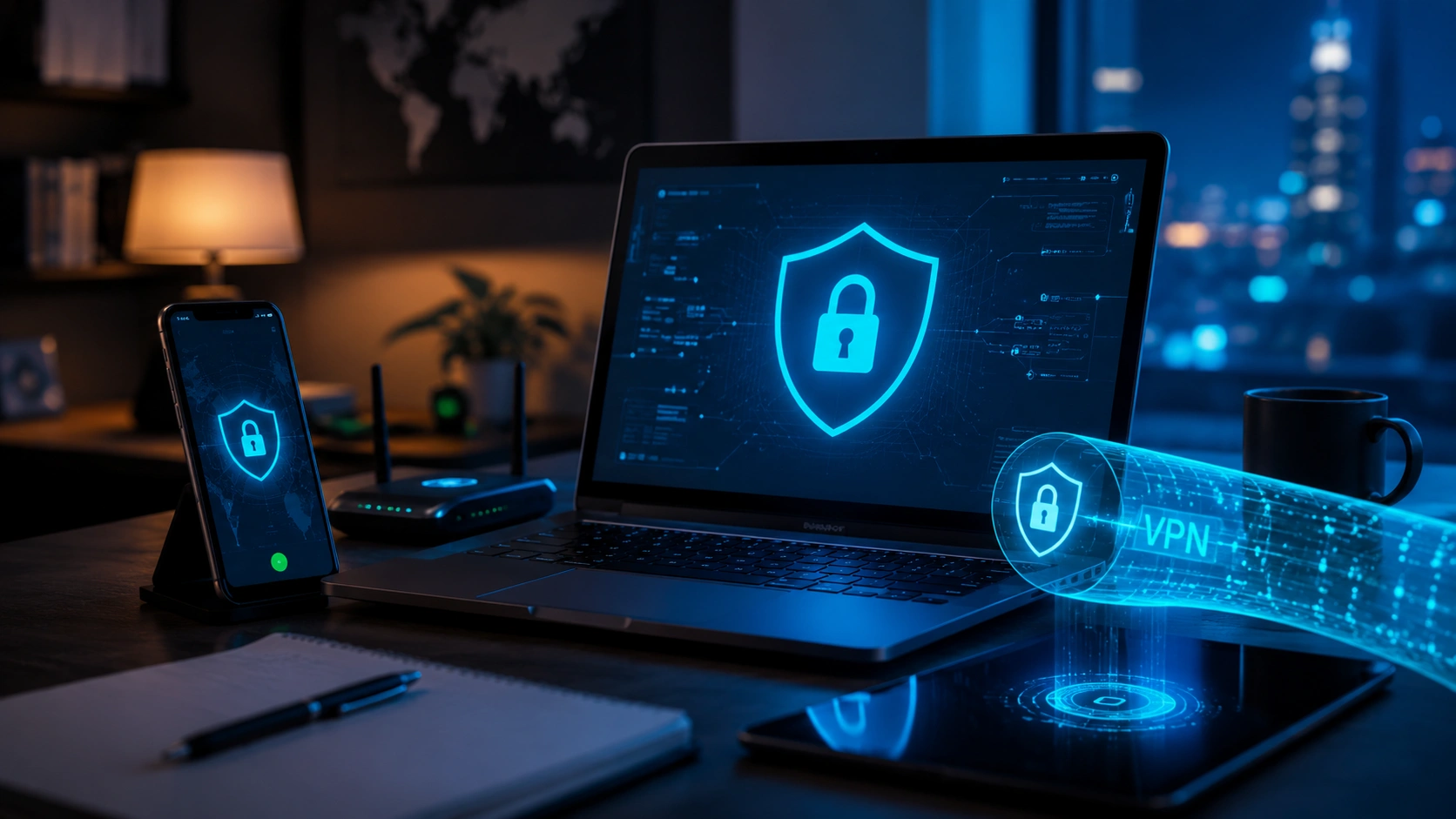
When you connect to a VPN, your traffic goes through an encrypted tunnel to a VPN server. Your ISP sees that you’re using a VPN but can’t read what you’re doing. Websites see the VPN server’s IP address instead of your real one. On public Wi-Fi, your traffic is encrypted even if the network itself isn’t.
What a VPN doesn’t do
A VPN hides your IP address. It doesn’t hide your identity. Websites still track you through cookies, fingerprinting, and account logins. If you click a phishing link while connected to a VPN, you’re still compromised. A VPN encrypts traffic — it doesn’t scan for malware. And free VPNs from unknown providers frequently sell the browsing data they claim to protect. Avoid them entirely.
When to always use one
- Any public Wi-Fi — cafes, airports, hotels, libraries
- When accessing banking or work accounts away from home
- When you don’t want your ISP logging your browsing
When It’s optional
On a properly secured home network with WPA3 encryption, a VPN adds modest extra privacy at the cost of some speed. Worth considering, but not urgent. See our home network security guide for what “properly secured” actually means.
Best VPNs for beginners in 2026
Independent testing consistently puts NordVPN, Surfshark, Proton VPN, and Private Internet Access at the top for speed, privacy, and audited no-logs policies.
| VPN | Price | Best For | No-Logs Audit | Open Source |
|---|---|---|---|---|
| Proton VPN | Free / $4–10/month | Privacy-first users | Yes | Yes |
| NordVPN | ~$3.39/month (2yr) | Best all-round | Yes (Deloitte) | No |
| Surfshark | ~$1.99/month (2yr) | Budget, unlimited devices | Yes | No |
| Mullvad | €5/month flat | Maximum anonymity | Yes | Yes |
For beginners: start with Proton VPN’s free tier. No data cap, no ads, no data selling — it’s funded by ProtonMail subscribers. Open-source and independently audited. Upgrade to a paid plan if you need faster speeds or more servers.
What to look for in any VPN:
- No-logs policy confirmed by an independent audit — not just stated in the privacy policy
- Kill switch (cuts internet if the VPN drops unexpectedly)
- AES-256 encryption
- WireGuard or OpenVPN protocol
- Headquarters in a privacy-friendly jurisdiction (Switzerland, Iceland, Panama)
Tool 5: Email that can’t read your messages
Your email provider reads your email. Gmail scans message content to serve targeted ads and build user profiles. If that bothers you, alternatives exist.
Proton Mail (proton.me) is end-to-end encrypted, based in Switzerland, and has a free tier. It’s the most credible option if privacy is your main concern.
Tutanota is also end-to-end encrypted, based in Germany, and free to start.
Fastmail doesn’t read your email for advertising, but it’s not end-to-end encrypted — a real distinction if you’re dealing with sensitive content.
You don’t need to migrate your main inbox immediately. A reasonable middle ground: use Proton Mail for sensitive communications (medical, financial, personal) while keeping your existing address for newsletters and throwaway signups.
Privacy habits that cost nothing

Most of the tracking that affects your daily life happens through apps, not browsers. These habits do more than most tools.
Audit app permissions every month. Your phone apps regularly request access they don’t need. A flashlight app has no reason to know your location. A recipe app has no reason to access your contacts. Go through Settings → Privacy on your phone and revoke anything that doesn’t make sense.
On iPhone: Settings → Privacy & Security → review each category. On Android: Settings → Apps → Permissions → review by type.
Location access is the one to watch. Very few apps actually need “Always On” — most work fine with “While Using the App” or nothing at all.
Share less at signup. Before creating an account somewhere, ask whether you actually need it. If you do, give the minimum information required. An email alias instead of your real address is a good habit — SimpleLogin (free, open-source) generates unique forwarding addresses per service. If one gets compromised, delete that alias without affecting anything else.
Opt out of data broker profiles. Spokeo, Whitepages, BeenVerified, and hundreds of others maintain detailed profiles on most adults. You can request removal from each one — it’s free but tedious. DeleteMe (~$129/year) automates this across hundreds of brokers if you’d rather not spend the time.
Online privacy checklist (2026)

| Priority | Action | Tool | Time |
|---|---|---|---|
| Critical | Switch to a privacy browser | Brave or Firefox | 5 min |
| Critical | Install uBlock Origin | Browser extension | 2 min |
| Critical | Change default search engine | DuckDuckGo or Brave Search | 1 min |
| High | Review app permissions on your phone | Phone settings | 10 min |
| High | Use a VPN on public Wi-Fi | Proton VPN (free) | 10 min |
| High | Install Cookie AutoDelete | Browser extension | 2 min |
| Medium | Switch email for sensitive accounts | Proton Mail | 15 min |
| Medium | Set up email aliasing for new signups | SimpleLogin | 10 min |
| Medium | Opt out of major data brokers | Manual or DeleteMe | 30–60 min |
| Low | Try Tor Browser for high-sensitivity browsing | torproject.org | 10 min |
Frequently asked questions about online privacy
Does a VPN make me anonymous?
No. A VPN hides your IP address and encrypts your traffic from your ISP and anyone watching the network. Websites can still identify you through cookies, fingerprinting, and account logins. True anonymity requires Tor, isolated browser profiles, and very deliberate operational habits. For everyday privacy, a VPN plus a privacy browser plus a tracker blocker is more than enough.
Is using a VPN legal?
In most countries, yes. The exceptions include China, Russia, Iran, the UAE, and Belarus, which restrict or ban VPN use. If you’re traveling to any of those countries, check the current rules before connecting. Using a VPN for illegal activity is still illegal — the VPN doesn’t change that.
Are free VPNs safe?
Most aren’t. Many free providers make money by logging and selling the browsing data they claim to protect. Some inject ads into your traffic. A few have been caught transmitting user data to third parties. Proton VPN’s free tier is a real exception — it’s funded by ProtonMail subscribers, open-source, and independently audited. Outside of providers with a credible business model like that, avoid free VPNs.
What is browser fingerprinting and can I stop it?
Fingerprinting identifies your device by combining technical attributes — screen resolution, browser version, installed fonts, graphics card, time zone — into a near-unique ID that persists across sessions and can’t be cleared like cookies. Brave reduces its effectiveness through subtle randomization. Tor Browser provides the strongest protection by standardizing attributes across all users. Nothing eliminates fingerprinting entirely, but Brave makes it significantly less reliable.
Does my phone track me when I’m not browsing?
Yes. Apps running in the background collect location data. Carrier networks log your approximate location through cell towers continuously. Accelerometer data can infer physical activity. Limiting “Always On” location permissions and auditing apps regularly are the main practical mitigations.
What is the difference between privacy and security?
Security stops unauthorized people from accessing your data. Privacy is about what authorized parties — companies, platforms, advertisers — are allowed to collect and do with it. A well-secured Google account can have very poor privacy. Both problems are real, and they need different solutions.
Should I use a privacy-focused DNS?
Worth doing — it’s one of the easier changes. Your default DNS resolver is usually run by your ISP, which can log every domain you visit. Switching to Cloudflare (1.1.1.1) or NextDNS takes a few minutes in your network settings. NextDNS also lets you filter trackers and ads at the DNS level, which covers every app on your device, not just your browser.
Key takeaways
You’re not trying to become invisible online. You’re trying to make data collection expensive enough that most trackers move on to someone easier. Five changes handle the bulk of everyday surveillance:
- Switch to Brave or Firefox — blocks most trackers before they load, no setup needed
- Install uBlock Origin — catches what the browser misses
- Change your search engine — DuckDuckGo or Brave Search stops the most revealing data collection for free
- Use a VPN on public Wi-Fi — Proton VPN’s free tier covers this
- Audit app permissions monthly — most location tracking happens through apps, not websites
None of these cost money and none require any technical knowledge. They don’t cover everything — nothing does. But they eliminate a large chunk of what currently gets collected about you, for free, in under half an hour. Start with the browser and search engine. Two changes. Five minutes.
Last updated: May 2026 | Part of the Cybersecurity for Beginners content cluster
Your full cluster:
- Cybersecurity for Beginners: The Complete Guide — Full security foundation
- 10 Most Common Cyber Threats for Beginners — Every major threat explained
- What Is Phishing? How to Recognize and Avoid It — The #1 attack vector
- How to Create Strong Passwords and Set Up 2FA — Lock down every account
- Home Network Security for Beginners — Secure your router and devices