
Learn how to remove a Trojan virus from Windows 11 safely using advanced malware cleanup methods antivirus tools browser protection and cybersecurity best practices for complete system recovery
How Trojan viruses infect Windows 11 computers
remove Trojan virus Windows 11 has become one of the most searched cybersecurity topics because modern malware attacks continue growing every year Windows 11 includes stronger protection than older Microsoft operating systems but cybercriminals still use phishing fake software downloads cracked applications malicious browser extensions and infected email attachments to compromise computers
Most Trojan infections happen because users unknowingly install dangerous files disguised as safe programs Attackers design these files to appear legitimate so victims trust them before installation Once activated Trojan malware silently creates hidden connections with remote servers allowing cybercriminals to steal passwords banking credentials browser cookies personal files and sensitive information
Modern Trojan malware rarely works alone Many infections install additional malicious software including spyware ransomware cryptocurrency miners and browser hijackers This makes early detection extremely important because delays allow attackers to expand access inside the system
Cybersecurity researchers warn that artificial intelligence now helps attackers create more convincing phishing campaigns fake websites and malware distribution systems This means Windows 11 users must combine strong antivirus protection safe browsing habits and regular software updates to stay protected
Common signs your Windows 11 PC has a Trojan virus
Many Trojan infections remain hidden during early stages because malware developers want long term access instead of immediate detection However several warning signs may indicate compromise
Slow system performance
A sudden decrease in computer performance is often one of the first indicators of malware infection Trojan programs consume system resources in the background causing lag and instability
Common symptoms include
Slow startup times
Programs freezing
Overheating hardware
High CPU usage
Increased fan activity
Reduced gaming performance
Browser hijacking
Browser related symptoms are extremely common with Trojan infections Malware often manipulates browsers to generate advertising revenue collect personal data or redirect users toward phishing websites
Signs include
Homepage changes
Unknown browser extensions
Random popups
Redirected searches
Fake update notifications
Advertisement spam
Antivirus disabled automatically
Advanced Trojan malware attempts to disable cybersecurity software to avoid removal
Users may notice
Windows Defender disabled
Firewall settings modified
Security updates blocked
Antivirus warnings disappearing
Unable to access cybersecurity websites
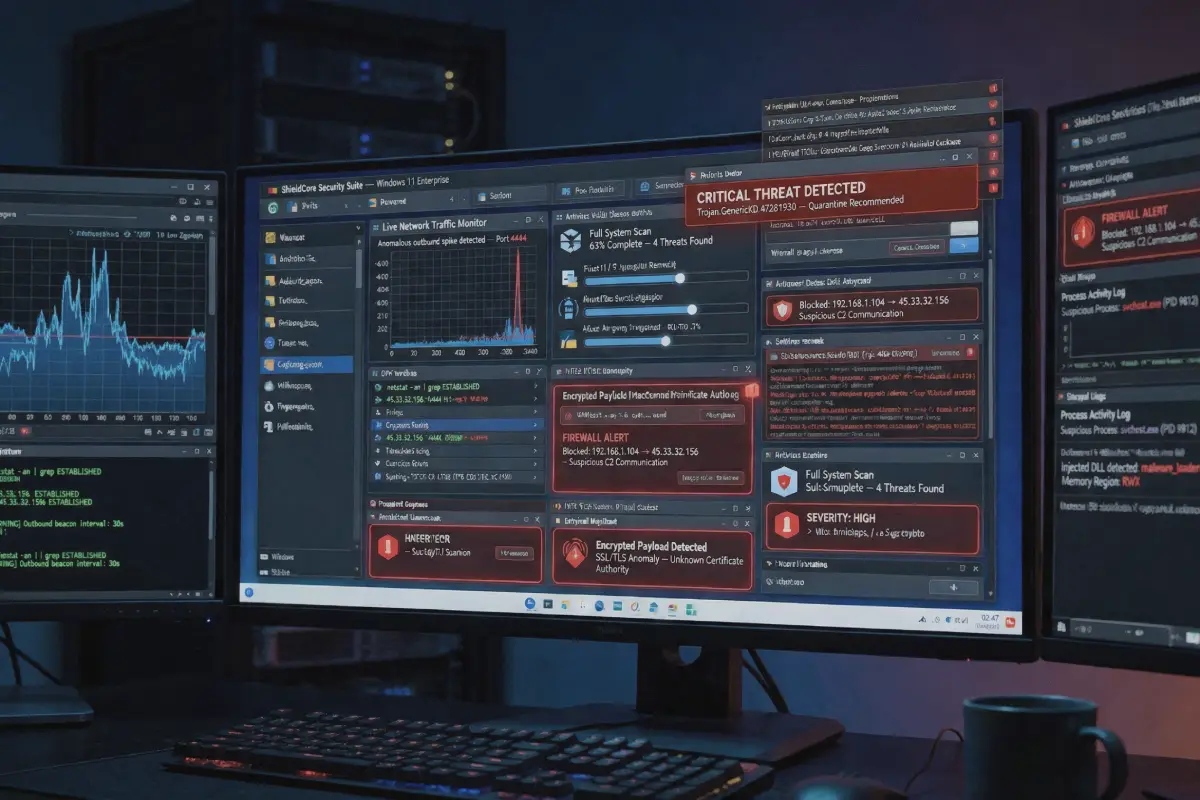
Suspicious network activity
Trojan malware communicates continuously with remote command servers Attackers use these connections to monitor victims and exfiltrate stolen information
Indicators include
Unexpected internet usage
High upload traffic
Router activity while computer is idle
Firewall alerts
Unknown applications using internet access

Step by step process to remove Trojan virus Windows 11 safely
Successfully removing Trojan malware requires a structured cleanup process Many users delete visible files while hidden components remain active inside the system
Disconnect from the internet immediately
The first action should be isolating the infected device Disconnect
Wi Fi
Ethernet cables
Bluetooth devices
External drives
This limits communication between the Trojan and remote attackers
Boot Windows 11 into Safe Mode
Safe Mode prevents many malware processes from launching automatically making removal easier
To enter Safe Mode on Windows 11
Open Settings
Navigate to Recovery
Select Advanced Startup
Choose Troubleshoot
Open Startup Settings
Enable Safe Mode with Networking
Safe Mode loads only essential Windows components reducing malware interference
Run a full antivirus scan
Using trusted antivirus software is one of the most effective ways to remove Trojan virus Windows 11 infections
Recommended antivirus solutions include
Bitdefender
Norton 360
Malwarebytes
ESET
Kaspersky
Sophos
A complete scan should inspect
System files
Registry entries
Startup programs
Temporary folders
Browser extensions
Scheduled tasksTrojan virus removal Ultimate guide to detect remove and prevent infections in 2026
Trojan virus removal Ultimate guide to detect remove and prevent infections in 2026
Delete suspicious applications
Users should review installed applications carefully Suspicious programs often include fake optimization tools cracked software unknown utilities or recently installed applications without verified publishers
Potentially dangerous programs should be removed immediately
Reset web browsers
Trojan malware frequently manipulates browsers to maintain persistence Resetting browsers removes
Malicious extensions
Tracking scripts
Hijacked search engines
Unauthorized notifications
Redirect settings
Popular browsers including Chrome Edge and Firefox provide built in reset options
Advanced Windows 11 malware cleanup techniques
Some Trojan infections survive standard antivirus scans Advanced removal methods may be necessary for persistent malware
Inspect startup programs
Malware often creates startup entries to relaunch automatically after reboots
Users can inspect startup behavior using
Task Manager
Autoruns
System Configuration tools
Suspicious startup entries commonly use random names or temporary file locations
Analyze scheduled tasks
Many Trojans create hidden scheduled tasks that reinstall malware silently
Users should inspect Windows Task Scheduler for
Unknown tasks
Random names
PowerShell commands
Hidden scripts
Frequent execution intervals
Remove temporary files
Temporary directories frequently contain malware remnants Cleaning these locations improves antivirus effectiveness
Delete
Temp folders
Browser cache
Downloads folder
Recycle Bin contents
Disk Cleanup utilities simplify this process
Check browser extensions carefully
Browser extensions are now major malware delivery mechanisms
Dangerous extensions may
Steal passwords
Monitor browsing activity
Inject advertisements
Redirect searches
Track online behavior
Install extensions only from trusted developers
Best antivirus software to remove Trojan virus Windows 11
Choosing the right antivirus solution significantly improves malware detection and prevention
Bitdefender
Bitdefender consistently ranks among the best cybersecurity solutions for Trojan detection
Features include
Real time malware scanning
Behavioral threat analysis
Anti phishing protection
Ransomware defense
VPN integration
Norton 360
Norton offers comprehensive security for Windows 11 users
Features include
Dark web monitoring
Cloud backup
Firewall controls
Password manager
Identity theft protection
Malwarebytes
Malwarebytes specializes in advanced malware removal and behavioral detection
It performs especially well against
Spyware
Browser hijackers
Adware
Potentially unwanted programs
ESET
ESET provides strong malware detection with low system impact making it popular among gamers and professional users
How Trojan malware steals passwords on Windows 11
Password theft remains one of the biggest risks associated with Trojan infections
Cybercriminals target
Email accounts
Banking logins
Social media profiles
Cloud storage
Cryptocurrency wallets
Keylogging attacks
Keyloggers record keyboard input allowing attackers to capture usernames and passwords silently
Browser cookie theft
Modern malware steals browser session cookies enabling account hijacking even without passwords
Clipboard monitoring
Some Trojans monitor clipboard activity to intercept copied passwords and cryptocurrency addresses
How to prevent Trojan infections on Windows 11
Prevention is always easier than malware recovery
Avoid pirated software
Cracked applications remain one of the largest Trojan distribution channels worldwide
Download software only from official websites
Avoid third party download portals and suspicious advertisements
Keep Windows 11 updated
Operating system updates patch vulnerabilities exploited by malware
Enable Microsoft Defender protections
Recommended features include
Real time protection
Cloud protection
Tamper protection
SmartScreen filtering
Use strong passwords and MFA
Multi factor authentication reduces account takeover risks even if credentials are stolen
What to do after removing Trojan malware
After malware cleanup users should secure all sensitive accounts
Change passwords immediately
Update passwords for
Email accounts
Banking platforms
Cloud storage
Social media
Cryptocurrency exchanges
Monitor financial activity
Check bank statements and online payment accounts for suspicious activity
Backup important files
Maintain secure offline and cloud backups to reduce future cybersecurity risks
Enable long term cybersecurity protection
Users should combine
Antivirus software
VPN services
Password managers
Secure browsing habits
Regular updates
to maintain strong digital protection