


Default browser settings are not designed with your privacy as the first priority. They are designed for broad compatibility, for product telemetry that helps browser makers improve their software, and in the case of Chrome, for alignment with Google’s advertising infrastructure. Every major browser ships with settings that collect usage data, send browsing behavior to remote servers, and allow third-party tracking mechanisms that most users would disable immediately if they knew they existed.
This browser privacy settings guide gives you the exact navigation path, the specific setting name, and the concrete reason to change each one — for Chrome, Firefox, Brave, and Safari. No abstract recommendations, no settings that require developer-level configuration for minimal gain. Every change here is accessible to a non-technical user and produces a measurable improvement in your browser privacy settings profile.
Work through the section for your primary browser first. Then apply the cross-browser recommendations at the end that apply regardless of which browser you use. If you have not yet read the browser security guide for context on the threat model these settings address, that context will make the changes here more meaningful — but the changes themselves can be applied without it.
Chrome privacy settings: the changes that matter most
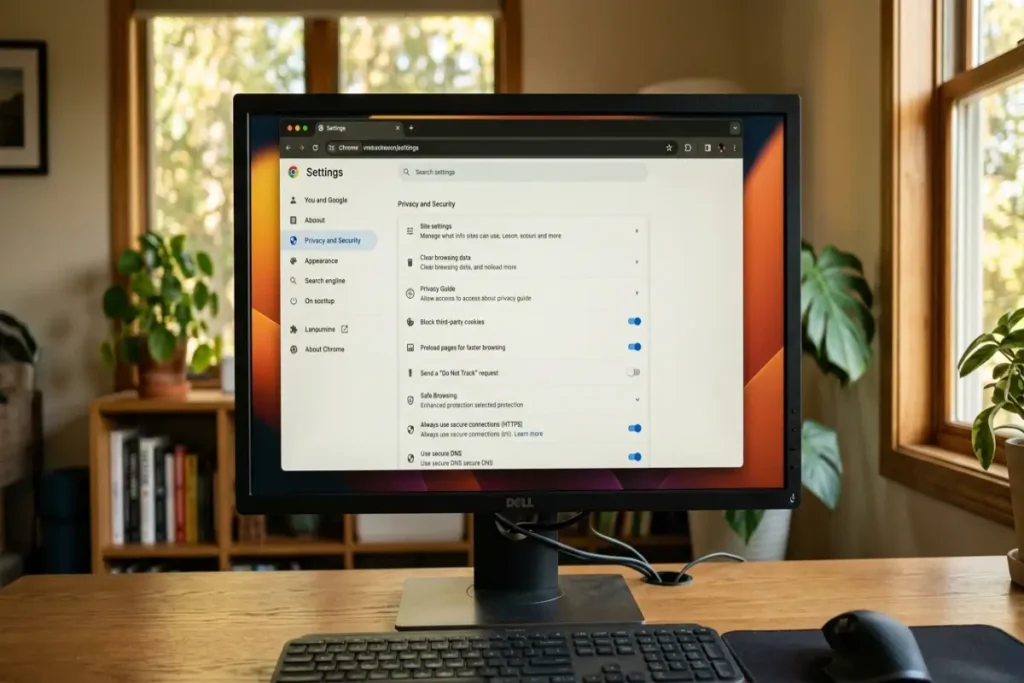
Chrome’s privacy settings are split across three locations: chrome://settings/privacy, chrome://settings/security, and chrome://settings/syncSetup. The following changes address the settings with the highest real-world impact.
Disable “Help improve Chrome’s features and performance”
Location: chrome://settings/syncSetup → scroll to “Usage statistics and crash reports”
What it does by default: Sends anonymized usage statistics, feature interaction data, and crash reports to Google. The data is described as anonymized, but it includes URL fragments, search terms entered in the address bar, and interaction timing data that can be re-identified when combined with other signals.
Change it to: Disabled.
Disable “Make searches and browsing better”
Location: chrome://settings/syncSetup → “Make searches and browsing better”
What it does by default: Sends your browsing history to Google to improve search suggestions and autofill predictions. This is a separate data stream from Chrome sync — it operates whether or not you are signed in to a Google account, and it continues even when you are in Incognito mode on older Chrome versions (this was changed in Chrome 120 following FTC scrutiny, but the default for non-Incognito browsing remains enabled).
Change it to: Disabled.
Disable “Autocomplete searches and URLs”
Location: chrome://settings/syncSetup → “Autocomplete searches and URLs”
What it does by default: As you type in the address bar, Chrome sends partial queries to Google’s servers to generate autocomplete suggestions. Each keystroke is transmitted before you press Enter. If you type the beginning of a URL you intended to visit privately, that partial URL reaches Google’s servers regardless of whether you complete the navigation.
Change it to: Disabled if address bar autocomplete is not a feature you actively depend on. If you use autocomplete frequently, the trade-off is more personal — the convenience is real, and the data sent is partial URLs rather than full browsing sessions.
Enable Safe Browsing Enhanced Protection
Location: chrome://settings/security → “Safe Browsing” → select “Enhanced protection”
What it does: Real-time URL checking against Google’s threat database rather than checking against a locally cached list updated every 30 minutes. The privacy cost is that visited URLs are sent to Google for verification. The security gain is meaningful: phishing pages and malware distribution sites often exist for only a few hours, appearing after the last local list update and disappearing before the next. Real-time checking catches these within minutes of their identification.
Change it to: Enhanced protection. For users with strong concerns about sending URLs to Google, Standard protection is still significantly better than no protection — the choice is between two non-zero options.
Enable DNS-over-HTTPS with a provider you choose
Location: chrome://settings/security → “Use secure DNS” → toggle on → select “With” → choose a provider
What it does by default: Chrome uses your operating system’s default DNS resolver, which is typically your ISP’s resolver. ISP DNS resolvers log every domain lookup, can be subpoenaed, and in some jurisdictions are used to serve targeted advertising or enforce content restrictions.
Recommended providers:
- Quad9 (
https://dns.quad9.net/dns-query) — non-profit operated, blocks known malware domains, no logging of IP addresses - NextDNS (custom URL from your NextDNS account) — configurable blocking categories with detailed per-device logs visible only to you
Change it to: Enabled with a provider from the list above rather than “With your current service provider.”
Disable “Preload pages for faster browsing and searching”
Location: chrome://settings/performance → “Preload pages”
What it does by default: Chrome speculatively loads pages it predicts you are about to visit based on the links on the current page. This includes fetching resources from those pages and, in some cases, executing their JavaScript. Sites you never actually visit receive a network request from your browser, recording your IP address and a visit timestamp even though you did not choose to go there.
Change it to: “No preloading.” The browsing speed loss is measurable only on unusually slow connections — on standard broadband, the difference in perceived page load speed is under 150ms.
Firefox privacy settings: exact paths for the changes that matter
Firefox’s privacy configuration is more accessible than Chrome’s without requiring about:config edits for meaningful changes. The main privacy panel at about:preferences#privacy covers the most impactful settings.
Set Enhanced Tracking Protection to Strict
Location: about:preferences#privacy → “Enhanced Tracking Protection” → select “Strict”
What Standard mode blocks: Social media trackers, cross-site tracking cookies in all windows, tracking content in Private windows, cryptominers, and fingerprinters.
What Strict mode adds: Tracking content blocked in all windows (not just Private), stricter fingerprinter blocking using an expanded list, and cross-site cookies blocked more aggressively including first-party isolation for tracking domains.
Compatibility note: Strict mode occasionally breaks sites that use tracking-adjacent infrastructure for legitimate functions — login via third-party buttons, embedded video players, some comment systems. When a site breaks, click the shield icon in the address bar and toggle “Enhanced Tracking Protection” off for that specific site. Do not lower your global setting because one site breaks.
Enable HTTPS-Only Mode in all windows
Location: about:preferences#privacy → scroll to “HTTPS-Only Mode” → select “Enable HTTPS-Only Mode in all windows”
What it does: Firefox attempts to load every site over HTTPS. If a site does not support HTTPS, Firefox displays a warning page before proceeding, giving you the choice to continue to the HTTP version or go back.
Why this matters in practice: Plain HTTP connections in 2026 are uncommon on mainstream sites but persist on local network admin panels, older business web applications, and some government services in developing regions. These connections transmit your session data in plaintext readable by anyone on the same network.
Configure DNS-over-HTTPS
Location: about:preferences#general → scroll to the bottom → “Network Settings” → “Settings” → enable “Enable DNS over HTTPS” → choose a provider
Firefox has offered DNS-over-HTTPS since version 77 and its implementation supports entering a custom resolver URL — useful if you use a service like NextDNS that generates a unique URL per account for per-device query logging.
The same provider recommendations from the Chrome section apply: Quad9 for a no-configuration security-focused option, NextDNS for users who want visibility into what their browser is resolving.
Disable telemetry
Location: about:preferences#privacy → scroll to “Firefox Data Collection and Use”
Uncheck all four options:
- “Allow Firefox to send technical and interaction data to Mozilla”
- “Allow Firefox to install and run studies”
- “Allow Firefox to send backlogged crash reports on your behalf”
- “Allow Firefox to make personalized extension recommendations”
What this removes: Firefox’s telemetry is significantly less invasive than Chrome’s — Mozilla’s data collection practices are more transparent and the organization does not operate an advertising business. However, disabling telemetry removes all behavioral data transmission to an external server from your browser activity, which aligns with a comprehensive browser privacy settings posture regardless of the collector’s intentions.
The about:config settings worth adding
Firefox’s advanced configuration at about:config gives access to settings not exposed in the standard preferences panel. Type about:config in the address bar, accept the warning, and use the search bar at the top to find each setting. Double-click a boolean setting to toggle it.
privacy.resistFingerprinting → set to true Standardizes values returned by commonly fingerprinted APIs including canvas, screen resolution, and timezone to reduce your browser’s fingerprint uniqueness. Some sites detect this setting and behave differently. The compatibility trade-off is acceptable for most users.
network.cookie.cookieBehavior → set to 5 Value 5 enables Total Cookie Protection across all browsing contexts, not just Private windows. This confines every website’s cookies to a per-site cookie jar, preventing cross-site tracking through cookie sharing. Note: this is the default in Firefox 103 and above. If you are running a current version, verify the value is already 5 before changing it.
dom.security.https_only_mode → set to true The about:config equivalent of enabling HTTPS-Only Mode. Setting it here also enables the feature for internal network pages not covered by the standard preferences toggle.
Safari privacy settings: the underappreciated configuration
Safari’s privacy defaults are stronger than Chrome’s out of the box, but several settings are either off by default or set to a level below maximum effectiveness. All paths below apply to Safari 17 on macOS Sonoma.
Enable “Prevent cross-site tracking”
Location: Safari → Settings → Privacy → check “Prevent cross-site tracking”
This enables Intelligent Tracking Prevention, Safari’s machine learning system that identifies and blocks cross-site tracking behavior. It is on by default in current versions but worth verifying — updates occasionally reset custom settings.
Enable “Hide IP address from trackers”
Location: Safari → Settings → Privacy → “Hide IP address” → select “from Trackers”
What it does: Routes requests to known tracking domains through Apple’s relay servers, hiding your real IP address from those trackers. This is a limited version of Apple’s iCloud Private Relay feature — it applies only to known tracking domains, not all traffic.
The full Private Relay option (available with iCloud+ subscription) routes all Safari traffic through two separate relay servers operated by Apple and a third-party CDN provider, such that neither party can see both your IP address and the site you are visiting simultaneously. It is one of the most privacy-preserving configurations available in any mainstream browser without a VPN, and unlike a VPN, it is architecturally designed so that no single entity — including Apple — can correlate your identity with your browsing destinations.
Block all cookies from third parties
Location: Safari → Settings → Privacy → check “Block all cookies” is NOT recommended — it breaks too many sites. The default of blocking third-party cookies is already enabled and is the correct setting.
Verify that “Prevent cross-site tracking” is enabled — this is the mechanism that handles third-party tracking cookie blocking in Safari’s framework.
Review website data regularly
Location: Safari → Settings → Privacy → “Manage Website Data”
This panel shows every first-party cookie and cached item stored by your browser for each domain. Reviewing it monthly and removing data from sites you no longer visit regularly reduces your passive data footprint. Safari does not offer granular cookie management at the same level as Firefox’s Developer Tools, but the “Remove All” option is available if you want to start from a clean state.

Brave privacy settings: confirming what the defaults already do
Brave requires less manual configuration than any other browser in this guide because its defaults are more aggressive to begin with. The following checklist confirms the key settings are active and identifies the two that Brave does not set to maximum by default.
Verify Shields are globally enabled
Location: brave://settings/shields
Shields should show as enabled globally. Verify the following sub-settings are active:
- “Block trackers & ads” — set to “Aggressive” (default is Standard; Aggressive applies stricter filter lists)
- “Upgrade connections to HTTPS” — enabled
- “Block fingerprinting” — set to “Strict” (default is Standard; Strict adds canvas and audio API randomization)
- “Block cookies” — set to “Block cross-site cookies” (default; confirm it has not been changed)
The two settings worth manually upgrading from their defaults are “Block trackers & ads” (Standard → Aggressive) and “Block fingerprinting” (Standard → Strict). Both have minor compatibility implications on some sites, and both produce measurably stronger protection.
Configure WebRTC IP handling
Location: brave://settings/privacy → scroll to “WebRTC IP handling policy” → select “Disable non-proxied UDP”
WebRTC is a browser API used for peer-to-peer communications including video calls. Its standard implementation can leak your real IP address to any site that requests a WebRTC connection, bypassing VPN tunnels and exposing your network location even when other traffic is protected. Disabling non-proxied UDP prevents this. The compatibility cost is that some peer-to-peer applications and WebRTC-based video call tools may degrade in quality — if you use browser-based video conferencing heavily, test this setting before committing to it.
Disable “Allow privacy-preserving product analytics”
Location: brave://settings/privacy → “Brave News” section → disable “Allow privacy-preserving product analytics (P3A)”
P3A is Brave’s telemetry system, designed to aggregate usage statistics without individual-level identification. It is described as privacy-preserving by design, and Brave’s technical documentation suggests the architecture supports that claim. Disabling it regardless is consistent with a comprehensive browser privacy settings posture — any outbound data transmission from browser activity to an external server is a setting worth evaluating consciously.
Cross-browser settings every user should verify
Regardless of which browser you use, the following four settings apply universally and are worth confirming in your current configuration.
Autofill for payment methods: disable. Storing credit card numbers in your browser means that any site you visit — and any malicious extension running on any page — potentially has access to that data through the browser’s autofill API. A dedicated password manager like Bitwarden can store payment methods with stronger access controls than the browser’s built-in autofill. Navigate to your browser’s autofill settings and remove saved payment methods.
Autofill for addresses: disable. The same logic applies to stored addresses. They are accessible to the browser’s autofill API and to extensions with form-interaction permissions. A single well-configured password manager is a more secure storage location.
Saved passwords in the browser: migrate to a dedicated manager. Browser-native password storage is less secure than a dedicated encrypted vault like Bitwarden. Chrome’s saved passwords are accessible to any process with access to your user profile directory on the same machine. Firefox’s password store uses encryption, but it is weaker than the AES-256 implementation in dedicated managers. Export your saved passwords from your browser, import them into your password manager, then delete the browser’s saved password database.
Location access: audit which sites have it. In every browser, navigate to the site permissions panel and review which sites have been granted location access. For most users, the list includes several sites that no longer need the permission — old travel booking sites, local news sites visited once, map services you no longer use. Revoke any location permission for a site you do not actively use today.
Building the habit: a monthly settings audit
Browser updates frequently reset settings, particularly after major version changes. A browser updated from version 124 to version 126 may silently re-enable a setting you previously disabled if the underlying preference key was renamed or restructured in the update.
Once per month, open your browser’s privacy settings and verify the five highest-impact changes from this guide are still active. The process takes under three minutes per browser and catches the resets that accumulate silently over time.
The stop browser tracking guide expands on the specific tracking mechanisms that these settings target and explains why certain tracking methods persist even with all the settings in this guide fully applied — and what additional steps address those remaining vectors.
Frequently asked questions about browser privacy settings
Do browser privacy settings actually stop tracking?
They reduce it significantly. The settings in this guide — particularly DNS-over-HTTPS, Strict Enhanced Tracking Protection in Firefox, and Brave’s Shields on Aggressive — block the majority of standard third-party tracking requests. What they do not stop completely is browser fingerprinting (which does not require cookies or DNS requests), first-party tracking (where the site you are actually visiting collects data directly), and server-side tracking that uses first-party infrastructure to relay data to third parties. No browser setting eliminates tracking entirely — the goal is reducing it to the point where only determined, targeted tracking remains, rather than passive mass collection.
Will changing these settings break websites I use?
A small number of sites will break, particularly with Firefox Strict ETP and Brave’s Aggressive blocking. The typical failure mode is that a login button does not respond, an embedded video does not load, or a comment section fails to appear. All three browsers offer a per-site exception mechanism — click the shield or privacy icon in the address bar to disable blocking for that specific site without changing your global settings. Maintain your global settings at maximum and add exceptions individually rather than lowering your baseline because of one site.
Should I clear my browsing history and cookies regularly?
Clearing cookies removes the tracking identifiers stored on your device, but it does not affect fingerprinting-based tracking. If you are running Firefox with Total Cookie Protection enabled, each site’s cookies are already isolated — a tracker on Site A cannot read the cookies from Site B regardless of how long they persist. In this configuration, aggressive cookie clearing provides minimal additional privacy gain and logs you out of sites you visit regularly. Focus on the proactive settings in this guide rather than reactive clearing as your primary browser privacy settings strategy.
Is using a VPN a substitute for browser privacy settings?
No. A VPN encrypts your internet traffic and hides your IP address from the sites you visit and from network observers like your ISP. It does not block trackers, does not prevent fingerprinting, does not stop sites from collecting behavioral data once you are connected, and does not isolate cookies. A VPN and browser privacy settings address different parts of the threat model — both are useful, neither replaces the other.
What is the fastest way to improve my browser privacy with minimal effort?
Switch to Brave. Enable Shields on Aggressive and set fingerprinting blocking to Strict. Install Bitwarden and migrate your saved passwords to it. These three actions take approximately 20 minutes and produce a measurably stronger browser privacy settings profile than any other equivalent time investment across all browsers.