


Your browser knows more about you than your phone does. It stores your passwords, tracks every site you visit, holds your banking sessions, and quietly negotiates data handshakes with hundreds of third-party servers in the background — most of which you never consented to and cannot name. A browser security guide that stopped at “use HTTPS and keep your browser updated” was already thin five years ago. In 2026, it is dangerously incomplete.
This browser security guide covers the full picture: how modern browser threats actually work, which settings matter and which are theater, which extensions deliver real protection versus placebo, and how to harden any major browser without breaking the sites you use daily. The recommendations here are based on actual configuration testing across Chrome 124, Firefox 126, Brave 1.65, and Safari 17.4 — not vendor marketing copy.
Why browser security is harder than it looks in 2026
The browser is the most complex piece of software most people interact with daily. Chrome alone ships approximately 35 million lines of code. That complexity creates a permanently expanding attack surface, and the threat model has changed materially in the past two years.
Three shifts define the current landscape.
Phishing has become indistinguishable at a glance. AI-generated phishing pages now replicate legitimate banking and login interfaces at pixel level within minutes of a real site update. Extended Validation certificates, which users were told to trust, have been effectively abandoned because attackers obtain them routinely. The browser’s visual indicators alone — the padlock, the green bar — cannot protect users who are looking at a convincing fake. Protection now has to happen at the DNS level, through phishing blocklists, and through credential manager integration that refuses to autofill on unrecognized domains.
Third-party cookies are mostly gone, and tracking got more sophisticated. Google completed the third-party cookie deprecation rollout for Chrome users in early 2025. The advertising industry did not retreat — it pivoted to server-side tracking, first-party data strategies, and most importantly, browser fingerprinting. Fingerprinting builds a unique identifier from your browser’s reported characteristics: screen resolution, installed fonts, graphics card rendering, timezone, language settings, and dozens of other signals. It requires no cookie, leaves no file on your device, and is invisible in your browser’s privacy dashboard. Most users who believe they are “private” after clearing cookies are still being tracked.
Malicious extensions remain the most underestimated vector. The Chrome Web Store hosts over 180,000 extensions. A 2024 Stanford Security Lab audit found that roughly 1.4% of installed extensions across a sample of enterprise devices had been identified as malicious at some point — injecting ads, stealing session tokens, or exfiltrating form data. Google’s Manifest V3 transition, completed in June 2024, was partly designed to limit extension capabilities and reduce this risk, but it also broke the filtering mechanisms of several legitimate ad blockers in the process. Understanding which extensions to trust and how to verify them is now a core component of any practical browser security guide.
The real browser security guide threat model
Before changing a single setting, you need to understand what you are actually defending against. Threat modeling is not paranoia — it is the process of matching your defenses to your real risks rather than to a generalized fear of “hacking.”
For the average person using a browser in 2026, the realistic threat landscape looks like this.
Credential theft via phishing is the highest-probability attack. Your password for a banking site, email account, or work system is the target. The attacker does not need to compromise your device — they need you to type your credentials into a fake page. A password manager that refuses to autofill on domains it has not previously seen stops this attack cold.
Session hijacking happens when an attacker intercepts or steals the cookie that proves you are already logged in. This was primarily a public Wi-Fi threat, but it now also occurs through malicious extensions and cross-site scripting vulnerabilities. HTTPS enforcement and proper cookie isolation reduce this risk significantly.
Drive-by malware via malicious ads or scripts uses your browser to execute code against your device without any user action beyond visiting a compromised page. Content blocking — specifically blocking JavaScript from untrusted origins — is the most effective countermeasure.
Tracking and data aggregation is not a single attack but a persistent erosion of privacy that enables targeted manipulation, data broker profiles, and downstream credential exposure when aggregated databases are breached. This is the threat that browser fingerprinting, supercookies, and cross-site tracking exploit.
Rogue or compromised extensions can operate with permissions that give them access to everything: your page content, form inputs, cookies, and browsing history. A single compromised extension can read your bank balance as you view it and exfiltrate it silently.
Knowing which of these applies to your situation determines which sections of this guide matter most for you. If you use a shared computer in a public space, session hijacking and phishing are your primary concerns. If you run a business, data aggregation and credential theft are your most expensive risks. The guide below addresses all of them, but the order in which you implement changes should follow your own threat model.
Choosing the right browser as your security foundation
No amount of extension layering fully compensates for a browser with weak security defaults. Your choice of browser sets the baseline, and the gap between browsers on measurable security indicators is larger than most users realize.
Chrome holds approximately 65% of global browser market share. Its security engineering is sophisticated: site isolation (running each tab in a separate process) has been fully implemented since Chrome 67, sandboxing is robust, and Google’s Safe Browsing database — which blocks known phishing and malware URLs — is updated multiple times per hour. Chrome’s weaknesses are on the privacy side rather than the security side. Its default settings send significant telemetry to Google, third-party cookies were only recently deprecated, and its sync features create a detailed behavioral profile linked to your Google account.
Firefox offers the strongest out-of-box privacy configuration among mainstream browsers. Total Cookie Protection — which confines each website’s cookies to a separate “cookie jar” — has been enabled by default since Firefox 103. Firefox’s Enhanced Tracking Protection blocks fingerprinting scripts, cryptomining scripts, and social media trackers without any user configuration. Its open-source codebase allows independent security audits that Chrome’s proprietary components cannot receive. The weakness is performance on complex web applications, and Firefox’s smaller user base means some enterprise web apps are optimized only for Chrome.
Brave is built on Chromium (the same engine as Chrome) but ships with aggressive blocking enabled by default: ads, trackers, fingerprinting scripts, and cross-site cookies are blocked without any extensions installed. Brave’s Shields system is the most capable default-on protection layer available in any major browser. It also natively supports Tor routing for individual tabs, a feature that no other mainstream browser includes. The concern for some users is Brave’s Basic Attention Token advertising model, which requires trust in a company with a commercial interest in the advertising space it claims to fight.
Safari on macOS and iOS is worth serious consideration for Apple ecosystem users. Intelligent Tracking Prevention — Apple’s anti-tracking system — uses machine learning to identify and block cross-site tracking behavior, including the server-side tracking methods that emerged after cookie deprecation. Safari’s WebKit engine is the only major browser engine not based on Chromium, which means its vulnerability surface differs structurally from Chrome, Edge, and Brave. The practical limitation is that Safari cannot be used on Windows or Android, and its extension library is much smaller than Chrome’s.
The practical recommendation: if your priority is security with minimal configuration effort, Brave on desktop and Safari on iOS give the strongest protection without any additional setup. If you need broader extension support and are willing to configure settings manually, Firefox with the right configuration consistently outperforms Chrome on every privacy metric while maintaining near-equivalent security engineering.
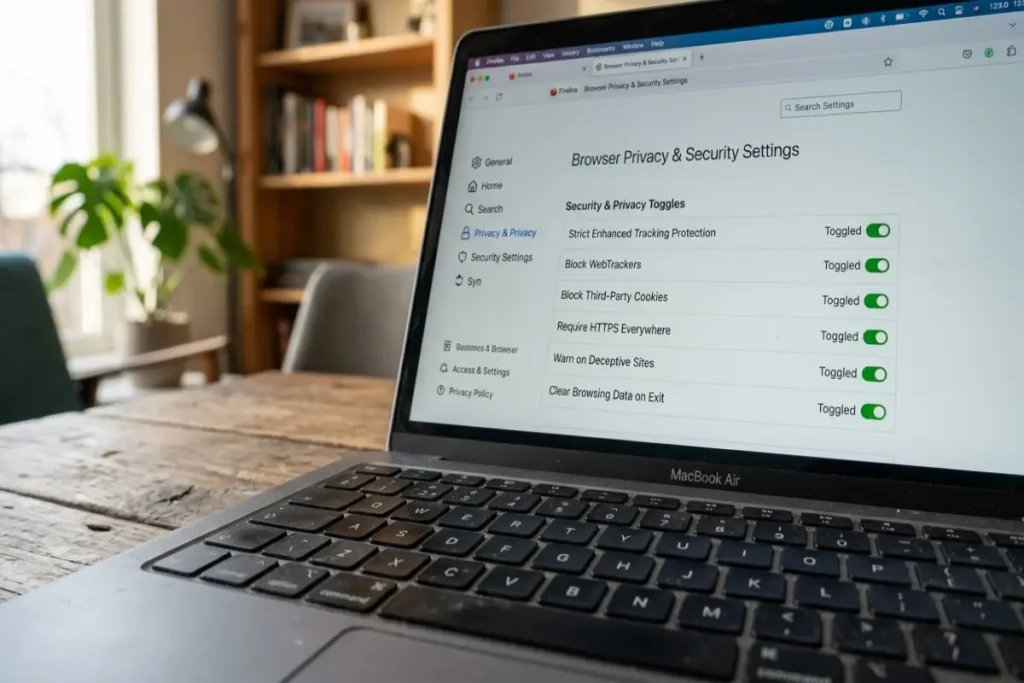
The settings that actually matter: a browser-by-browser breakdown
Most browser privacy guides list every available setting. This one does not. Many settings have no measurable effect on real-world security, and enabling too many can break legitimate sites or create a false sense of protection. The following are the settings with verified, measurable impact.
Chrome security settings worth changing
Navigate to chrome://settings/security to access Chrome’s security panel directly.
Safe Browsing: set to Enhanced protection. Standard protection checks URLs against a locally stored list of known threats updated every 30 minutes. Enhanced protection checks URLs against Google’s servers in real time and catches threats that are too new for the local list. The privacy trade-off is that visited URLs are sent to Google for checking. For most users, this trade-off is worth it — phishing pages are often live for only hours before being taken down, and real-time checking catches them while the local list misses them.
Always use secure connections: enable this. This setting forces Chrome to attempt HTTPS on every site and warns you before loading a plain HTTP page. HTTP connections in 2026 are rare for mainstream sites, but the ones that remain are often local network admin panels, older business tools, or misconfigured pages — exactly where interception is most plausible.
Use secure DNS: enable and set to a provider you control. By default, Chrome uses whatever DNS resolver your ISP provides. ISP DNS resolvers log your queries, can be subpoenaed, and have been used in some jurisdictions to serve targeted advertising. Setting Chrome to use DNS-over-HTTPS through a resolver like Quad9 (security-focused, blocks known malicious domains) or NextDNS (configurable blocking with detailed query logs you control) encrypts your DNS queries and adds a layer of malware domain blocking that operates independently of your browser’s other protections.
Disable third-party sign-in prompts. Under chrome://settings/privacy, find “Allow Chrome sign-in” and turn it off if you do not want your browser session tied to your Google account. A browser signed in to Google sends browsing history, search queries, and usage patterns to Google’s servers for sync and personalization. This is a deliberate product feature, not a bug — but it is one most users activate without understanding what it includes.
Firefox security settings worth changing
Firefox’s security and privacy settings live across two locations: about:preferences#privacy for the main privacy controls and about:config for advanced configuration.
Enhanced Tracking Protection: set to Strict. The default Standard mode blocks some trackers. Strict mode blocks all detected trackers, fingerprinting scripts, and cryptomining scripts. Some sites with aggressive ad tech will break in Strict mode — if they do, you can add them to your exceptions list individually rather than downgrading global protection.
HTTPS-Only Mode: enable for all windows. Found in the HTTPS-Only section of the Privacy & Security preferences. Functionally identical to Chrome’s “Always use secure connections” setting — Firefox will attempt HTTPS first and warn before loading HTTP.
DNS over HTTPS: enable under the Network Settings panel. Firefox has offered this longer than Chrome and its implementation is slightly more flexible. You can choose from a menu of providers or enter a custom resolver URL. NextDNS and Cloudflare’s 1.1.1.2 (which blocks malware domains) are both reasonable choices.
privacy.resistFingerprinting in about:config. Setting this to true instructs Firefox to report standardized values for commonly fingerprinted APIs — canvas, audio context, WebGL — rather than your actual hardware-specific values. It reduces the uniqueness of your browser fingerprint measurably. Some sites will detect this setting and behave differently, but it does not break browsing for most use cases.
Total Cookie Protection is on by default in Firefox 103 and above — verify you are running a current version and have not modified this setting. It is the single most effective anti-tracking measure shipped in any mainstream browser by default.
Brave settings worth verifying
Brave’s defaults are already more aggressive than any other browser. The key is verifying that its Shields are actually enabled on every site, since some Brave users inadvertently disable them globally.
Click the lion icon in the address bar on any site. Shields should show as “Up.” If they show as “Down,” you have disabled them at some point — re-enable them globally at brave://settings/shields.
Fingerprinting blocking: set to Strict. The default is Standard, which blocks fingerprinting in a way that tries to preserve some site compatibility. Strict mode adds canvas fingerprinting protection and randomizes additional APIs. The compatibility trade-off is minimal on standard websites.
WebRTC IP handling: set to “Disable non-proxied UDP.” WebRTC is a browser API used for video calls and peer-to-peer connections. It can reveal your real IP address even when you are using a VPN, because WebRTC communications bypass the VPN tunnel. Disabling non-proxied UDP eliminates this leak. This is one setting most guides overlook and one of the most practically significant in the browser security guide context.
Block cross-site cookies: verify this is enabled. Brave blocks these by default, but if you have been using Brave for a long time and upgraded from an older version, your settings may have carried forward a less restrictive configuration.
Extensions that provide real protection
The extension ecosystem is full of redundancy. Most users who care about privacy install too many extensions, creating performance overhead and expanding their attack surface. The goal is a minimal, high-impact set.
uBlock Origin remains the most effective content blocker available for any browser. In Chrome and Edge, install it now — Manifest V3 changes have slightly reduced its dynamic filtering capability compared to Firefox, but it still outperforms every alternative on Chrome’s store. On Firefox, uBlock Origin operates at full capacity using the older Manifest V2 API, which Firefox has committed to supporting through at least 2026. At its default settings, uBlock Origin blocks ads, trackers, and known malicious domains using multiple maintained filter lists simultaneously. It is the single extension that provides the highest security impact per unit of configuration effort.
Bitwarden is the most recommended password manager for users who do not already have one. It is open-source, has undergone independent security audits (most recently by Cure53 in 2023), and stores your vault with end-to-end encryption — Bitwarden’s servers receive only encrypted data that they cannot read. Its browser extension fills credentials only on exact-match domains, which stops phishing attacks that rely on visually similar URLs.
Privacy Badger from the Electronic Frontier Foundation is worth adding on Firefox if you are not using Brave. It uses a different approach from filter lists — it learns to block trackers by watching which domains track you across sites, rather than relying on a predefined blocklist. This makes it effective against newer tracking domains that have not yet appeared on public lists.
Don’t add more than three extensions for security purposes. Every additional extension is an additional point of trust and an additional process running with access to your page content. More extensions do not equal more security — they equal more complexity and more potential for one of them to be compromised or sold to a bad actor.

HTTPS, certificates, and what the padlock actually tells you
The padlock icon in your browser’s address bar indicates one thing only: the connection between your device and the server is encrypted using TLS. It means a third party sitting on the same network — a coffee shop router, an ISP — cannot read the content of your session in plaintext. It does not mean the site is legitimate. It does not mean you are safe from phishing. It does not mean the server itself is trustworthy.
In 2020, the Anti-Phishing Working Group reported that over 75% of phishing sites used HTTPS and displayed the padlock. That percentage has only risen since then, because obtaining a domain-validated TLS certificate costs nothing and takes minutes through Certificate Authorities like Let’s Encrypt.
The security guarantee HTTPS provides is real and important — but it is narrowly scoped. Understand it as one layer: it secures your connection, not the destination.
What to actually look at in the address bar: the domain itself, not the padlock. Before entering credentials anywhere, read the full domain character by character. Attackers register lookalike domains using homoglyph characters — for example, paypa1.com (with the numeral 1 replacing the letter l) or google-security.com. A password manager that matches on the stored domain prevents autofill on these fakes even when you cannot visually distinguish them.
Certificate Transparency is a public audit log of every TLS certificate issued. Chrome, Firefox, and Safari all require certificates to be logged in this system before they will accept them. If someone issues a fraudulent certificate for a domain you use — attempting to impersonate your bank, for example — the Certificate Transparency log records it, and monitoring services can detect it within minutes. Most users do not need to actively engage with CT logs, but understanding that this system exists explains why HTTPS certificate fraud has become much rarer for major domains than it was in 2018.
Protecting yourself from browser fingerprinting
Fingerprinting is the tracking method that persists after you clear cookies, use incognito mode, and install a VPN. It works by asking your browser a large number of innocuous questions — what fonts are installed, how does your GPU render this specific canvas element, what plugins are registered, what is your screen resolution and color depth — and assembling the answers into a profile that is unique to your combination of hardware, software, and settings.
The EFF’s Cover Your Tracks tool at coveryourtracks.eff.org gives you a measurable score. Run it before and after any configuration changes to verify what is actually working, not what you assume is working.
The three approaches to fingerprint resistance:
Randomization injects noise into the values your browser reports for fingerprinted APIs. Each time a site requests your canvas fingerprint, it receives a slightly different answer. Brave’s Strict fingerprinting mode uses this approach for canvas and audio APIs. The result is that the same device appears as different devices across sessions, breaking the persistent tracking identifier.
Standardization reports the same values as a large population of other browsers, making you indistinguishable within the crowd rather than invisible. Firefox’s privacy.resistFingerprinting setting and the Tor Browser both use this approach. The trade-off is that some sites detect the standardized values and react defensively.
Blocking prevents fingerprinting scripts from loading at all. uBlock Origin with the EasyPrivacy filter list blocks many known fingerprinting scripts at the network request level, before they can execute.
Using all three in combination — running Brave with Shields set to Strict and uBlock Origin installed — reduces fingerprinting surface measurably. No configuration eliminates it entirely without also breaking significant amounts of normal web functionality.
Public networks and browser security
Connecting to an unsecured public Wi-Fi network expands your threat surface in two ways: network-level interception and rogue access points. The recommendations in this guide already address the first — HTTPS enforcement means even on a hostile network, your page content is encrypted in transit. The second is more subtle.
A rogue access point mimics a legitimate network name (SSID). When your device connects to it automatically, all traffic routes through the attacker’s hardware. HTTPS still protects your content, but the attacker sees every domain you connect to, the timing of your connections, and any metadata not encrypted by TLS — which includes the SNI field in TLS handshakes, revealing the hostname of every site you visit.
A VPN that encrypts traffic before it leaves your device is the correct countermeasure for public network use. The important nuance is that a VPN moves trust rather than eliminating it — instead of trusting your ISP or the café router, you are trusting the VPN provider. Choose a provider with a verified no-logs policy audited by a third party. Mullvad and ProtonVPN have both published third-party audit results for their no-logging claims.
The secure browsing on public Wi-Fi guide covers this threat model in detail, including specific configuration steps for VPN kill switches that prevent unprotected data from leaving your device if the VPN connection drops unexpectedly.
Managing updates: the setting most people skip
The most exploited browser vulnerabilities in 2025 were CVE-2025-2783 (a Chrome sandbox escape used in active campaigns against journalists) and a WebKit zero-click flaw patched in Safari 17.3.1. Both had patches available within 48 hours of public disclosure. Both were still found in the wild on unpatched browsers six weeks later.
Browser updates are security patches. The timeline between a vulnerability being identified and being actively exploited in mass campaigns has compressed from weeks to days over the past three years.
Enable automatic updates in every browser you use. Verify your current version against the browser’s release page at least monthly. On Chrome: chrome://settings/help. On Firefox: about:support. On Brave: brave://settings/help. Safari updates are delivered through macOS system updates — ensure automatic system updates are enabled in System Settings.
For the browser security extensions you install, extension updates follow the same logic. An extension that has not been updated in 12 months or more is either abandoned — meaning unpatched vulnerabilities are accumulating — or actively maintained but not advertising changes. Check the extension’s Chrome Web Store or Firefox Add-ons page for the last update date before installing.
Incognito mode and what it does not do
Private browsing or incognito mode deletes your local browsing history, cookies, and cached data when the window closes. It does not hide your traffic from your ISP, your employer’s network, the websites you visit, or the DNS resolver processing your queries. It does not prevent fingerprinting. It does not make you anonymous.
Incognito is useful for exactly two things: keeping a browsing session off your local device’s stored history (useful on a shared computer), and starting a fresh session without existing cookies (useful for testing how a site behaves for logged-out users or circumventing soft paywalls that count free articles via cookie). For every other privacy goal, it is the wrong tool.
The stop browser tracking guide walks through the specific tracking methods that incognito mode leaves fully operational and the countermeasures that actually interrupt them.
Building a browser security routine
Browser security is not a one-time configuration. It requires a brief, recurring maintenance practice. The following actions, run monthly, keep your security posture current without requiring technical expertise.
Check your browser version and update it if it is not current. Review your installed extensions and remove any you have not used in 30 days or any whose publisher you cannot verify. Run the EFF’s Cover Your Tracks test and compare the result to your baseline. Check your password manager for reused passwords — most modern managers flag these in a dedicated report — and change any passwords that appear in known breach databases (Have I Been Pwned, available at haveibeenpwned.com, checks email addresses against 13 billion compromised credentials).
Every 90 days, verify that your DNS-over-HTTPS configuration is still active — browser updates occasionally reset advanced network settings. Verify that your primary security extension (uBlock Origin) is still enabled and on its current version.
The browser privacy settings guide provides a printable checklist version of these maintenance steps organized by browser, with navigation paths for each setting so you do not need to locate them from scratch each time.
Browser security in 2026 is not about achieving perfect anonymity. It is about raising the cost of targeting you above the threshold where opportunistic attackers will move to easier targets, protecting your credentials with tools that operate independently of your vigilance on any given day, and building a maintenance habit that keeps your defenses current as the threat landscape shifts.