


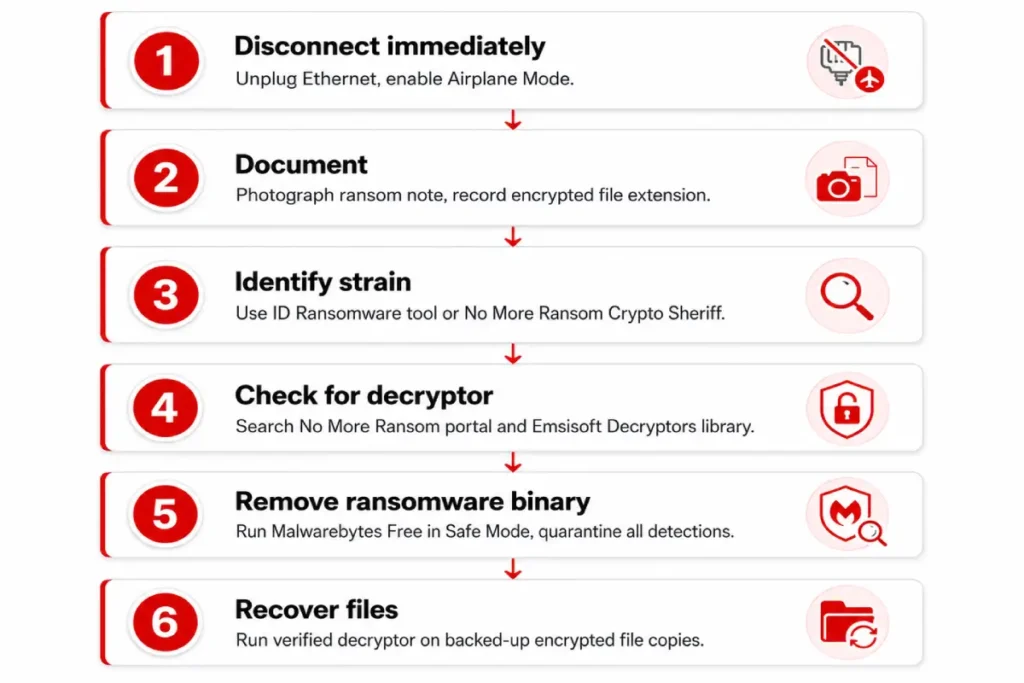
How to remove ransomware is a question most people search after the ransom note has already appeared — which means the procedure needs to start immediately, not after reading background context. The ransom note has appeared, files are encrypted, and every minute the machine stays connected to a network increases the risk of spread to other devices. This guide covers ransomware removal steps in the exact order they need to happen: isolation, strain identification, decryptor sourcing, system cleaning, and file recovery.
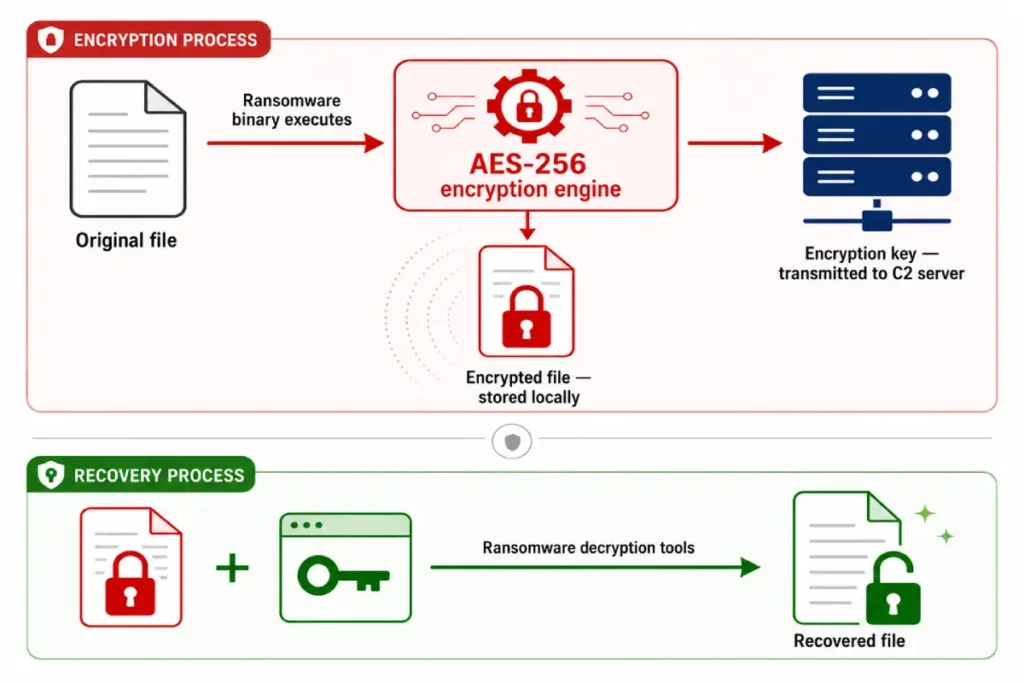
The most critical thing to understand before the first step: the ransom note and the encrypted files are not the active threat. They are evidence of the attack. The ransomware binary that ran the encryption process is either still present on the system or has deleted itself after completing its job. Encrypted files cannot infect other files. They are locked copies of what you had. The ransomware removal steps and the file recovery steps are two separate procedures that run in a specific order — and running them in the wrong order creates errors in both.
For non-ransomware infections, the standard procedure is in the malware removal guide. This article covers ransomware specifically, including the free decryption resources that resolve a significant portion of consumer ransomware incidents without any payment.
The first five minutes: what to do the moment you see a ransomware note
The first five minutes contain or expand the incident. Speed and sequence both determine the outcome.
Disconnect from the internet immediately. Pull the Ethernet cable from the back of the machine or toggle Airplane Mode on before anything else. Active ransomware communicates with a command-and-control server during and after encryption — disconnecting immediately stops secondary payload downloads and prevents the ransomware from confirming successful encryption to its operators. Some ransomware variants wait for a successful C2 confirmation before triggering the visible ransom note, which means the machine may still be in mid-encryption when the note appears. Disconnect before the process completes if at all possible.
Do not restart the machine. Two specific reasons. First, some ransomware variants trigger a second encryption pass targeting files that were open or memory-resident during the first pass. Second, the system’s current running state — active processes, Windows Event Log entries, memory contents — contains forensic information that decryption tools and law enforcement may need. Restarting clears that data permanently.
Disconnect all external storage devices immediately. Remove every USB drive, external hard drive, and memory card currently connected to the machine. If any of those devices was being used as an automatic backup destination, check whether the backup drive received encrypted copies during the attack rather than clean originals. A backup drive that was connected during encryption may contain only encrypted backup files — not a usable recovery point.
Isolate from the local network. Disable the network adapter or unplug the router connection to prevent the ransomware from spreading to mapped network drives on other devices. On a home network with shared folders or a NAS device, check every connected machine immediately for encrypted file symptoms.
Photograph the ransom note. Take a screenshot or use a phone to photograph the screen before doing anything else on the machine. The note typically contains the ransomware family name, a contact address, a ransom amount, and a deadline. All of this information is required for the identification step that follows. The file extension appended to encrypted files — visible in any folder on the machine — is a second identification data point.
Do not pay. CISA’s 2025 ransomware advisory documents that 20% of victims who pay receive a non-functional decryptor or no response at all. Payment marks you as a confirmed paying target in the operators’ records, substantially increasing the probability of a repeat attack targeting the same machine or network. Nothing gets paid until every free recovery option in this guide has been exhausted.
How to remove ransomware: identifying which strain you have
Decryptors are strain-specific. A tool released for STOP/Djvu does nothing against LockBit. Identifying the exact ransomware family before attempting any recovery step is not optional — it determines which tools apply and whether free recovery is possible at all.
Read the ransom note for the family name. Many ransomware variants name themselves directly in the ransom note — LockBit notes state “LockBit,” ALPHV notes reference the group, and STOP/Djvu notes reference a consistent support email domain pattern. The family name in the note is the fastest first identification route.
Check the encrypted file extension. Ransomware appends a custom extension to every encrypted file. Open any folder that was affected and look at what comes after the original file extension. STOP/Djvu uses extensions like .djvu, .mosk, .cosd, .uuix, and dozens of others cycling across sub-variants. LockBit appends its own family-specific extension. A web search for the specific extension you see returns the ransomware family name in almost every case.
Use the ID Ransomware identification tool. Navigate to id-ransomware.malwarehunterteam.com on a clean device (a phone or another computer). Upload the ransom note text and one sample encrypted file. The tool identifies the ransomware family from the note content, the file extension pattern, and the encryption header embedded in the file. It cross-references over 1,000 identified ransomware families against the No More Ransom Project’s decryptor database and tells you whether a free decryptor exists for your specific strain.
Use Crypto Sheriff on the No More Ransom portal. The No More Ransom Project at nomoreransom.org runs a parallel identification service called Crypto Sheriff. Upload two encrypted file samples and the ransom note. The tool identifies the strain and links directly to the correct decryptor download if one is available. The portal is maintained jointly by Europol, the Dutch National Police, McAfee, and Kaspersky — decryptors listed there are verified legitimate tools, not the fake “decryptors” distributed through search results that are themselves frequently malware.
Strain identification takes 3-5 minutes with the right tools. The outcome of that step determines whether the next 30 minutes is decryptor download and file recovery, or a pivot to Shadow Copy checks and backup restoration.
How to remove ransomware using free decryption tools
Free decryption tools exist for over 165 ransomware families as of 2026, covering a meaningful portion of consumer infections. The procedure for using them requires one specific sequencing rule: copy all encrypted files to an external drive before running any decryptor, and clean the ransomware binary from the system before decrypting on the live machine.
Running a decryptor against files on a still-infected live system risks re-encryption of the newly decrypted output if any ransomware components remain active in memory or in the startup sequence. Remove the ransomware first, decrypt from the backed-up copies second.
The No More Ransom Project at nomoreransom.org is the primary decryptor source. Download the correct tool for your identified strain directly from the portal. Never download ransomware decryptors from third-party sites — malicious fake decryptors distributed through search results and forums are among the most consistently observed secondary infections in ransomware recovery scenarios.
Emsisoft Decryptors at emsisoft.com/en/ransomware-decryption cover an independent set of strains, including the most widespread consumer ransomware family: STOP/Djvu. If your encrypted files have extensions like .djvu, .mosk, .cosd, .uuix, or any other four-character random extension pattern, Emsisoft’s STOP/Djvu decryptor covers over 160 known sub-variants of this family. Download it on a clean machine, transfer via USB, and run it against your backed-up encrypted file copies.
Kaspersky’s free decryptor library at kaspersky.com/ransomware-decryptor covers additional strains including CoinVault, Shade, and Yanluowang, released following law enforcement operations that recovered the private encryption keys.
When running any decryptor: extract it on a clean machine, transfer it to the infected machine via USB only after Malwarebytes has confirmed the ransomware binary is quarantined, run it against the external drive copy of your encrypted files, and verify by opening five to ten recovered files across different formats before treating the recovery as complete.
Recover files from ransomware using Shadow Volume Copies
Shadow Volume Copies are automatic Windows snapshots created by the Volume Shadow Copy Service, which runs in the background on most Windows 10 and 11 configurations. When these snapshots survive an attack, they provide access to pre-encryption versions of files without requiring a decryptor at all. The critical qualifier: modern ransomware specifically targets and deletes Shadow Volume Copies as one of its first actions, using the command vssadmin.exe delete shadows /all /quiet or PowerShell equivalents. Checking whether your copies survived takes two minutes and costs nothing to attempt.
Right-click any encrypted file → Properties → Previous Versions tab. If entries appear dated before the infection, those are recoverable snapshots. Right-click any entry and select Restore to copy the pre-encryption version to its original location, or Open to access and manually copy specific files without overwriting anything in place.
For a broader VSS recovery operation across entire folders, use ShadowExplorer (free, portable, no installation). Download it on a clean machine, transfer via USB, run it on the infected machine. The interface displays all available VSS snapshots in a folder tree view, browsable by date. Select the snapshot with the most recent pre-infection timestamp, navigate to Documents, Desktop, Pictures, and any other targeted directories, right-click → Export to copy those pre-encryption file versions to a clean external drive.
If the Previous Versions tab is empty and ShadowExplorer shows no snapshots, the ransomware deleted them during the attack sequence. At that point, VSS recovery is closed and the remaining paths are decryptors, cloud backup restoration, or professional recovery services.
One narrow edge case where partial VSS recovery may still be possible: if the ransomware encrypted files in a sequential directory pass rather than simultaneously, and a VSS snapshot was created early in the encryption cycle (Windows creates snapshots automatically at various intervals), that snapshot may contain pre-encryption versions of files that had not yet been reached when the snapshot fired. Check ShadowExplorer for any snapshot timestamped within the first 60 minutes of the attack — even a partial recovery of folders the ransomware had not yet processed is worth extracting.
How to remove ransomware from your system after locating a decryptor
The sequence here is the point where most guides introduce a critical error. Running a decryptor on a live infected system before the ransomware binary is removed risks re-encryption of the decrypted output. Remove first. Decrypt second. The order is non-negotiable.
Step one: copy all encrypted files to an external drive before doing anything else. Even if you have a working decryptor in hand right now, back up the encrypted originals first. Decryptors can fail on specific file batches due to encryption key variations between infection instances. An external drive copy of the encrypted files preserves your recovery options if the first decryptor attempt fails or if a better tool becomes available later.
Step two: clean the ransomware binary. Boot into Safe Mode with Networking by pressing Start → holding Shift → clicking Restart → Troubleshoot → Advanced Options → Startup Settings → Restart → F5. In Safe Mode, run Malwarebytes Free. It identifies ransomware binaries as Trojan.Ransom variants. Quarantine everything flagged. Follow with AdwCleaner to clear any secondary browser-layer components. For the full combination protocol and download locations for both tools, the best free malware removal tools guide covers the complete sequence.
Step three: run two consecutive clean scans. After quarantining everything Malwarebytes found in Safe Mode, reboot to normal Windows. Run Malwarebytes again. Two successive clean results — Safe Mode scan and normal-mode scan — provide reasonable confidence the ransomware binary and its persistence mechanisms are fully cleared.
Step four: run the decryptor against the external drive copy. Open the decryptor as administrator, direct it at the external drive containing your backed-up encrypted files, and let it process. Verify by opening files across multiple formats — a Word document, a JPEG photograph, a PDF, a spreadsheet — to confirm the content is intact. If any file opens as corrupted or unreadable, the decryptor did not successfully process that file type. Keep the encrypted originals regardless of how the verification goes — do not delete them.
When no decryption tool exists: your remaining options
The majority of active 2026 ransomware strains have no publicly available decryptors. LockBit successor operations, ALPHV/BlackCat derivatives, Cl0p, and the RaaS families operating under new names following 2025 law enforcement disruptions all use encryption implementations that have not been broken. The No More Ransom portal returning no match for your identified strain is a definitive answer for today — but not necessarily for 12 months from now.
Wait for a future decryptor. Law enforcement operations recover encryption keys when they dismantle ransomware infrastructure. Europol’s No More Ransom project released 15 new decryptors in 2025 alone following infrastructure seizures. Store the encrypted files on a disconnected external drive and check the No More Ransom portal every three to six months for your specific strain. Encrypted files in cold storage cost nothing and preserve your recovery options indefinitely.
Restore from backup. A backup predating the infection by at least 24 hours is the cleanest available recovery path. Cloud backup services with versioning — Backblaze, iDrive, and OneDrive with version history enabled — maintain point-in-time file copies. Google Drive and Dropbox maintain 30-day version history on standard consumer plans. Before concluding data is permanently lost, check every cloud sync service that was actively running on the machine at the time of infection.
Rebuild and accept partial data loss. For files with no backup and no decryptor, perform a clean Windows reinstall after fully formatting the drive, restore what exists from unencrypted sources — cloud sync, email attachments sent from the machine, files on secondary devices — and preserve the encrypted copies on an external drive for future decryptor availability. This path accepts the current loss without destroying future recovery options.
Engage a professional ransomware response firm. Companies like Coveware, Proven Data, and Mandiant offer ransomware recovery services that include threat actor negotiation, decryptor verification before final payment, and OFAC sanctions compliance review. Cost runs 15-25% of the ransom demand or a flat engagement fee. OFAC compliance review is not optional if you choose to pay — payments to OFAC-designated ransomware groups may constitute US sanctions violations even for victims, and a professional firm handles the legal review that a victim cannot reasonably perform independently.
Removing ransomware from a machine where Windows won’t load
Some ransomware variants modify the Master Boot Record or overwrite Windows startup files as part of the encryption sequence, preventing the OS from loading. The machine powers on, shows the manufacturer logo, then freezes at a black screen, cycles into the Windows Recovery Environment indefinitely, or displays a custom lock screen that replaces Windows entirely. Standard safe mode boot procedures fail because the damage is below the OS level.
A bootable rescue environment is the correct tool for this situation. Bitdefender Rescue CD and Kaspersky Rescue Disk 18 are both free ISO downloads that load an independent operating system from a USB drive, scan the internal drive from outside Windows, and remove MBR-level and startup-file infections without Windows being present or loaded.
On a clean machine: download the Bitdefender Rescue CD ISO from bitdefender.com/consumer/support/answer/29702/ or Kaspersky Rescue Disk 18 from support.kaspersky.com/15911. Download Rufus (free, at rufus.ie) to write the ISO to a USB drive of 2GB or larger. In Rufus, select the USB drive, choose the ISO file, and click Start to create the bootable drive.
On the infected machine: insert the USB drive and restart. Enter BIOS setup — typically F2 or Delete at the manufacturer splash screen — and change the boot priority order to load from USB first. Save and exit. The machine boots directly into the rescue environment, bypassing the damaged Windows installation. Run the full scan, quarantine everything flagged, and restart. The machine should boot normally into Windows.
If the rescue scan returns clean but Windows still refuses to load, the ransomware corrupted Windows startup files rather than the MBR specifically. Boot from a Windows installation USB, select Repair your computer → Troubleshoot → Command Prompt, and run the following three commands in sequence: bootrec /fixmbr, then bootrec /fixboot, then bootrec /rebuildbcd. After each completes, restart and attempt to boot. Once Windows loads, run the standard Malwarebytes scan immediately to confirm the ransomware binary is fully removed from the file system.
Ransomware protection: rebuilding defenses after an attack
The machine is cleaned. Files are either recovered or in cold storage awaiting a future decryptor. The system right now has the same vulnerability profile that allowed the infection in the first place. Reconnecting it unchanged is how repeat incidents happen. The ransomware removal steps in this guide end the current incident — what follows prevents the next one.
Implement the 3-2-1 backup rule before reconnecting to normal usage. Three copies of important files. Two stored on different media types. One stored offline or off-site. For home users, the practical version is: files on the PC, an external hard drive stored physically disconnected from the machine when not in active use, and a cloud backup service with version history enabled. Backblaze’s personal backup runs $99/year for unlimited storage with 12 months of version history. The version history matters specifically for ransomware: it ensures an encryption event that reaches cloud-synced files does not overwrite all backup versions simultaneously, because earlier point-in-time versions remain recoverable.
Run Windows Update immediately before anything else. Settings → Windows Update → Check for updates → install everything pending. A documented share of 2025 ransomware infections exploited known Windows vulnerabilities carrying CVEs with available patches — meaning the vulnerability had been publicly identified and fixed, but the machine had not yet installed the update. Enabling automatic updates closes that gap permanently rather than relying on manual update discipline.
Disable Office macros by default. Verizon’s 2025 Data Breach Investigations Report attributed 45% of ransomware delivery to phishing email attachments, with macro-enabled Office documents as a primary format. Disable macros across Microsoft Office: File → Options → Trust Center → Trust Center Settings → Macro Settings → Disable all macros with notification. This blocks automatic macro execution from incoming attachments while allowing deliberate enablement for files you create and control.
Install Malwarebytes Premium for the ransomware rollback feature. Ransomware rollback works by monitoring file-modification activity in real time. If Malwarebytes Premium detects ransomware behavior and blocks it mid-execution, the rollback function automatically restores files that were encrypted in the window between the attack start and the detection moment. It does not decrypt files after a completed attack — it stops and reverses an in-progress one. At $44.99/year, this specific feature alone represents meaningful value for a machine storing irreplaceable files.
For detecting the early behavioral indicators of a repeat infection before encryption begins, the signs of malware infection guide covers the specific CPU, network, and browser symptoms that point to active compromise in the pre-encryption window.

Should you ever pay the ransom?
Payment is the last option available, not the first response when no immediate decryptor is found. The case against payment is built from specific data rather than principle.
CISA’s 2025 ransomware advisory reports that 20% of victims who pay receive a non-functional decryptor or no response from the operators. Sophos’ 2025 State of Ransomware report found that 80% of organizations that paid were attacked again within 12 months, because paying confirms to the operators that the target has both the resources and the willingness to pay — which makes them a higher-priority repeat target. Every payment that flows through the ransomware payment ecosystem funds the affiliate recruitment, exploit acquisition, and platform development that produces the next round of attacks against other victims.
The legal dimension complicates the decision further. A number of ransomware groups are OFAC-designated sanctioned entities under US Treasury Department regulations. Making a cryptocurrency payment to a sanctioned group — even as a victim responding to an attack — may constitute a sanctions violation under the Export Administration Regulations. The OFAC designation list changes as law enforcement actions take effect, and a ransom note does not identify the group’s sanctions status in readable terms. Victims making direct payments have no independent mechanism to perform this compliance check.
The ransomware removal steps in this guide include several free recovery paths that work for a significant portion of consumer incidents: No More Ransom decryptors for 165+ strains, Emsisoft’s STOP/Djvu decryptor covering the most widespread consumer family, Shadow Volume Copy recovery, and backup restoration. Payment belongs in the conversation only when all of the following conditions are simultaneously true: no decryptor exists for the specific identified strain, no backup predates the infection, Shadow Copies were deleted during the attack, and the encrypted data is irreplaceable and critical.
When payment becomes the only remaining path, engage a professional ransomware response firm — Coveware, Proven Data, or Mandiant — before sending any cryptocurrency. These firms verify that the decryptor functions on a sample of files before releasing the final payment, which eliminates the 20% non-delivery risk. They also conduct the OFAC compliance review that determines whether payment is legally permissible for the specific group involved. Their engagement cost is typically lower than the ransom demand and provides protections that a direct, unassisted payment cannot.
Full recovery from ransomware follows a defined sequence: isolate, identify, source a decryptor or backup restore, remove the ransomware binary, recover files, then rebuild defenses. Every step has a specific function in that order. The two steps users most consistently skip — removing the ransomware binary before running decryption, and implementing a 3-2-1 backup after recovery — are the ones that produce repeat incidents. A backup that predates the attack by 24 hours and is stored on a disconnected device renders the ransom demand irrelevant. That single preparation outperforms every other ransomware protection measure on this list.