

Remove malware from Android requires a different approach than Windows removal — the platform architecture, the threat delivery methods, and the available tools all differ in ways that make PC removal procedures inapplicable. An infected Android phone cannot be booted into Safe Mode with Networking and scanned with Malwarebytes Free. The registry does not exist. Startup program management looks nothing like Windows Task Manager. The removal procedure is specific to Android’s app and permissions framework, and following PC-oriented advice on a phone produces consistently poor results.
This guide covers the complete removal procedure for Android malware infections in 2026, from the initial Safe Mode app audit through factory reset for persistent infections. It includes the detection rates for the top Android security apps by AV-Test’s 2025 mobile testing data, Google Play Protect’s actual performance against third-party tools, and the specific Android malware types most active in 2026 that determine which removal approach applies.
Android malware grew 52% year-over-year per AV-Test’s 2025 mobile security report. The dominant category in that growth was adware and banking trojans spread through sideloaded APKs and fake app clones. The general malware removal context for PC infections is in the malware removal guide. This guide covers Android specifically.
How malware gets on Android phones in 2026
Android’s open platform architecture — specifically its support for installing apps from outside the Google Play Store — is the primary malware entry vector. The majority of Android malware infections in 2025 involved sideloaded APKs: application installer files downloaded from third-party sites, WhatsApp messages, SMS links, or unofficial app stores rather than Google Play.
Sideloaded content accounts for an estimated 87% of Android malware installations per Malwarebytes’ 2025 mobile threat data. The delivery mechanisms are consistent: a link in an SMS message claims a package delivery notification and prompts downloading a “tracking app” outside Play Store, a pirated game or premium app offered free at a sketchy download site bundles adware or spyware, a fake banking app hosted on a phishing page installs a banking trojan, or a “free VPN” app from a third-party store installs a persistent adware framework.
Google Play Store itself is not immune. Google removed over 2.36 million policy-violating apps from the Play Store in 2025, per Google’s annual safety report. The most common attack pattern for Play Store-hosted malware: the app passes initial review with benign behavior, then receives an update post-install that activates its malicious functionality or silently downloads a secondary payload once a sufficient user base is established.
The five main categories of Android malware active in 2026 by distribution volume: adware (51% of Android detections), banking trojans that overlay fake login screens on legitimate banking apps (11%), SMS fraud malware that silently subscribes the device to premium-rate services (9%), spyware and stalkerware (15%), and cryptojackers optimized for mobile hardware (14%). Each category produces specific behavioral symptoms.
Signs your Android phone has malware
Android malware symptoms are measurable against normal device behavior. Each symptom below has a specific baseline comparison so the assessment is objective rather than impressionistic.
Battery draining 40-60% faster than your established baseline. A modern mid-range Android phone under normal usage — some browsing, messaging, social media — should last 8-14 hours. If your phone consistently drops from 100% to 20% in 4-5 hours without extended video streaming or GPS use, something is consuming processor resources persistently. Check Settings → Battery → Battery Usage. Any app consuming more than 10-15% of battery when you haven’t actively used it during the measured period is worth investigating.
Mobile data usage spike with no behavior change. Go to Settings → Network & Internet → Data usage. Review which apps consumed the most data in the current billing cycle. Any app showing high background data usage that you rarely open or haven’t used recently is transmitting data without visible user activity. Spyware and command-and-control malware transmit continuously, making background data the most reliable network indicator on Android.
Device running noticeably hot with nothing active. A phone warm to the touch during active gaming or video streaming is normal. A phone generating heat while sitting idle on a table with the screen off indicates processor-intensive background activity. Cryptojacking malware generates the most consistent heat signature — the processor running at near-full capacity mining cryptocurrency produces measurable warmth from the back of the device.
Ads appearing outside browser apps. Legitimate advertising appears within apps by design. Ads appearing as push notifications in the notification shade, pop-up overlays appearing over the home screen, or ads appearing within system interfaces that don’t normally contain them indicate adware with notification permissions active. Go to Settings → Apps → [suspicious app] → Notifications to verify which apps hold notification permissions you didn’t grant.
Unfamiliar apps appearing in the apps list. Open Settings → Apps → See all apps. Scroll through every entry. Any app you do not recognize by name, any app with a blank icon, or any app with a name that resembles a system process but was not pre-installed (names like “System Service,” “Phone Monitor,” “Device Manager” that you didn’t install) is suspicious. Compare installation dates by going to Play Store → profile icon → Manage apps and devices for recently installed apps.
Remove malware from Android: the step-by-step procedure
This procedure works for the majority of Android malware infections: adware, most spyware, SMS fraud apps, and standard trojans that install as user-space apps rather than system-level implants.
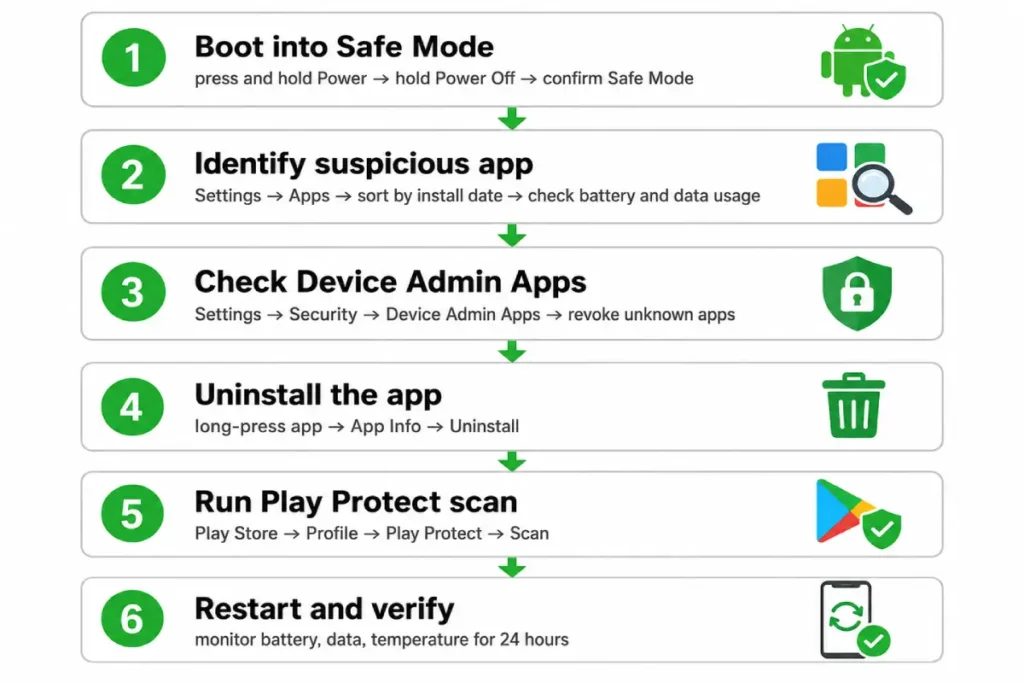
Step 1: Boot into Safe Mode. Press and hold the Power button. When the power menu appears, press and hold the “Power off” option. A prompt appears asking if you want to reboot into Safe Mode — tap OK. The phone restarts with only pre-installed system apps running; all third-party apps are disabled. If your symptoms (battery drain, heat, ads) disappear in Safe Mode, a third-party app is the confirmed cause.
Step 2: Identify the suspicious app. In Safe Mode, go to Settings → Apps → See all apps. Sort by installation date — on Samsung devices, tap the three-dot menu and select Sort by install date; on stock Android, the order is typically alphabetical but the Google Play Store history at My apps → Library shows install dates. Look for any app installed around the time symptoms began. Check battery usage and data usage in Settings for apps that consumed resources despite low user interaction.
Step 3: Check for device administrator privileges. Go to Settings → Security (or Security & Privacy on some manufacturers) → Device Admin Apps. This list shows every app that has been granted administrator-level access on the device. Only apps you explicitly recognized and granted this permission — typically a corporate MDM profile, Google’s Find My Device, or a security app you installed — should appear here. Any unfamiliar app in the Device Admin list must have its admin status revoked before it can be uninstalled. Tap the app in the list, select Deactivate, then proceed to uninstall.
Step 4: Uninstall the suspicious app. Long-press the app icon on the home screen or in the app drawer → App info → Uninstall. Alternatively: Settings → Apps → [app name] → Uninstall. If the Uninstall button is greyed out after revoking device admin privileges, restart the phone and try again.
Step 5: Restart and run a Play Protect scan. Restart out of Safe Mode normally. Open the Google Play Store → tap your profile icon → Play Protect → Scan. Allow the scan to complete and follow any prompts for apps it flags.
Step 6: Verify symptoms have resolved. Monitor battery usage, data usage, and device temperature over the following 24 hours. If symptoms return, the infection involves additional components — proceed to the security app scan and, if needed, the factory reset procedure.
How Google Play Protect helps remove malware from Android
Google Play Protect is Android’s built-in malware scanning service, active on every device running Google Mobile Services — which covers the vast majority of Android phones sold globally. It runs automatic background scans of installed apps against Google’s threat database, warns during Play Store downloads if an app has been flagged, and can scan apps installed from outside the Play Store when the “Improve harmful app detection” setting is enabled.
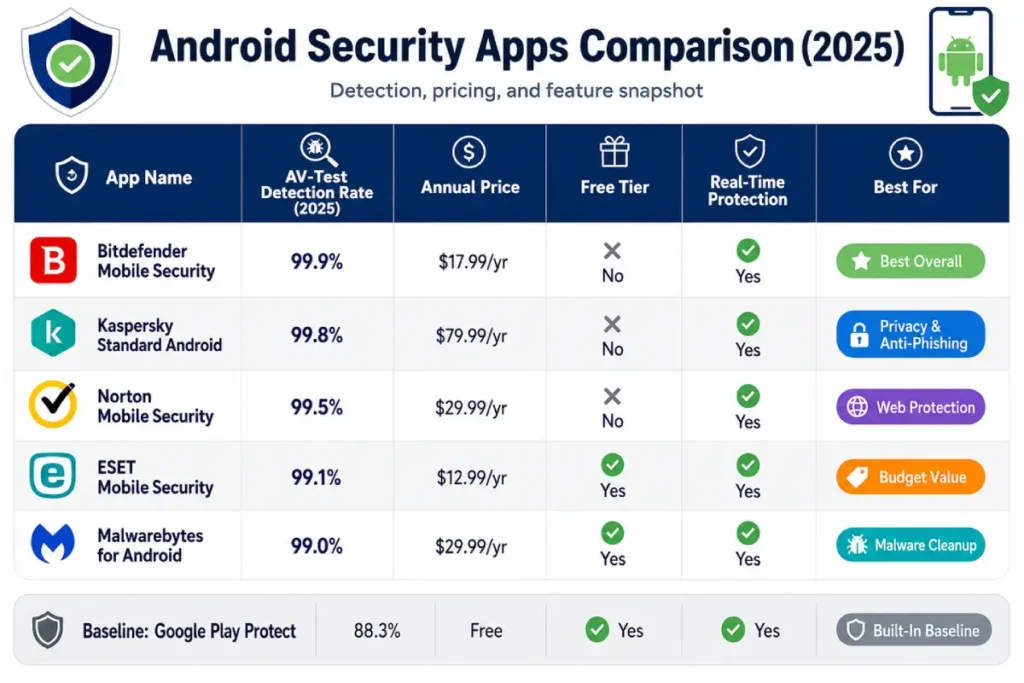
The limitation that matters: Play Protect’s independent detection rate in AV-Test’s 2025 Android security evaluation was 88.3%. Among the top-tier dedicated Android security apps, no product scored below 99%. That 11-12% detection gap — representing over 150,000 missed threat samples annually at test volumes — means Play Protect functioning correctly does not indicate a device is clean, particularly for newer or less-documented threat families.
To verify Play Protect’s current status: open Google Play Store → tap your profile photo in the top right → Play Protect. The main screen shows the most recent scan timestamp and whether any issues were found. Two settings worth enabling if not already active: the green “Scan apps with Play Protect” toggle (should be on by default), and “Improve harmful app detection” which extends scanning to sideloaded APKs and not just Play Store content. Enable both.
What Play Protect specifically misses: adware that uses legitimate advertising SDKs as a cover for aggressive behavior, banking trojans that exploit Android’s Accessibility Service framework to overlay fake login screens on legitimate banking apps, and stalkerware distributed outside the Play Store. These categories require dedicated security app detection because they use permissions and behaviors that overlap with legitimate software in ways Play Protect’s threat model does not always flag.
Play Protect is a necessary layer — it protects against millions of known threats in the Play Store’s supply chain — but it functions as the baseline protection equivalent to Windows Defender, not as comprehensive defense.
The best security apps for Android malware removal
Five apps demonstrate consistent performance in AV-Test’s 2025 Android evaluation, all scoring above 99% detection. Each has a free tier that covers on-demand scanning — real-time protection requires the paid version in most cases.
Bitdefender Mobile Security — Detection rate: 99.9% (AV-Test 2025 Android, 6 consecutive perfect test cycles). Annual cost: $14.99. Covers real-time malware protection, anti-phishing web protection, an account privacy checker that monitors for data breaches tied to your email addresses, a lightweight VPN (200MB/day free tier), and anti-theft features including remote device wipe. The scanner footprint on device resources is among the lightest in the category — Bitdefender’s mobile engine architecture minimizes battery impact, which matters when the tool is designed to run continuously on a phone.
Kaspersky Standard (Android) — Detection rate: 99.8% (AV-Test 2025). Annual cost: $14.99. Includes real-time app scanning, a call filter for spam and scam calls, anti-phishing, and QR code link checking. The Android version maintains the same detection engine accuracy as Kaspersky’s Windows product, applied to the mobile threat landscape. The same CISA advisory context applies as noted in Satellite 1 — relevant for government or regulated-sector environments, less so for standard consumer use.
Norton Mobile Security — Detection rate: 99.5% (AV-Test 2025). Annual cost: $19.99 standalone or included in Norton 360 Deluxe’s five-device plan at $49.99. Includes an App Advisor feature that evaluates apps before installation for privacy risks and suspicious behavior patterns — useful for catching problematic apps in the Play Store before they install rather than only after.
ESET Mobile Security — Detection rate: 99.1% (AV-Test 2025). Free tier available with on-demand scanning; $14.99/year for real-time protection. The free version is the most capable free tier of any app on this list for Android malware removal specifically — it performs full on-demand scans and identifies installed threats without requiring the paid upgrade to find them. Real-time prevention requires payment; one-time removal does not.
Malwarebytes for Android — Detection rate: 99.0% (AV-Test 2025). Free tier includes on-demand scanning and removal. $3.49/month or $29.99/year for real-time protection. The interface and scan workflow are nearly identical to the Windows version, making it the natural choice for users already familiar with Malwarebytes on PC. The free tier removes what it finds on demand.
Play Protect’s 88.3% standalone detection rate makes pairing it with any of the above five apps a meaningful upgrade. The combination of Play Protect’s supply chain monitoring with Bitdefender or ESET’s deeper behavioral detection covers the categories each tool alone leaves open.
Factory reset: the definitive solution for persistent Android malware
When the step-by-step removal procedure and a dedicated security app scan both return clean results but symptoms persist, two explanations are most probable: the malware has escalated privileges to the system partition (rare on unrooted devices but documented in advanced threat families), or the infection involves multiple components where removing one reinstalls another from a secondary source.
Factory reset restores the device to its original factory state, wiping all user data, installed apps, settings, and cached files. No malware survives a factory reset on a non-rooted device because it wipes the user data partition and reloads the system partition from the original OS image.
Back up before resetting. Three specific backups to make before proceeding. Google Photos: open the app, confirm all photos and videos show “Backup complete” before resetting. Google Contacts: Settings → Google → [your account] → Sync → ensure Contacts sync is on. Documents: manually copy any important files in the internal storage Downloads, Documents, or other directories to Google Drive or a computer via USB.
Perform the factory reset. Settings → General Management (Samsung) or Settings → System (stock Android) → Reset → Factory Data Reset → Reset → confirm with device PIN or password. The process takes 5-15 minutes. The device restarts to the initial setup screen.
Critical step after reset: do not restore from a full backup. If you created a full device backup (via Google One backup or Samsung Smart Switch) while the phone was infected, restoring from that backup restores the infected apps alongside your legitimate data. Instead: sign into your Google account manually, reinstall apps individually from the Play Store by searching for each one directly, and import contacts and photos only from the specific backup sources above. Do not use a “restore from backup” option that reinstalls all previously installed apps automatically.
Before signing back into any accounts after the reset, change your Google account password and any other passwords associated with accounts that were active on the device during the infection. The factory reset cleans the device — it does not change credentials that were potentially captured while malware was running.
What malware on Android phones looks like in 2026
The Android threat landscape in 2026 has four distinct active families, each producing a specific behavioral pattern that maps directly to the removal approach required.
Banking trojans with Accessibility Service exploitation. The most financially damaging category targeting consumer Android devices uses Android’s Accessibility Service — the legitimate system feature that enables screen readers and assistive technologies — to overlay fake login screens on top of legitimate banking apps. When the user opens their banking app, the malware detects the app launch and displays a pixel-perfect imitation of the login screen as a transparent overlay. The user’s credentials are captured before they reach the legitimate app. Indicator: in Settings → Accessibility → Installed Services (or Downloaded Apps), any app appears here that is not a recognized accessibility tool you deliberately installed. Removal: revoke accessibility permission in the settings menu, then uninstall the app as described in Part 1. Check your bank account immediately after removal for unauthorized activity.
SMS fraud malware. This category silently subscribes the phone to premium-rate SMS services, generating charges on the phone bill. The malware intercepts both outgoing subscription-confirmation SMS messages and incoming confirmation codes, completing the subscription process without the user seeing any notification. The first indication is typically an unexpectedly high phone bill. Detection: Settings → Apps → review all apps with SMS permissions (Settings → Privacy → Permission Manager → SMS). Any app with SMS send and receive permissions that is not a messaging app, a two-factor authentication app, or a banking app you deliberately granted that permission should be investigated. Monthly phone bill review is the most reliable detection method for this category.
Adware frameworks with persistent notification abuse. Consumer-grade adware in 2026 focuses heavily on notification-based advertising after Google Play Store policy changes made in-app ad overlays harder to implement. An adware app requests notification permissions during installation, then uses that channel to display advertising in the notification shade indefinitely — even when the app itself is not actively running. The notification permission architecture means the user technically granted consent during installation. Removal: Settings → Apps → [app name] → Notifications → disable all notification categories, then uninstall. For persistent notification adware that reinstalls or re-grants itself permissions through a secondary component, use Malwarebytes for Android to identify the full component chain.
Stalkerware. The fastest-growing Android threat category by reported incidents in 2025, per Malwarebytes’ mobile threat data, is stalkerware — apps deliberately installed on a device by someone with physical access who wants to monitor the device owner. Stalkerware records calls, captures SMS and WhatsApp messages, logs location, and transmits all of it to a remote monitoring dashboard. The target is typically a partner, spouse, or child in a domestic context. Stalkerware hides itself from the app drawer and uses permissions that legitimate monitoring apps use, making it harder to identify through a casual inspection. Detection: Settings → Security → Device Admin Apps — stalkerware almost always requires device administrator privileges to prevent removal. Any app in that list you did not personally install indicates stalkerware or another high-privilege malware. For resources and guidance specific to stalkerware, the signs of malware infection guide covers indicators of monitoring-type infections across platforms.
After you remove malware from Android: rebuilding your phone’s defenses
Remove malware from Android successfully and the device’s vulnerability profile still reflects whatever allowed the initial infection — which means the same vector remains open for a repeat incident without specific changes.
Change your Google account password from a clean device immediately. Your Google account is the master key to the phone — it controls account recovery, backup access, and synced data across all Google services. Change it from a laptop or a second clean phone before signing back into any services on the cleaned device. Enable 2-Step Verification: Google Account → Security → 2-Step Verification. Use Google Authenticator or a hardware key rather than SMS-based 2FA when possible, because SMS codes are interceptable by SIM-swapping attacks.
Audit all app permissions. Settings → Privacy → Permission Manager. Work through each permission category: Location, Microphone, Camera, Contacts, SMS, Phone, and Storage. For each permission, view which apps hold it and whether the grant makes sense for that app’s function. A flashlight app with Contacts access is a red flag. A calculator app with Microphone access is a red flag. Revoke permissions that are not required for the app’s stated function. This audit takes 10-15 minutes and eliminates data access that many apps hold without the user’s active awareness.
Enable automatic app updates. Play Store → profile icon → Settings → Network preferences → Auto-update apps. Select “Over any network” or “Over Wi-Fi only” depending on your data situation. Automatic updates ensure security patches reach the device without requiring manual action, closing known vulnerabilities that malware can exploit.
Keep Android OS updated. Settings → System → System Update → check for updates. Android security patches release monthly and address vulnerabilities that active malware exploits. Devices running Android versions more than two major versions behind the current release may no longer receive security patches from the manufacturer — if your phone cannot update to a supported Android version, the risk profile of continuing to use it for sensitive tasks increases meaningfully.
Only install apps from Google Play Store. Disable the “Install unknown apps” permission for all apps: Settings → Apps → Special app access → Install unknown apps → verify every listed app shows “Not allowed.” This permission should be disabled as a default state on a cleaned device.

Android vs iOS: why the removal approach differs entirely
iOS operates on a fundamentally different security architecture from Android, and the difference makes malware infection on a non-jailbroken iPhone significantly rarer — close to negligible for standard consumer use without a targeted zero-day exploit.
Android allows users to install apps from any source — the sideloading capability that drives 87% of Android malware installations simply does not exist in the same form on a standard iPhone. iOS apps install exclusively through the App Store on non-jailbroken devices, and App Store review processes catch malicious apps at significantly higher rates than Google Play’s automated systems alone. iOS sandboxing also prevents apps from accessing other apps’ data, which eliminates the entire attack vector that banking trojans use on Android — an iOS app cannot overlay a fake interface on another app’s window.
If an iPhone shows symptoms that look like malware — unexpected battery drain, unfamiliar apps appearing, persistent pop-ups — the most likely explanations on a non-jailbroken device are a malicious Safari extension, a misbehaving web app saved to the home screen, or a configuration profile installed without the user’s full awareness. Check these specifically: Settings → Safari → Extensions for any extension you did not install. Settings → General → VPN & Device Management for any profile other than your employer’s MDM profile. For genuine malware behavior on a non-jailbroken iPhone, the correct response is a DFU (Device Firmware Update) restore rather than an app-based security scan — iOS security apps cannot run the deep-system access that Android security apps use for threat detection.
For jailbroken iPhones, the risk profile approaches Android sideloading levels and dedicated iOS security tools become relevant.
The practical takeaway: if you use an Android phone, the removal procedure in this guide applies. If you use a standard iPhone and something seems wrong, check Safari extensions and configuration profiles before looking for a security app.
Boot into Safe Mode and audit your installed apps first. That single action — Safe Mode, Settings, Apps, sort by install date, check battery and data consumers — resolves the majority of Android malware infections without any tool download, any paid app, or any factory reset. The symptoms that persist after that audit and an initial Play Protect scan point toward the more sophisticated removal paths in this guide. The ones that clear after the audit point toward an app you didn’t realize you’d installed and can remove in 30 seconds.