
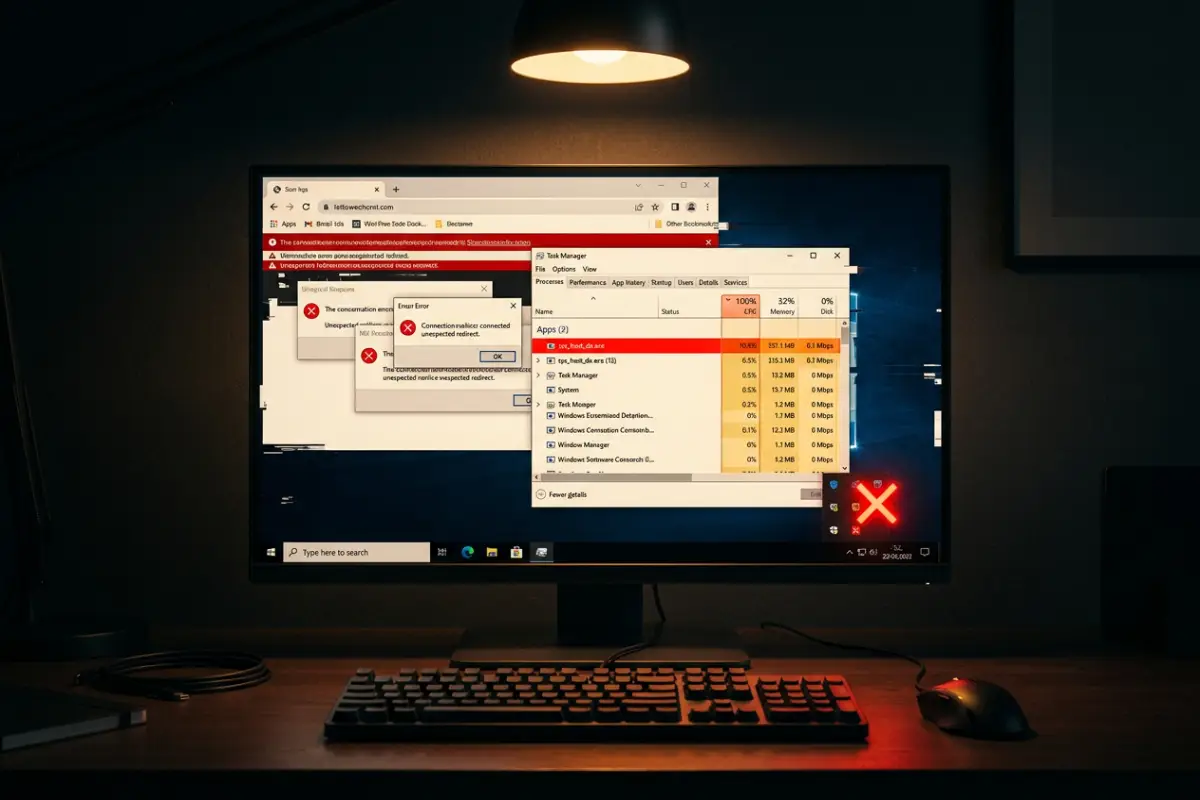

The diagnostic problem: why most infected users don’t know it
There is a cruel irony at the center of the Trojan infection experience: the better the Trojan, the less you know it is there. This is not an accidental design characteristic — it is a deliberate engineering objective. Every Trojan author understands that detection is termination. The moment the victim becomes aware of the infection, the remediation process begins. A Trojan that triggers obvious symptoms within hours of installation has a brief operational window. A Trojan that remains invisible for six months has six months of unrestricted access to everything on the machine.
The implication for users is that the absence of obvious symptoms does not mean the absence of an infection. Many of the most damaging Trojan infections documented in cybersecurity literature were discovered only when the downstream consequences — unauthorized bank transfers, data published on dark web forums, ransom notes appearing on encrypted machines — revealed a compromise that had been running undetected for months. By that point, whatever the Trojan was designed to accomplish had already been accomplished.
The purpose of this guide is to shift the detection point from consequences to indicators — to give you the diagnostic framework to identify an infection from its behavioral traces, before the consequences materialize. The symptoms described here are organized from highest confidence (signs that strongly correlate with active infection even in isolation) to contextual indicators (signs that require combination with other symptoms before they reach diagnostic significance).
If you have confirmed an infection after working through this guide, the complete step-by-step removal process is documented in Trojan virus removal: the complete expert guide for 2026. For understanding which specific tools perform best for automated removal, the comparison in best free Trojan removal tools in 2026 (tested and ranked) provides detailed analysis.
High-confidence infection indicators
Your antivirus has become non-functional without explanation
Security software failure is the highest single-signal indicator of a Trojan infection. It is the one symptom that has essentially no innocent explanation — legitimate Windows updates or software conflicts occasionally cause transient antivirus issues that resolve with a restart, but persistent, multi-symptom security software failure points directly at deliberate interference.
The signs of Trojan-induced antivirus compromise include: the antivirus interface refuses to open or crashes immediately upon launching; the real-time protection status is shown as disabled and toggling it back on has no effect or the change does not persist; the software cannot retrieve definition updates despite a working internet connection; scans start normally but terminate prematurely without generating a report or error message; the antivirus executable has disappeared from its installation directory; or Windows Defender reports being disabled by a third-party security product even though no such product appears to be installed.
The mechanism behind this symptom is straightforward: Trojans are programmed to disable security software as a first priority because it extends their operational lifespan. The specific methods used include terminating antivirus processes via system calls, deleting or corrupting antivirus program files, adding the Trojan’s own executables to the antivirus exclusion list, and modifying the Windows Hosts file to block the antivirus software’s update servers. Any one of these methods, if it succeeds, leaves the system unprotected and the Trojan free to operate without detection.
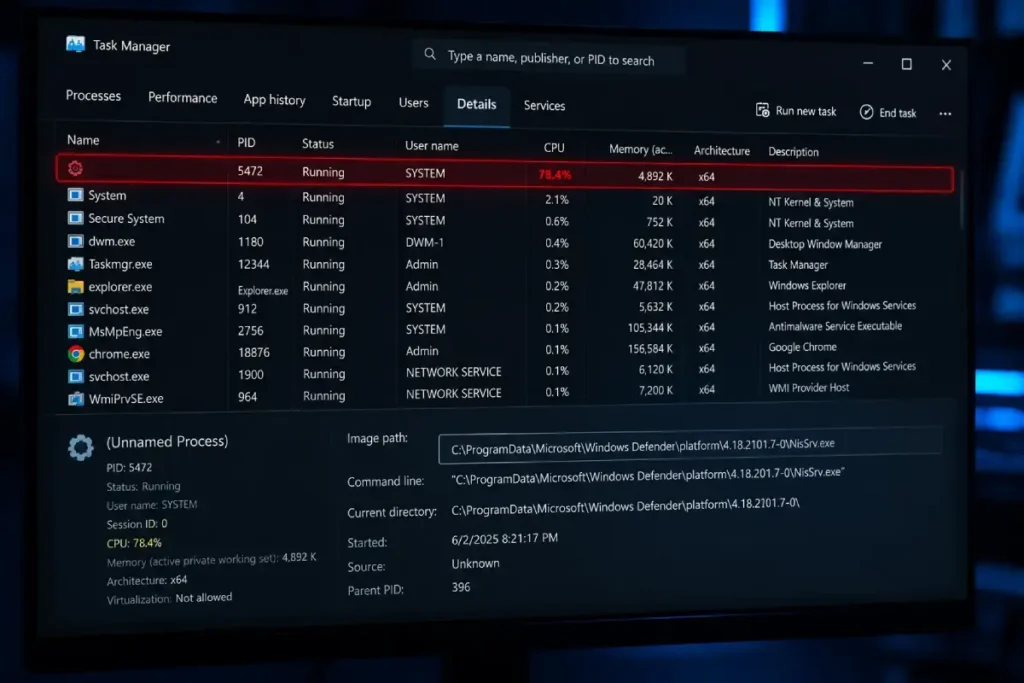
A process you cannot identify is consuming significant CPU or memory
Open Task Manager (Ctrl + Shift + Esc) and navigate to the Processes tab. Expand to the full detailed view by clicking “More Details” if it is not already showing. Examine the CPU and Memory columns carefully. A machine that is not running any demanding application — no video rendering, no database operations, no gaming — should show CPU usage well below 30% for the Windows operating system’s background overhead. If you see a process consuming 30%, 50%, or 80% of CPU with no recognizable name, that absence of recognition combined with the resource consumption is the indicator.
The specific context matters. Every process on your machine has a reason for being there. Legitimate processes are traceable to installed software or Windows components — you should be able to right-click any process, select “Open File Location,” and confirm that the executable lives in a recognized directory (C:\Windows\System32, C:\Program Files, or a known installed application’s folder) associated with software you recognize having installed.
A process that you cannot trace to any known installed software, that lives in a temp directory or an AppData subfolder, or whose file location does not correspond to any application in your installed programs list, is a primary investigation candidate.
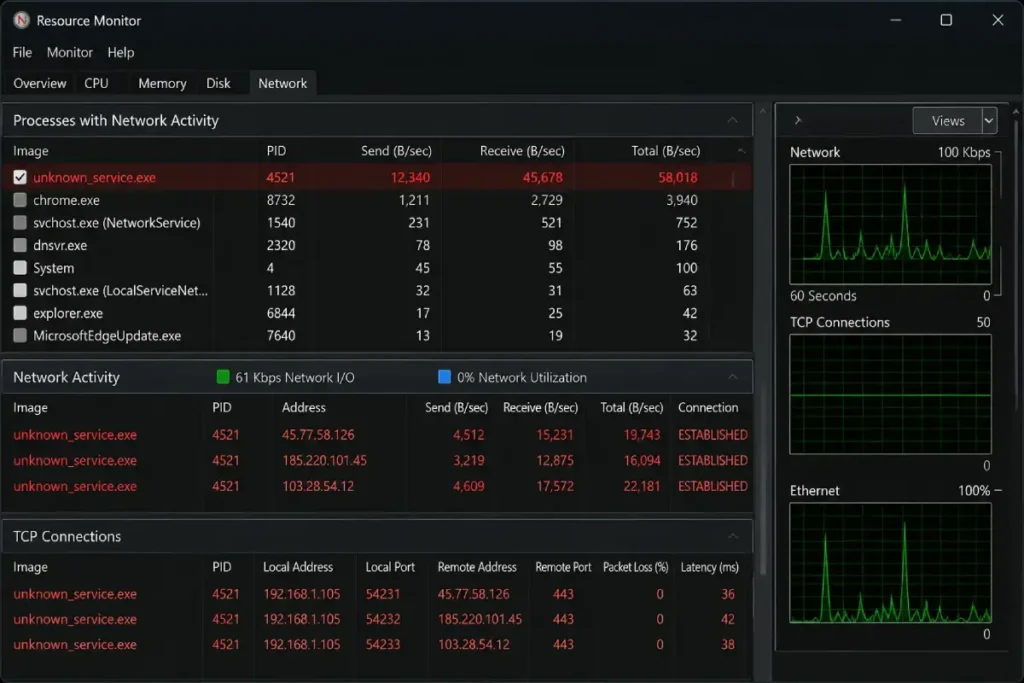
Outbound network traffic is occurring when no application should be communicating
Open the Resource Monitor from within Task Manager (Performance tab → Open Resource Monitor) and navigate to the Network tab. This view displays every process currently making network connections, the remote IP addresses they are connecting to, and the data volumes being transmitted. With your browser closed, your email client closed, and no active downloads in progress, this list should be nearly empty — limited to occasional background Windows Update checks and similar system activity.
If you observe an unfamiliar process with an established TCP connection to an external IP address when no user-facing application is running, that connection represents communication that has no legitimate origin. Trojans maintain persistent connections to their command-and-control servers — heartbeat communications that keep the channel alive for when the operator wants to issue instructions or receive exfiltrated data. These connections are often made on standard ports (443, 80) deliberately designed to blend with legitimate web traffic.
Take note of the remote IP address and use AbuseIPDB.com or Shodan.io to look up its history and registered ownership. IP addresses registered to known bulletproof hosting providers, without associated domain names, with no verifiable business entity behind the registration, fit the profile of command-and-control infrastructure.
Moderate-confidence indicators: symptoms that require context
The following signs individually have innocent explanations but collectively point toward infection with significant confidence. The key diagnostic principle is: how many of these are occurring simultaneously on a machine that has had no recent major software changes?
Browser behavior has changed in ways you did not initiate
Browser modifications are among the most common visible manifestations of Trojan activity, particularly adware-tier and banking Trojan-tier infections. The signs include: a homepage that has changed to an unfamiliar page or search engine without your knowledge; new browser extensions visible in the extensions list that you have no memory of installing; persistent redirects when you click search results or navigate to websites; an unusually high frequency of pop-up windows or injected advertisements on sites that previously showed none; and the browser opening spontaneously to specific pages when the system starts.
To audit your extensions systematically, navigate to chrome://extensions/ in Chrome, about:addons in Firefox, or edge://extensions/ in Edge. For every extension in the list, ask: do I remember installing this? Can I find it in the official browser extension store with positive reviews from verified users? Does its stated function match the permissions it has requested? An extension you cannot positively account for that requests access to read and modify all data on all websites is a significant red flag regardless of whether it is technically classified as malicious.
Hard drive activity light is active during obvious idle periods
The hard drive activity indicator — the flashing LED on desktop systems and some laptops, or the drive activity display in Task Manager’s Performance tab — should be effectively silent when you are not actively using the computer and no scheduled backup or update is running. If the drive indicator is showing consistent, periodic activity during periods when you are away from the machine and no background task should be running, something is using the drive.
Trojans generate disk activity through multiple operational functions: writing captured keylogs and screenshots to temporary files before exfiltration, caching data for later transmission, installing additional payload components, and in some cases modifying system files to implement additional persistence mechanisms. Correlate unexplained disk activity with network activity in Resource Monitor — simultaneous disk writes and outbound network connections with no user-facing application running is a high-confidence combined indicator.
Programs are launching, focusing, or closing without user input
Any autonomous behavior in the graphical user interface — windows opening without you clicking anything, applications gaining focus unexpectedly, text appearing in fields, or dialog boxes appearing for no apparent reason — indicates that something is generating user interface events on the machine. In a Remote Access Trojan scenario where an operator is actively controlling the machine, these autonomous UI interactions are direct evidence of an attacker operating the machine remotely. Even when the operator is not active, some Trojans automate UI interactions to perform specific tasks on a scheduled basis.
If you observe your cursor moving, minimize that observation to ensure it is not a touchpad sensitivity issue, and then check whether it corresponds with any scheduled automation or remote desktop software you have legitimately installed. If no legitimate explanation applies, treat autonomous cursor movement as a high-confidence RAT indicator.
New user accounts have appeared on the machine
Some Trojans — particularly those designed for persistent long-term access — create new Windows user accounts with administrative privileges as a backup access mechanism. If the Trojan’s primary execution is detected and removed, the attacker retains access through the backdoor account they created. Check your user accounts by navigating to Settings → Accounts → Family & Other Users (Windows 10/11) or by running net user from an elevated Command Prompt. Any account you cannot account for as something you or another legitimate user of the machine created should be investigated and deleted after the infection is remediated.
Lower-confidence contextual indicators
Performance has degraded across the board without explanation
Generalized performance degradation — the computer feels slower across all tasks, applications take longer to launch, the system takes longer to start up — is one of the most commonly reported symptoms of Trojan infection but also one of the most diagnostically ambiguous. Every aging machine slows down. Windows accumulates startup entries over time. Full hard drives lose read-write performance. Hardware can fail progressively.
The contextual factors that increase this symptom’s diagnostic weight are: the degradation appeared suddenly rather than gradually, correlating with a specific event (a downloaded file, a visited website, a received email attachment); it affects all operations uniformly rather than just those that were already slow; and it coexists with one or more of the higher-confidence indicators above. Isolated performance degradation with no other associated symptoms warrants standard maintenance investigation before Trojan suspicion — full system scan, startup entry cleanup, and drive health check.
Your email contacts are receiving messages you didn’t send
If contacts report receiving emails from your address containing links, attachments, or content you did not send, a Trojan has likely compromised your email account — either by stealing your credentials and using them to send spam from a remote server, or by using a mail-sending Trojan module that operates through your local mail client. This symptom is high-confidence for credential compromise but lower-confidence for active local Trojan infection, since the credentials may have been stolen in a previous incident or through a data breach rather than an active current infection.
The diagnostic methodology: confirming or ruling out infection
Symptom observation creates suspicion. Confirming or ruling out a Trojan infection requires systematic investigation using the right tools in the right sequence.
The Sysinternals investigation sequence
The Microsoft Sysinternals Suite provides the most powerful free set of investigation tools available for Windows and is the toolkit of choice for professional incident responders performing triage on potentially infected systems. Download the complete suite from the official Microsoft Sysinternals website and extract it to a USB drive prepared on a clean machine.
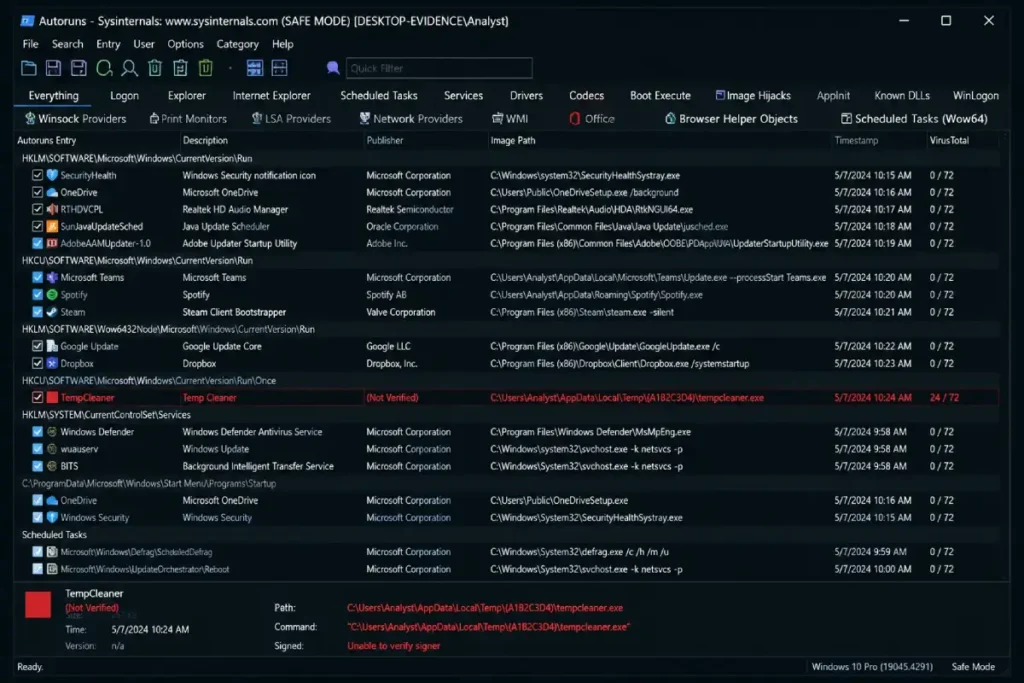
Begin with Autoruns. Run it with administrator privileges and use the Options menu to enable filtering of Microsoft-signed entries and VirusTotal scanning. Any startup entry that Autoruns cannot verify against a known good publisher, that VirusTotal flags with any detections, or that points to an executable in a non-standard location is an investigation priority. Document all flagged entries before taking any action.
Follow with Process Explorer. Enable VirusTotal integration and examine every running process for signature verification status and detection ratios. Cross-reference suspicious processes against the Autoruns findings — a process appearing in both as unsigned and in a suspicious location with VirusTotal detections is a high-confidence confirmation of malicious activity.
Conclude with TCPView, another free Sysinternals tool that provides a real-time view of all TCP and UDP connections on the system with process attribution. TCPView shows each connection’s state, the remote address and port, and the local process responsible. In this view, an established connection from an unrecognized process to an unfamiliar IP address is the network-level confirmation that complements the process-level findings from Process Explorer.
Running the Hosts file diagnostic
Open an elevated Notepad instance and navigate to C:\Windows\System32\drivers\etc\hosts. Review every line that is not a comment (comments begin with #). The clean, unmodified Hosts file on a standard Windows machine should show nothing except 127.0.0.1 localhost and potentially the IPv6 equivalent ::1 localhost. Any additional entries — particularly those redirecting antivirus vendor domains or major website domains to 127.0.0.1 or to any other IP address — represent Trojan modifications that prevent security software from functioning correctly or redirect your browser to attacker-controlled destinations.
What to do when investigation confirms infection
The moment investigation moves from suspicion to confirmation — when Autoruns shows an unsigned startup entry in AppData pointing to a VirusTotal-flagged executable, when Process Explorer identifies an unsigned process making persistent outbound connections, or when the Hosts file shows modification — the response sequence begins.
Disconnect from the internet immediately. Document your findings with screenshots. Then proceed through the full systematic removal process documented in Trojan virus removal: the complete expert guide for 2026, beginning with Safe Mode boot and working through the antivirus scanning, manual cleanup, and post-removal steps. For understanding how to prevent this from recurring after removal, how to protect your computer from Trojan viruses permanently provides the complete hardening framework.
Building ongoing detection habits
The most effective approach to Trojan detection is not waiting until symptoms appear — it is building a regular inspection routine that catches infections before symptoms are ever produced. A practical weekly routine takes fewer than 15 minutes:
Open Autoruns and filter to unsigned, third-party entries. Note any new entries that were not present in the previous week’s review — new startup registrations that appeared without a corresponding intentional software installation are immediate investigation priorities. Run Resource Monitor and spend two minutes reviewing active network connections — look for anything connecting out that should not be. Check your browser extensions across every browser on the system for additions you did not make.
Supplement this with a monthly full system scan using your primary antivirus and a monthly second-opinion scan with Malwarebytes or ESET Online Scanner. This schedule creates a detection posture in which a Trojan’s operational window — from infection to discovery — is measured in days or weeks rather than the industry-average months. The earlier the detection, the smaller the consequence footprint of the infection, and the simpler the remediation.