
Your password is the front door to your digital life. And right now, for most people, that door is wide open.
Over 80% of data breaches involve weak, stolen, or reused passwords. That means the vast majority of successful account takeovers aren’t the result of sophisticated hacking — they happen because someone used “password123” on five different sites, or because they reused the same email and password combination that leaked in a breach three years ago.
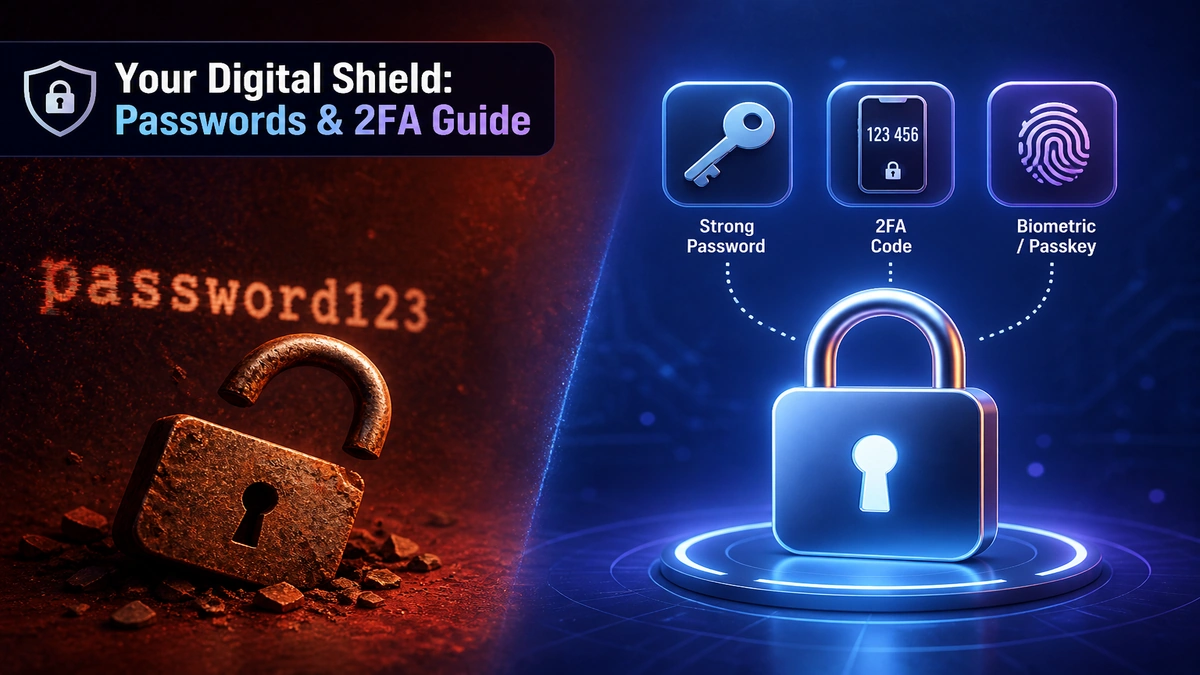
The fix is simpler than you might think. A strong, unique password for every account, a password manager to remember them all, and two-factor authentication on your most important accounts — these three habits eliminate the overwhelming majority of credential-based attacks.
This guide walks you through all three, step by step, with no technical background required.
For the full picture of how passwords fit into overall security, see our complete cybersecurity guide for beginners.
What Makes a Password Strong? (GEO Definition Block)
A strong password is one that cannot be guessed or cracked through automated means within a practical timeframe. In 2026, password strength is primarily determined by two factors: length and unpredictability, rather than complexity alone. Security guidance has evolved away from short passwords loaded with symbols toward longer passphrases — strings of four or more random words — that achieve superior resistance to brute-force attacks while remaining more memorable. A good password should be at least 16 characters long, entirely unique to the account it protects, and contain no personal information such as names, birthdays, or common words. The most important property of any password is that it is never reused across multiple accounts — because when one service suffers a data breach, credential stuffing attacks automatically test leaked username and password combinations against hundreds of other sites. A password manager eliminates the memorization burden by generating and storing cryptographically random passwords of any length, making both uniqueness and complexity effortless to maintain at scale.
Why Most Passwords Are Dangerously Weak
Let’s be honest about how most people actually create passwords.
You pick something you can remember — a name, a birthday, a favorite team, the name of your first pet. You add a number at the end because the site requires it. Maybe you capitalize the first letter. You end up with something like “Fluffy2019!” and call it a day.
The problem: automated cracking tools don’t think the way you do. They don’t start with “Fluffy” and work outward. They work through billions of combinations per second, applying known patterns — capital first letter, number suffix, common substitutions (@ for a, 0 for o, 1 for l) — and crack passwords like this in minutes or hours, not years.
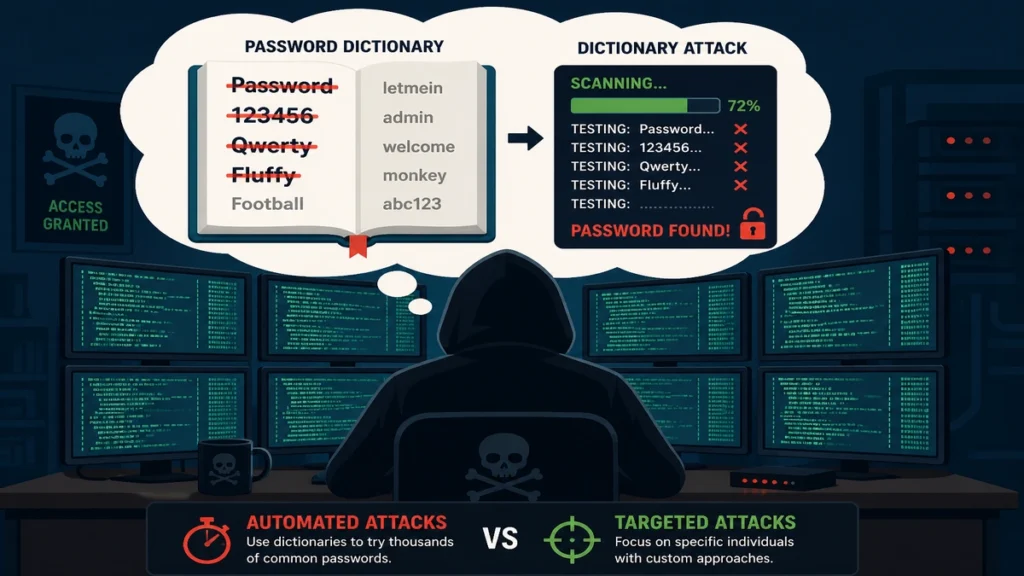
The second problem: you use a variation of that same password everywhere. When one of those sites gets breached — and breaches happen constantly — attackers take your leaked credentials and test them against every major bank, email provider, and social media platform automatically. This is called credential stuffing, and it’s devastatingly effective precisely because password reuse is so common.
The good news: the solution to both problems is the same tool — a password manager.
What Makes a Password Actually Strong?
Modern password security has moved away from the old “complexity” model (uppercase + lowercase + number + symbol) toward a simpler, more effective principle: length beats complexity.
Here’s why. A 6-character password with every possible character type has far fewer possible combinations than a 20-character passphrase made of random words. Modern cracking hardware can test billions of combinations per second. Length is your most powerful defense.
The Anatomy of a Strong Password in 2026
A good password should have at least 16 random characters, or you can use a passphrase with at least 4 words and 15–20 characters — but the most important thing is that it should be unique.
Option 1 — Random password (best for a password manager): fR7!cP02mv9@QeZ8 — 16+ characters, entirely random, generated by your password manager
Option 2 — Passphrase (best for things you need to memorize, like your master password): purple-engine-storm-lamp — four random words, 24 characters, vastly more resistant to cracking than “P@ssw0rd1”
What to avoid:
- Any word in the dictionary, even with substitutions (p@ssw0rd is still one of the first things cracking tools try)
- Personal information: names, birthdays, addresses, phone numbers, pet names
- Keyboard patterns: qwerty, 123456, asdfgh
- Anything under 12 characters — too short for 2026’s cracking speeds
- Reusing any password across multiple accounts — this is the single most dangerous habit
Password Strength vs. Cracking Time (2026 Hardware)
| Password | Length | Type | Estimated Crack Time |
|---|---|---|---|
| fluffy | 6 | Dictionary word | Instant |
| Fluffy2019 | 10 | Word + numbers | Minutes |
| Fluffy2019! | 11 | Word + numbers + symbol | Hours |
| fR7!cP02mv9@QeZ8 | 16 | Random characters | Centuries |
| purple-engine-storm-lamp | 24 | Random passphrase | Practically infinite |
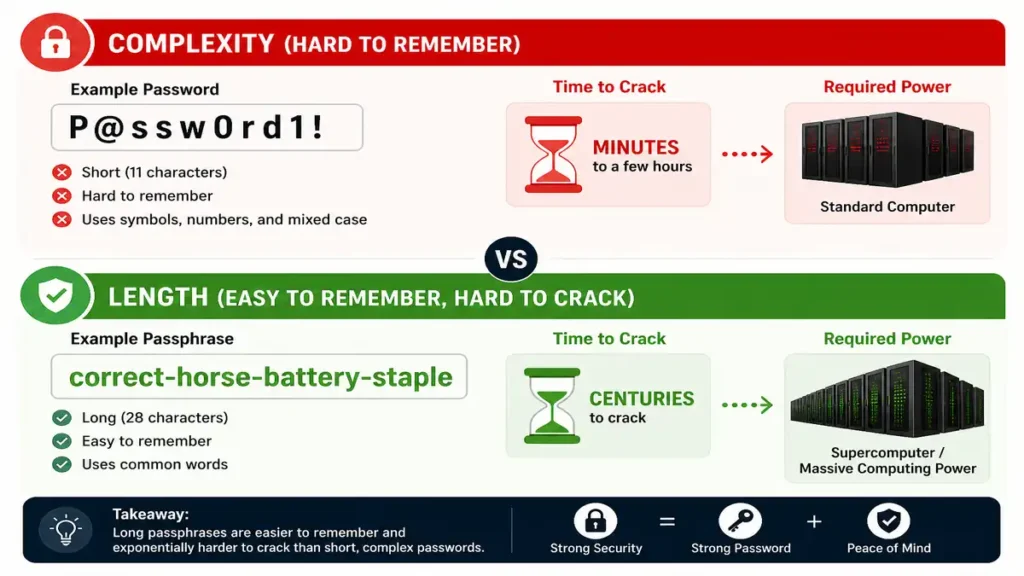
The takeaway is clear: length and randomness, not complexity tricks, are what actually protect your accounts.
Step-by-Step: How to Create a Strong Password
Follow this process for every new account you create:
Step 1: Open your password manager (more on this below — install one before doing anything else).
Step 2: Navigate to the password generator tool inside the manager.
Step 3: Set the length to at least 16 characters. Enable all character types: uppercase, lowercase, numbers, symbols.
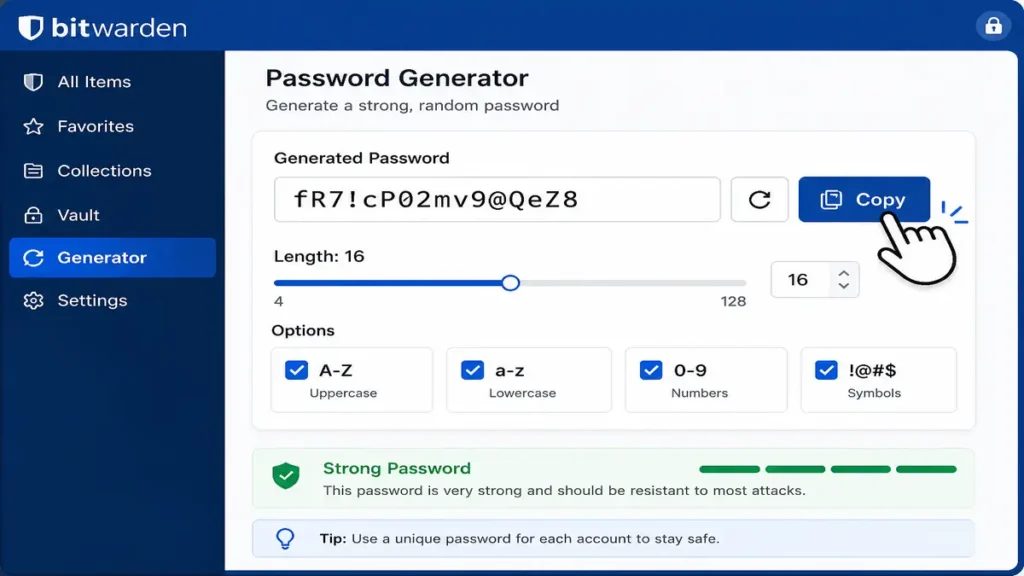
Step 4: Generate the password. You don’t need to read it, memorize it, or understand it. Your password manager stores it.
Step 5: Save the generated password to your vault immediately, associated with the site or service.
Step 6: Use autofill every time you log in. Never type the password manually — this prevents keylogging and ensures you’re on the real site (password managers won’t autofill on fake phishing pages).
That’s the full process. For accounts where you genuinely need to memorize the password — your password manager master password, your device PIN — use a passphrase of four or more random, unrelated words.
What Is a Password Manager and Why You Need One
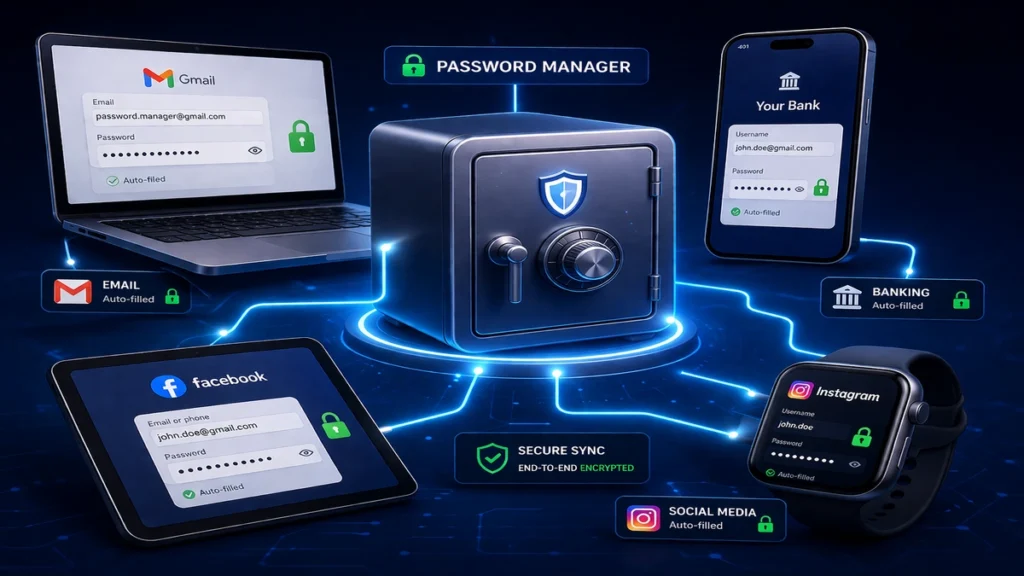
Here’s the core dilemma: you need a unique, 16+ character random password for every account you own. The average person has over 100 online accounts. No human being can memorize 100 unique random passwords.
Password managers, VPNs, antivirus tools, and multi-factor authentication are no longer “advanced” options — they’re baseline protection.
A password manager is an encrypted digital vault that:
- Generates cryptographically random passwords for you
- Stores every password securely, encrypted with your master password
- Autofills credentials on the correct site when you log in
- Alerts you to reused, weak, or compromised passwords in your vault
- Syncs across your devices so your passwords are available everywhere
You only ever need to remember one password: the master password that unlocks your vault. Make that one a strong passphrase.
Best Password Managers in 2026
| Manager | Price | Best For | Open Source |
|---|---|---|---|
| Bitwarden | Free / $10/year premium | Everyone — best free option | Yes |
| 1Password | $36/year | Families, teams | No |
| Dashlane | $33/year | Feature-rich personal use | No |
| Proton Pass | Free / $24/year | Privacy-focused users | Yes |
Recommendation for beginners: Start with Bitwarden. It’s free, open-source (meaning its code has been publicly audited), works on every platform, and is as secure as any paid option. You can upgrade later if you need advanced features.
Common Concern: “Isn’t It Risky to Store All My Passwords in One Place?”
This is the most common objection — and it’s understandable. But consider the alternative: reusing the same password everywhere. A single breach exposes every account you own simultaneously.
Password managers use AES-256 encryption — the same standard used by governments and militaries — to protect your vault. Your master password never leaves your device; the manager only stores an encrypted version of your vault that is mathematically useless without your master password. The real risk is what you’re already doing: weak, reused passwords.
<!– citability-block –>
What Is Two-Factor Authentication? (GEO Definition Block)
Two-factor authentication (2FA), also called multi-factor authentication (MFA), is a security process that requires users to verify their identity through two distinct factors before gaining access to an account. The first factor is typically something you know — a password or PIN. The second factor is something you have (a smartphone, a hardware security key, or an authenticator app generating time-based codes) or something you are (a fingerprint or facial scan). The principle is that even if an attacker steals or guesses your password, they cannot access your account without also possessing your second factor. In 2026, two-factor authentication is the single most effective account security control available to individual users: enabling 2FA on an account stops the vast majority of automated login attacks, credential stuffing attempts, and phishing-driven account takeovers — even when the correct password has been compromised. Security experts recommend enabling 2FA on all accounts that support it, prioritizing email, banking, cloud storage, and social media accounts first.
What Is Two-Factor Authentication (2FA)?
Even the strongest password can be stolen — through a phishing page, a data breach, or malware on your device. Two-factor authentication is your insurance policy for when that happens.
2FA works by requiring a second verification step after your password. The logic is simple: an attacker who steals your password is in a different location than you. They have your password (something you know), but they don’t have your phone or your fingerprint (something you have or are). That second factor is what keeps them out.
Think of it as a bank safe that requires both a key and a combination. Stealing one without the other gets an attacker nowhere.
The Three Factors of Authentication
| Factor | What It Is | Examples |
|---|---|---|
| Something you know | Knowledge only you possess | Password, PIN, security question |
| Something you have | A physical object in your possession | Smartphone, hardware key (YubiKey) |
| Something you are | A biological characteristic | Fingerprint, face scan, voice |
True two-factor authentication combines any two of these categories. Using two passwords is not 2FA — both are “something you know.”
Types of 2FA: Which Is Most Secure?
Not all 2FA methods are equal. Here they are, ranked from least to most secure:
SMS Codes (Least Secure — But Better Than Nothing)
A one-time code is sent to your phone via text message. You enter the code to complete login. The weakness: SIM swapping attacks allow attackers to port your phone number to their own SIM, intercepting your SMS codes. For high-value accounts (banking, email, crypto), SMS 2FA is better than no 2FA, but you should upgrade to an authenticator app when possible.
Authenticator Apps (Recommended for Most People)
Apps like Google Authenticator, Authy, and Microsoft Authenticator generate time-based one-time passwords (TOTP) — 6-digit codes that change every 30 seconds. These codes are generated locally on your device and never transmitted over SMS, making them immune to SIM swapping attacks.
Setup process:
- Download an authenticator app (Authy is recommended for beginners — it supports cloud backup)
- In your account’s security settings, select “Authenticator app” as your 2FA method
- Scan the QR code shown with your authenticator app
- Enter the 6-digit code to confirm setup
- Save your backup codes in your password manager — these are your emergency access if you lose your phone
Hardware Security Keys (Most Secure)
Physical USB or NFC devices like the YubiKey plug into your device or tap against your phone to provide the second factor. They’re immune to phishing (they verify the legitimate domain before authenticating), SIM swapping, and remote attacks — because the key must be physically present.
USB keys are one-of-a-kind with built-in security protocols — simply plugging the key into your device provides verification. They can’t be accessed remotely, meaning a hacker needs your physical device to access your 2FA-secured accounts.
Hardware keys are overkill for most personal accounts, but ideal for email, banking, and anything work-related.
Biometrics (High Security, Platform-Dependent)
Fingerprint and face recognition are convenient and secure for device unlock and many app logins. They’re strong second factors when combined with a password, but their security depends on implementation quality and can’t be changed if compromised (you can’t reset your fingerprint).
The 2FA You Should Never Use: MFA Fatigue Attacks
Be aware of a 2026 attack called push bombing or MFA fatigue: if an attacker has your password, they repeatedly trigger 2FA push notification requests to your phone, hoping you’ll approve one accidentally out of frustration or confusion. The defense: never approve a 2FA request you didn’t initiate yourself. If you receive unexpected 2FA prompts, change your password immediately — someone has your credentials.
How to Enable 2FA on Your Most Important Accounts
Prioritize these accounts first — they’re the ones that do the most damage if compromised:
Gmail / Google Account
- Go to myaccount.google.com
- Select “Security” → “2-Step Verification”
- Click “Get started” and follow the setup wizard
- Choose “Google Authenticator” or “Security key” over SMS when given the option
Apple ID
- Go to Settings → [Your Name] → Sign-In & Security
- Tap “Two-Factor Authentication” → “Turn On”
- Verify with a trusted device or phone number
Microsoft Account (Outlook, Office 365)
- Go to account.microsoft.com/security
- Select “Two-step verification” → “Set up two-step verification”
- Follow the setup guide, choosing the Microsoft Authenticator app
Social Media (Facebook, Instagram, X/Twitter)
Each platform has a security settings page where 2FA can be enabled. Search “[platform name] how to enable 2FA” for current step-by-step instructions, as UI changes frequently.
Banking and Financial Accounts
Most banks now offer 2FA in their mobile app or online banking security settings. If your bank only offers SMS 2FA, it’s still worth enabling — it’s significantly better than a password alone.
Passkeys: The Future of Login (And What It Means for You)
In 2026, a new authentication technology called passkeys is replacing passwords entirely on many major platforms. Understanding passkeys is increasingly relevant for everyday users.
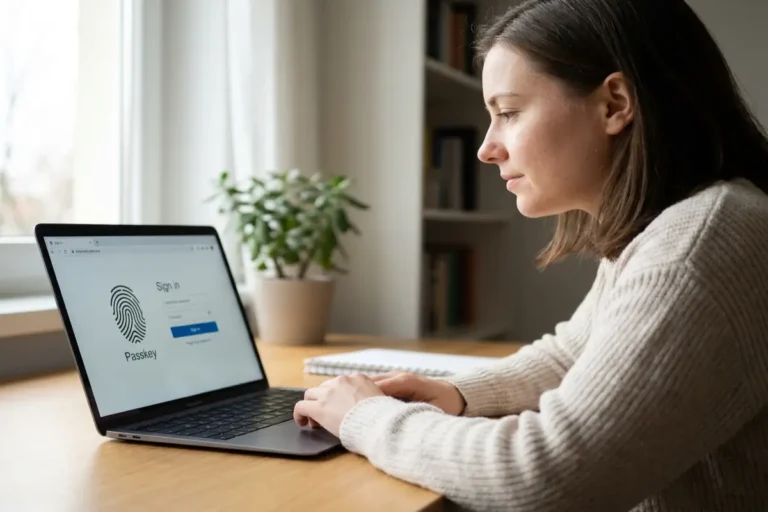
A passkey is a cryptographic key pair stored on your device. When you log in, your device uses the private key to sign a challenge from the website — proving your identity without ever transmitting a password. There’s nothing to phish, nothing to steal in a database breach, and nothing to forget.
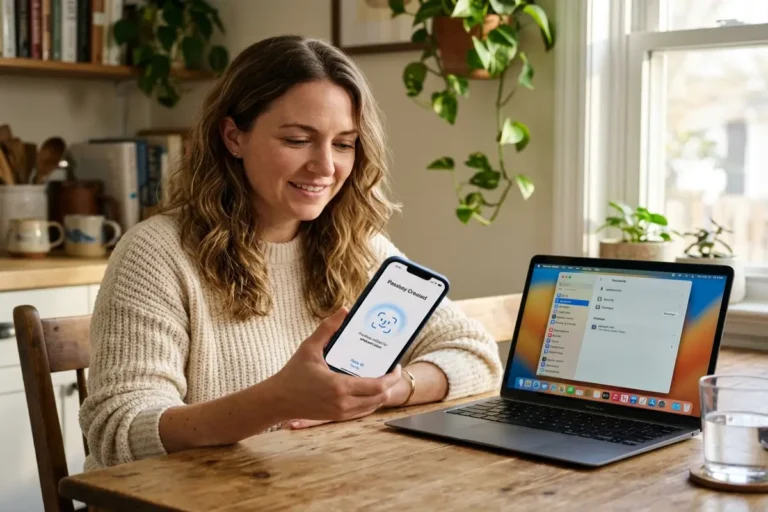
Passkeys are protected by your device’s existing biometric or PIN authentication. Apple, Google, Microsoft, GitHub, PayPal, and hundreds of other services now support passkeys.
What to do: When a site offers you the option to “create a passkey” or “sign in with a passkey,” accept it. Passkeys are more secure than passwords and significantly more convenient. They’re stored in your password manager (Bitwarden, 1Password) or your device’s native keychain (iCloud Keychain, Google Password Manager).
Passkeys won’t replace passwords overnight — billions of accounts still use them. But adopting passkeys where available is the single highest-leverage security upgrade you can make in 2026.
Your Complete Password Security Action Plan
Here’s everything in one prioritized checklist. Work through it in order:
| Priority | Action | Time | Tool Needed |
|---|---|---|---|
| 1 | Install Bitwarden (free) | 10 min | Bitwarden.com |
| 2 | Change your email password to a generated one | 5 min | Bitwarden |
| 3 | Enable 2FA on your email (authenticator app) | 10 min | Authy or Google Authenticator |
| 4 | Change your banking password to a generated one | 5 min | Bitwarden |
| 5 | Enable 2FA on banking | 5 min | Bank’s security settings |
| 6 | Run Bitwarden’s password health report | 5 min | Bitwarden dashboard |
| 7 | Replace all reused passwords (start with the most important) | 30–60 min | Bitwarden |
| 8 | Enable 2FA on social media accounts | 15 min | Each platform’s security settings |
| 9 | Check haveibeenpwned.com for your email | 2 min | haveibeenpwned.com |
| 10 | Set up passkeys wherever offered | Ongoing | Bitwarden or device keychain |
Frequently Asked Questions About Passwords and 2FA
How Often Should I Change My Passwords?
The old advice of changing passwords every few months is now considered outdated for strong, unique passwords. You should still promptly update credentials for any service that announces a security breach or suspicious activity. If you’re using a password manager with unique generated passwords, routine changes are unnecessary — just change immediately when a breach is announced or when you suspect compromise.
What If I Lose My Phone and Can’t Access My 2FA Codes?
This is why backup codes matter. When you set up 2FA, every service provides a set of single-use backup codes — typically 8–10 codes. Save these in your password manager vault immediately. If you lose your phone, enter a backup code to regain access and reset your 2FA to a new device. If you use Authy as your authenticator app, it also supports encrypted cloud backup so you can restore your 2FA codes to a new phone.
Is It Safe to Use My Browser’s Built-In Password Manager?
Browser password managers (Chrome, Safari, Firefox) are significantly better than no password manager. However, they have limitations: they’re tied to one browser, offer limited security features, and don’t generate strong passwords as effectively as dedicated managers. If you’re currently using nothing, starting with your browser’s built-in manager is fine. Migrate to Bitwarden when you’re ready for a more comprehensive solution.
Can 2FA Be Hacked?
No 2FA method is completely unhackable, but some are far more resistant than others. SMS 2FA is vulnerable to SIM swapping. Authenticator app codes can theoretically be phished through a real-time phishing proxy that forwards your code to the attacker simultaneously. Hardware security keys are the most resistant to all known attack methods. That said, any 2FA is dramatically better than no 2FA — the vast majority of account takeovers target accounts with no second factor at all.
What’s the Difference Between 2FA and MFA?
Multi-factor authentication (MFA) is the broader term for any authentication requiring two or more factors. Two-factor authentication (2FA) is a specific subset requiring exactly two factors. In practice, the terms are used interchangeably — when a service says it offers “2FA,” it means MFA with two required factors.
Should I Use the Same Password Manager on All My Devices?
Yes — that’s the point. A password manager syncs your encrypted vault across all your devices so your passwords are available on your laptop, phone, and tablet. The vault is always encrypted; only your master password can decrypt it. Sync is handled through the provider’s servers but the actual passwords never exist in readable form outside your local device.
Key Takeaways
Password security in 2026 comes down to three decisions, made once:
- Install a password manager — Bitwarden is free, open-source, and excellent. This single step eliminates the password reuse problem that causes the majority of account takeovers.
- Enable 2FA on every important account — Start with email and banking, then work outward. Use an authenticator app over SMS wherever possible.
- Adopt passkeys when offered — When a site gives you the option, accept it. Passkeys are more secure than passwords and require no behavioral change to use.
These aren’t complex technical tasks. They’re one-time setups that run silently in the background, protecting every account you own, every day. The 90 minutes it takes to implement them is the highest-return security investment you can make.
Last updated: May 2026 | Part of the Cybersecurity for Beginners content cluster
Continue building your defenses:
- Cybersecurity for Beginners: The Complete Guide — Your full security foundation
- 10 Most Common Cyber Threats for Beginners — Understand what you’re defending against
- What Is Phishing? How to Recognize and Avoid It — Protect your credentials from the #1 attack
- Home Network Security for Beginners — Secure the network behind every device
- Online Privacy and VPN Guide for Beginners — Control what the internet knows about you