
Home router parental controls setup is the most consistently skipped first step in household internet safety. Most parents bypass it not by design but because the process sounds more technical than it is. Changing two DNS server addresses in the router admin panel takes four minutes, applies instantly to every device connected to the home network, and costs nothing.
Without that change, the DNS servers assigned by most major ISPs — Comcast, AT&T, Spectrum, Verizon — resolve every domain request without filtering. A child’s tablet on home Wi-Fi travels through the same unfiltered infrastructure as an adult device. A gaming console on the same network has no more protection than a device with no parental controls at all. Router-level configuration changes that for every connected device simultaneously with a single update.
This guide covers four sequential steps: replacing the default DNS with a free family-safe service, enabling the router’s built-in parental controls where available, configuring per-device time profiles and content categories, and adding Circle Home Plus for households that need per-person profile management across all devices. Each step builds on the previous one, and Step 1 alone closes more exposure surface than most per-device app installations.
For context on where this router setup layer fits within a complete protection system — including device-level apps, platform-specific settings, and the cellular data gap that router configuration can’t solve — our complete family internet protection guide covers the full layered approach. This guide focuses specifically on the home router parental controls setup layer.
What router-level parental controls cover — and what they can’t reach
Router-level parental controls operate at a different layer than app-based tools. Understanding that layer precisely is what clarifies both what this guide’s setup achieves and where it stops.
Every internet-connected device uses DNS — Domain Name System — to translate a human-readable web address into the numerical IP address that locates the server. When a child’s device requests youtube.com, it first asks a DNS server for the address. The DNS server responds with the IP, and the connection forms. Standard ISP-assigned DNS servers answer that question for every domain without distinction.
Switching the router’s DNS to a family-safe resolver adds a filtering step before the translation happens. The new DNS server checks each requested domain against a categorized database and refuses to resolve domains in blocked categories. The requesting device receives no address, the connection to the blocked domain never forms, and the filter applies to every device on the home Wi-Fi simultaneously — phones, tablets, laptops, gaming consoles, smart TVs, streaming devices — without any app installation on those devices.
Home router parental controls setup provides three advantages that per-device apps can’t replicate: coverage of devices that don’t support third-party app installations at all, automatic application to every new device that joins the network, and a filtering layer the child cannot disable by uninstalling an app from their own phone.
DNS filtering for families handles the domain-level blocking layer with meaningful breadth. Its limitations are equally important to name. It doesn’t reach cellular data connections — a phone that leaves the home Wi-Fi carries no router-level protection. It doesn’t read encrypted in-app traffic from applications like WhatsApp and Discord that use DNS over HTTPS internally. It blocks entire domains, not content within them: youtube.com passes the DNS filter, and what the algorithm recommends after the first video does not.
DNS filtering for families covers the entry-level routing layer — stopping the most obvious category of explicit domain requests across every device in the house. The router’s built-in parental controls, covered in Step 2, extend this to per-device time scheduling and content category management with greater precision. The distinction between what router-level protection covers and what requires a separate app layer determines exactly which additional tools a household needs. DNS filtering doesn’t solve the problem of explicit images arriving through a messaging app on a platform whose domain isn’t blocked. That requires app-level monitoring — a complementary layer, not a competing one.
What you need before you start
Four items are needed before beginning the home router parental controls setup steps in this guide.
The router admin panel address. Most consumer routers use one of two default gateway addresses: 192.168.1.1 or 192.168.0.1. Type either into any browser address bar while connected to the home Wi-Fi. If neither connects to the admin panel, the correct address is printed on the sticker affixed to the underside or back of the router, labeled “Default Gateway” or similar.
The admin username and password. These are the router’s management interface credentials — not the Wi-Fi network password. Both are on the same router sticker. Most devices ship with “admin” as both the username and password, or “admin” as the username paired with a device-specific string. The first task in any home router parental controls setup is changing these from factory defaults, which prevents any household member from modifying the configured settings later.
The router brand and model number. This guide covers TP-Link Homecare, ASUS AiProtection Pro, Netgear, Eero, and Linksys separately in Step 2 because each brand places parental control settings in a different panel location. The model number is on the same sticker as the admin credentials.
A laptop or desktop connected to the home Wi-Fi. Router admin panels function in a mobile browser, but the small screen and dropdown-heavy interfaces make errors more likely. A device with a 13-inch screen or larger makes every step in this guide faster and more reliable.
One timing expectation: DNS server changes apply within 30 to 60 seconds of saving the settings on most router models and require no restart. Built-in parental control settings — category blocks, per-device schedules, content profiles — also apply immediately. A firmware update step, covered later in this guide, typically prompts a 60 to 90 second restart that briefly disconnects every device on the network.
The home router parental controls setup sequence: four steps toward a filtered household
The four steps in this guide build a complete router-level protection layer in sequence. Each step covers more exposure than the previous one, and any single step can be implemented independently if parts of the system are already in place. The DNS change in Step 1 is universally applicable, free, and applies to every device on the home network immediately. The built-in controls in Step 2 vary by router brand and add time-based scheduling that DNS alone doesn’t provide. Steps 3 and 4 are for households that need per-person profile management or coverage of devices that fall outside a standard router’s reach.
The approximate total time to complete all four steps on a router with built-in parental controls: 45 to 60 minutes on the first setup, primarily spent navigating unfamiliar admin panel menus. After initial configuration, any single adjustment takes under five minutes.
Step 1: replacing the default DNS with a family-safe server
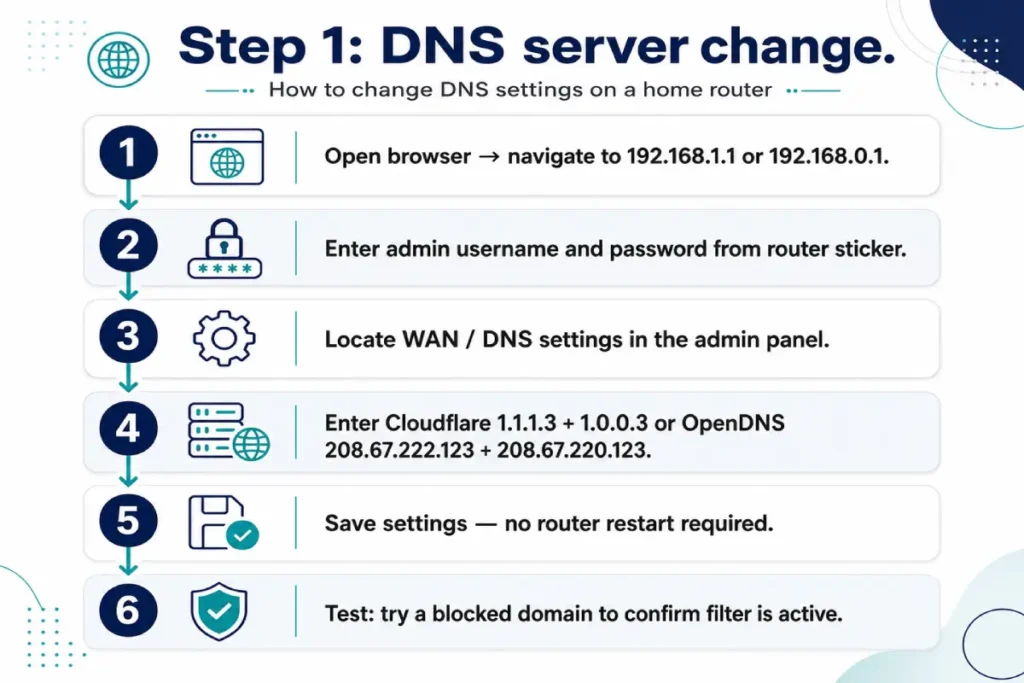
Two free DNS services cover the options in 2026. The OpenDNS FamilyShield setup uses addresses 208.67.222.123 (primary) and 208.67.220.123 (secondary) and blocks adult content, phishing domains, and proxy bypass sites across the home network. Cloudflare 1.1.1.3 uses addresses 1.1.1.3 (primary) and 1.0.0.3 (secondary) and adds malware and botnet blocking alongside adult content filtering. Both are free and both represent a significant improvement over ISP defaults. For most households, Cloudflare 1.1.1.3 is the stronger choice because the malware blocking component closes a secondary threat category at the same configuration cost.
This DNS change is the foundational layer of any home router parental controls setup. The complete home router parental controls setup at the DNS layer involves three tasks: accessing the router admin panel, entering the new addresses, and verifying the filter is active. The numbered steps below apply to all major consumer router brands.
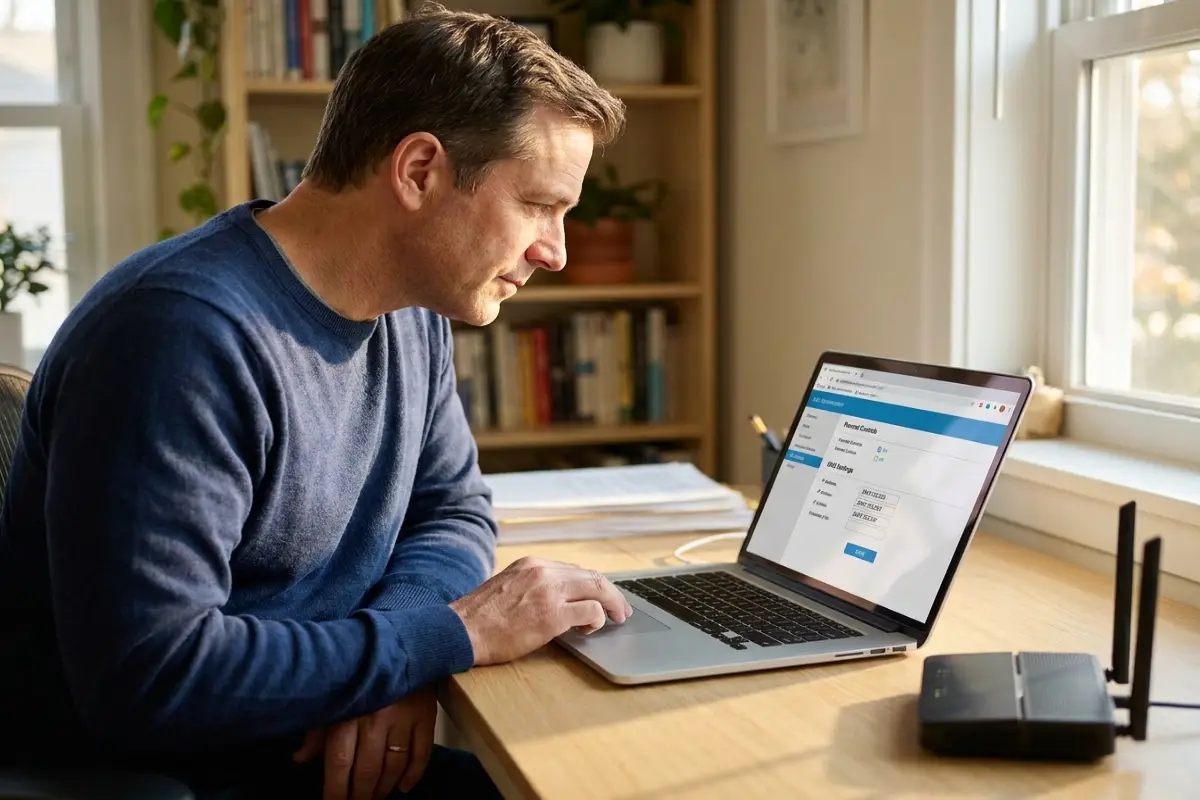
- Open a browser on any device connected to the home Wi-Fi and type 192.168.1.1 into the address bar. If the router admin panel doesn’t load, try 192.168.0.1. If neither works, the correct gateway address is printed on the sticker on the underside or back of the router.
- Enter the admin username and password from the router sticker. Most devices ship with “admin” for both fields, or “admin” as the username paired with a device-specific password string. If the factory defaults still apply, change these credentials immediately after completing this step — leaving default credentials in place allows any household member to access and modify the configured settings.
- Locate the DNS server fields. The exact navigation path varies by brand. On TP-Link routers: Advanced > Network > Internet > DNS Server. On ASUS routers: WAN > Internet Connection > DNS Setting. On Netgear routers: Advanced > Setup > Internet Setup. On Eero: DNS settings appear under Network Settings in the eero app, not the web panel. On all other brands, look under WAN Settings, Internet Settings, or Advanced Network.
- Replace the primary DNS address with the chosen service’s first address and the secondary DNS with the second address. For Cloudflare: enter 1.1.1.3 as primary and 1.0.0.3 as secondary. For OpenDNS FamilyShield setup: enter 208.67.222.123 as primary and 208.67.220.123 as secondary. Do not mix addresses from different services in the same configuration.
- Save the settings. The page reloads or shows a confirmation message on most routers. No restart is required for DNS changes on most consumer models — the filter becomes active within 30 to 60 seconds of saving.
- Test the change. From any device on the home Wi-Fi, navigate to a domain known to host adult content. A successful configuration returns a block page or a DNS resolution error rather than loading the site. If the site loads, confirm the addresses were entered in the correct fields without leading or trailing spaces — extra whitespace is the most common cause of a failed configuration.
The most frequent setup error is placing the DNS addresses in the wrong order or in fields labeled differently than expected. Some admin panels label the fields “Primary DNS” and “Secondary DNS” while others use “DNS Server 1” and “DNS Server 2.” Both naming conventions refer to the same fields. The primary address always enters the first field regardless of the label.
Step 2: enabling your router’s built-in parental controls
Enabling the router’s built-in controls completes the second phase of home router parental controls setup. Where DNS filtering blocks domains globally across all connected devices, built-in router parental controls add per-device granularity: individual content category filtering, time schedules that cut internet access at specific hours for specific devices, and real-time usage monitoring accessible from a parent’s smartphone.
Access the built-in controls from the same admin panel used in Step 1. The navigation path differs by brand.
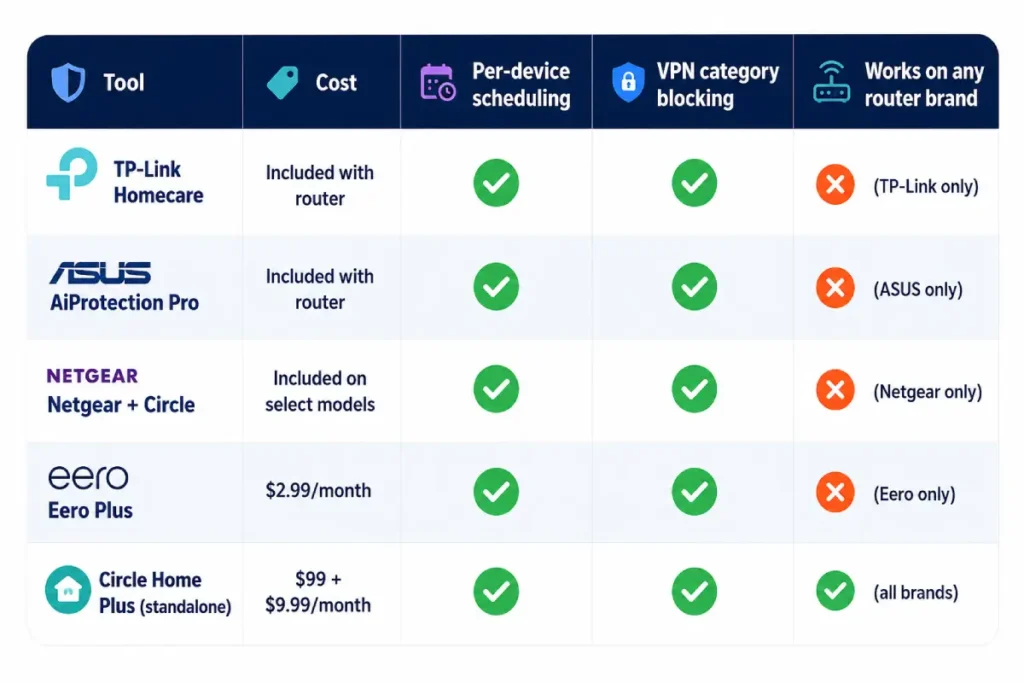
TP-Link Homecare is available on Archer series models including the AX21, AX55, and all higher tiers. It appears under Advanced > HomeCare in the web admin panel or within the Tether mobile app under the HomeCare section. Configure content filtering categories per device, assign daily internet-off windows per device, and view per-device browsing history. Homecare is included in the router purchase with no subscription.
ASUS AiProtection Pro appears under the AiProtection tab in the web admin panel for RT-AX series and AiMesh-compatible routers. The full feature set requires a free ASUS Router account linked through the app. Beyond DNS-level filtering, AiProtection adds real-time intrusion prevention that blocks network-level exploit attempts, a router security assessment, and per-device time scheduling under Parental Controls.
Netgear Nighthawk and Orbi models manufactured after 2022 include Circle parental controls integration accessible through the Nighthawk or Orbi mobile app under Parental Controls. Orbi mesh systems support Circle profiles that follow each family member across device swaps — the same profile applies whether the child is on their tablet, laptop, or the household smart TV. Netgear models without Circle integration have a basic Parental Controls panel under Advanced > Security with website blocking by keyword or domain.
Eero routers require an Eero Plus subscription at $2.99 per month or $29.99 per year for content filtering, ad blocking, and parental controls through the eero app. Without the subscription, eero provides no content filtering beyond DNS-level changes completed in Step 1.
Across all four brands, three settings are the priority to configure during initial setup: the content category filter covering at minimum adult content, gambling, and proxy bypass categories; the bedtime schedule per child device that cuts internet access during homework hours and overnight; and the daily time limit per device where the router supports per-device hourly budgets. The exact labels for these settings differ by brand and firmware version, but all four platforms above provide these three functions.
For a comparison of the app-level monitoring tools that complement router controls — covering what router-level filtering can’t reach, specifically messaging platform content — see our guide to the best parental control apps for 2026.
For routers that lack built-in parental controls, Step 4 of this home router parental controls setup guide covers Circle Home Plus as a hardware solution that provides equivalent per-person profile management for any router brand. Together, Steps 1 and 2 form the complete router layer of a working family internet protection approach — the foundation that all device-level tools build on.
Step 3: configuring per-device profiles and content categories
With DNS filtering active from Step 1 and the router’s built-in controls enabled in Step 2, Step 3 moves the setup from a general network filter to a household-specific configuration. This is where each child device receives the content category blocks and time schedules appropriate to their age.
Start by identifying each device in the admin panel. Most routers list connected devices by MAC address and a system-generated name — “iPhone (7)” or “android-a4f3” rarely identifies which household member owns the device. Rename each device using the child’s name in the admin panel before assigning categories. On Circle-enabled routers, assign each device to the correct person’s profile at this stage rather than treating it as a standalone device.
Assign content category blocks by age group. For children under 10: enable blocking for adult content, violence, gambling, weapons and firearms, drugs and alcohol, and proxy and VPN bypass sites. For children aged 10 to 13: apply the same categories and consider adding social media access restrictions during school hours and overnight. For teenagers 14 and older: maintain the proxy and VPN bypass category block as the single most important restriction. It closes the most direct circumvention path without producing the blanket restrictions that drive most VPN use in this age group.
The DNS filtering for families layer established in Step 1 already handles the most obvious adult content domains globally. The category blocks in Step 3 add classification-level filtering that addresses adjacent risk categories — gambling sites, proxy services, weapons forums — that DNS alone doesn’t categorize separately.
Set bedtime schedules per device. Cutting internet access at 9pm on school nights and restoring it at 7am requires three minutes of configuration on any router brand covered in Step 2. On routers with OpenDNS FamilyShield setup or ASUS AiProtection time scheduling, the schedule setting appears under the device’s individual profile, not under global network settings. Set a separate schedule for weekends if the household uses different rules for non-school days.
Review and update these configurations at the start of each school year. Content categories appropriate for a ten-year-old need adjustment for a thirteen-year-old, and time schedules effective in summer typically don’t map accurately to term-time routines.
Step 4: completing the home router parental controls setup with Circle Home Plus
Adding Circle Home Plus closes the final configuration gap in a complete home router parental controls setup for two types of households: those whose routers have no built-in parental controls, and those that need per-person profiles following a family member across multiple devices simultaneously.
The Circle Home Plus device connects via ethernet to a LAN port on the existing home router — no router replacement is required. Setup takes approximately 15 minutes: download the Circle app, connect the hardware to the LAN port, scan the QR code on the device, and create a profile for each family member. Assign all of each child’s devices to their profile. From that point, the same time limits and content categories apply whether the child is on their tablet, the household laptop, or the smart TV — the profile follows the person, not a single device.
Circle-specific features not available in most built-in router tools include a real-time internet pause button that cuts all internet access for one profile across every assigned device simultaneously, accessible from the parent’s phone from anywhere. Location check-ins and usage history broken down by content category rather than by domain or device round out the feature set.
Pricing is $99 for the hardware and $9.99 per month for the subscription as of Q2 2026. For households where the router has no built-in controls and Steps 2 and 3 aren’t available, Circle Home Plus provides equivalent functionality as a hardware add-on for any router brand at any price point.
The one gap Circle Home Plus doesn’t close — and no router-level tool can — is cellular data. A child’s phone that leaves the home Wi-Fi carries no Circle filtering. Carrier-level filters, covered in the complete family internet protection guide, address that gap at the network carrier level. Circle Home Plus completes the home network layer of a comprehensive family internet protection approach, applying to every Wi-Fi connected device in the household without per-device app installation.
Testing and verifying your home router parental controls setup
Running three verification tests after completing all four steps confirms the home router parental controls setup is working as configured rather than merely appearing complete.
Test 1 — DNS filter verification: On a child device connected to home Wi-Fi, navigate to a domain known to host adult content. A correctly configured DNS filtering for families setup returns a block page or a domain resolution error rather than loading the site. If the page loads, revisit the DNS addresses entered in Step 1 and confirm they were saved without leading or trailing spaces, which is the most common entry error.
Test 2 — Time schedule verification: Temporarily set a device schedule to run for a two-minute window starting one minute from now. Confirm internet access cuts when the window closes and restores when it reopens. Delete the test schedule immediately after. This confirms the router’s internal clock is set to the correct time zone and the schedule engine is active.
Test 3 — Proxy category block verification: Navigate to a known proxy bypass website from a child device. A correctly configured block returns a block page. If the site loads, check that the VPN and proxy bypass category is enabled rather than simply visible in the category filter panel — many admin interfaces display categories without applying them until explicitly activated.
These three tests cover Wi-Fi traffic only. Cellular connections bypass all router-level controls regardless of how the setup is configured. For guidance on building safe online habits that function when children are away from home Wi-Fi, see our guide to safe internet habits for kids.
Common mistakes that break the setup and how to fix them
Five configuration mistakes consistently produce a setup that looks complete but has a meaningful gap in it.
Leaving the router admin credentials as factory defaults. Most routers ship with “admin” and “admin” or similarly predictable credential pairs printed on the underside sticker, visible to anyone in the household. Any family member who looks at the sticker can log into the admin panel and modify or disable every setting configured in this guide. Fix: change both the admin username and the password during initial setup before configuring anything else.
Forgetting firmware updates. Router firmware vulnerabilities — four critical CVEs from TP-Link in 2025, three emergency patches from ASUS in early 2026 — allow local network traffic interception regardless of how well content filtering is configured at the application layer. Fix: enable automatic firmware updates in the router’s administration or maintenance panel.
Assuming Wi-Fi coverage equals total coverage. A child’s smartphone with a cellular data plan carries no router-level filtering the moment it leaves home Wi-Fi range. Fix: add a carrier-level filter for each cellular device. Verizon Smart Family, AT&T Secure Family, and T-Mobile FamilyMode each extend content filtering to cellular traffic for $5 to $10 per month.
Blocking too many categories for teenagers. Blanket content restrictions on a fifteen-year-old’s device produce VPN use rather than compliance — circumvention becomes easier than navigating the blocks. Fix: maintain the proxy and VPN bypass category block, which prevents the primary circumvention tool, while removing most other restrictions for teenagers over 13 and shifting to monitoring-based tools instead.
Not retesting after a firmware update. Router firmware updates occasionally reset DNS settings or parental control configurations to factory defaults without user notice. Fix: run the three verification tests from the previous section after any router restart or firmware update to confirm all configured settings are still in place.
Frequently asked questions
Will the router setup block apps or websites used by adults in the household?
DNS-level filtering blocks adult content domains for every device on the home network, including adults. Streaming platforms, social media, banking apps, news sites, and most everyday services fall into unrestricted categories and remain fully accessible. If a legitimate site triggers a block, most routers with built-in parental controls allow adding that domain to an allowlist under “trusted sites” or “allowed domains” in the parental controls panel. On routers that support per-device category profiles, assign adult devices to a profile with unrestricted access categories so adult browsing isn’t filtered at the category level.
How do I choose between OpenDNS FamilyShield and Cloudflare 1.1.1.3?
Both provide meaningful improvement over ISP default DNS. OpenDNS FamilyShield setup applies category-level blocking across adult content, proxy bypass sites, and phishing domains. Cloudflare 1.1.1.3 adds malware and botnet domain blocking alongside adult content filtering. For households where any device — including an older family member’s or guest’s device — connects to the home network, Cloudflare’s malware blocking closes a secondary threat vector that OpenDNS FamilyShield alone doesn’t address. Either service is a valid choice; Cloudflare is marginally stronger on the security dimension.
Does this setup cover devices connected to the guest Wi-Fi network?
Whether the home router parental controls setup applies to guest networks depends on the router brand. TP-Link Homecare and ASUS AiProtection apply DNS-based filtering to guest networks because the filtering operates at the DNS server level, upstream of the network segmentation. Circle Home Plus applies to both primary and guest networks by default. Router-specific time schedules and per-device category blocks typically apply to primary network enrollments only — guest network devices receive DNS filtering but not per-device scheduling or content category management unless the router explicitly supports guest network profiles.
How often should the router settings be reviewed after initial setup?
Review the configuration at three trigger points: when a child moves to a new age bracket, when a firmware update prompts a router restart, and at the start of each school year when time schedules need adjustment. Running the three verification tests — DNS filter, time schedule, proxy category — takes under ten minutes and confirms all layers are intact. Outside these triggers, the configuration requires no routine maintenance beyond confirming firmware updates are applying automatically.
What happens if the router is reset to factory settings?
A factory reset clears all configured settings including DNS server addresses, parental control profiles, time schedules, and admin credentials. The router returns to its default state with ISP-assigned DNS and no content filtering active. If a factory reset becomes necessary, work through all four steps in this guide from the beginning. Keep a record of the DNS addresses used and the admin credentials set in a location separate from the router — physical or digital note outside the router admin panel — so recovery takes under fifteen minutes rather than requiring the full guide.