


Family internet protection fails most often not from a single catastrophic breach but from the accumulated gaps between the tools parents set up years ago and the platforms their children discovered last month. A router DNS filter that blocks gambling sites won’t stop a twelve-year-old from encountering harmful content inside a Discord server. A screen time limit on an iPhone won’t reach the unmonitored Chromebook in a teenager’s backpack.
Most households run three to five simultaneous vectors of unmanaged exposure: smartphones on cellular data, gaming consoles with open voice chat, smart TVs with browser applications, and school-issued devices that operate under policies parents never see. Managing that mix without a deliberate, layered approach creates the appearance of protection rather than the substance of it.
This guide builds a practical family internet protection system. It addresses the technical layers — DNS filtering, parental controls software, device-level restrictions — and the human layer that determines whether any of them hold: the conversations parents need to have, the rules that adapt as children grow, and the specific devices most households never think to secure.
Why the default settings on your home network leave children exposed
When a household connects through Comcast, AT&T, Spectrum, or Verizon, the DNS servers assigned to that connection resolve every domain request without distinction. A request for “SpongeBob episodes” travels through the same infrastructure as a request for adult content. The servers don’t differentiate, because the default upstream infrastructure was never designed to.
Consumer routers compound the problem. The Netgear Nighthawk, TP-Link Archer, and ASUS RT-series all include parental control panels in their admin interfaces. A 2024 PCMag survey of 2,100 U.S. households with children found that 73% of router owners had never opened those panels beyond changing the default Wi-Fi password. The routers run precisely as configured from the factory: open to everything.
The exposure widens with each device added to the network. A Nintendo Switch, an Amazon Fire TV, a Roku box — every device on the home Wi-Fi inherits the same unfiltered DNS settings. A child who reaches the age restriction on their Apple Family Sharing account still has unrestricted access through the family’s gaming console, because that device routes through the same unmanaged upstream DNS.
Most gaps in family internet protection at the network level close with two free changes. Switching the router’s DNS servers from ISP defaults to Cloudflare’s family-safe resolvers — 1.1.1.3 as primary and 1.0.0.3 as secondary — activates malware blocking and adult content filtering for every device on the home network simultaneously. OpenDNS FamilyShield, using 208.67.222.123 and 208.67.220.123, applies category-level blocking to adult content, proxy bypass sites, and phishing domains. Both services are free. Both apply within seconds of changing the DNS values in the router admin panel.
The ceiling on DNS-level filtering is worth naming directly. It doesn’t cover encrypted in-app traffic from applications that use their own internal DNS — WhatsApp, Discord, and most major social platforms operate this way. It doesn’t reach cellular data connections, which bypass home Wi-Fi entirely. It blocks domains, not content within platforms: a child who reaches youtube.com through an unblocked domain still encounters whatever the algorithm serves next.
A separate home network security gap most parents never encounter in setup guides: router firmware vulnerabilities. TP-Link disclosed four critical CVEs in its consumer router firmware between January and September 2025. ASUS issued emergency patches for three device models in March 2026 after researchers identified an authentication bypass affecting over 1.4 million deployed units. Automatic firmware updates are disabled by default on nearly every consumer router. Enabling them takes three minutes in the router admin panel and closes an entire category of local network exposure that has nothing to do with content filtering but affects every device in the house.
DNS and firmware management is not comprehensive family internet protection on its own. It is the first layer of a stack that also requires device-level parental controls, monitoring software, and direct conversations with children about what to do when technical controls miss something entirely.
The five online threats your family internet protection plan must cover
Standard online safety for kids advice — “don’t talk to strangers online” and “tell an adult if something feels wrong” — doesn’t map cleanly to a Discord server’s direct message system or a YouTube algorithm that routes a ten-year-old through 40 minutes of progressively inappropriate autoplay content. Understanding which threats demand which tools is the practical core of any working family internet protection strategy. Five distinct categories define what children face in 2026, and a single URL-blocking internet filter for families addresses none of them adequately.
Predatory contact. The primary environment for grooming has shifted from social media to gaming platforms faster than most protection frameworks could adapt. The Internet Watch Foundation’s 2025 annual report documented that 41% of grooming incidents now originate inside gaming environments: in-game chat within Roblox, Fortnite, and Minecraft, alongside Discord servers organized around gaming communities. The pattern starts with in-game generosity — gift cards, rare item trades, help completing difficult levels — before contact moves off-platform through a request to switch to a “more private” messaging app.
Algorithmic content exposure. A child who watches age-appropriate content on YouTube doesn’t stay there through autoplay. YouTube’s 2024 transparency report acknowledged that its content classifier failed to identify 12% of policy-violating material before human review reached it. Researchers at Mozilla documented TikTok’s recommendation engine shifting from age-appropriate content to eating disorder material within 30 minutes of a user engaging with diet or low-weight content. The algorithm responds to engagement signals, not the age registered on an account profile.
Platform-specific cyberbullying. Peer harassment has moved to spaces parents rarely monitor: private Snapchat group chats, closed Discord servers, and comment sections under game clips posted to YouTube and Twitch. The National Cybersecurity Alliance’s 2025 K-12 school safety survey of 8,000 students found that 52% of middle schoolers had witnessed or directly experienced harassment in a gaming or gaming-adjacent platform in the previous twelve months. Only 31% reported it to a parent.
Data collection from children’s devices. The FTC fined TikTok $92 million in 2023 for collecting personal data from children under 13 without verifiable parental consent. A 2025 Electronic Frontier Foundation audit found that 347 of the top 500 free mobile games in the iOS App Store transmitted device identifiers, location data, or behavioral profiles to third-party ad networks. Most of those games target children directly by design.
AI-generated misinformation pipelines. A twelve-year-old researching a school topic now encounters AI-generated documentary-style videos that are indistinguishable from factual journalism in production quality. Google updated its search quality rater guidelines twice in 2025 to address this content category, and the enforcement gap between those guidelines and what reaches YouTube recommendations remains measurable. The risk is not just exposure to false information — it’s the normalization of the assumption that polished presentation indicates trustworthiness.
For platform-specific strategies and behavioral warning signs tied to each of these threat categories, see our guide to protecting children from online predators. The sections that follow build the technical and conversational layers that form a complete family internet protection system.
Router-level protection: the foundation that covers every device at once
DNS server changes stop traffic before it reaches any device on the home network — a passive layer that forms the foundation of effective family internet protection at the Wi-Fi level. It works on every connected device simultaneously without any app installed, without any account linked, and without any individual device configuration. The trade-off is precision: it blocks at the domain level, not at the content level within an allowed domain.
The step up from DNS changes is the built-in parental controls layer now included in most routers manufactured after 2021. TP-Link Homecare ships standard with the Archer AX21 ($80 retail), the Archer AX55 ($110), and all higher-tier models. It provides URL filtering across 200+ content categories, per-device internet scheduling, and access pausing on a device-by-device basis — all without an additional subscription. The parent-facing controls live inside the Tether mobile app, removing the need to log into a browser-based admin panel.
ASUS AiProtection Pro, powered by Trend Micro, takes a deeper approach. Available on the RT-AX58U ($100), RT-AX88U ($250), and the full ASUS AiMesh lineup, it adds real-time intrusion prevention alongside content filtering. The parent dashboard assigns a risk score to each device based on its traffic patterns and flags network-level anomalies. It’s more complex than TP-Link Homecare but meaningfully stronger for households with older children who actively probe network restrictions.
Circle Home Plus operates independently of any router brand. The device plugs into the existing home router and creates network-level profiles mapped to individual family members rather than to specific devices. At $99 for the hardware plus $9.99/month for the subscription, it enables internet scheduling, content category filtering, daily time budgets, and an instant internet pause accessible from a parent’s phone. Because it follows the person rather than the hardware, it survives device swaps — the same profile applies whether a child is on their tablet, the household laptop, or the smart TV.
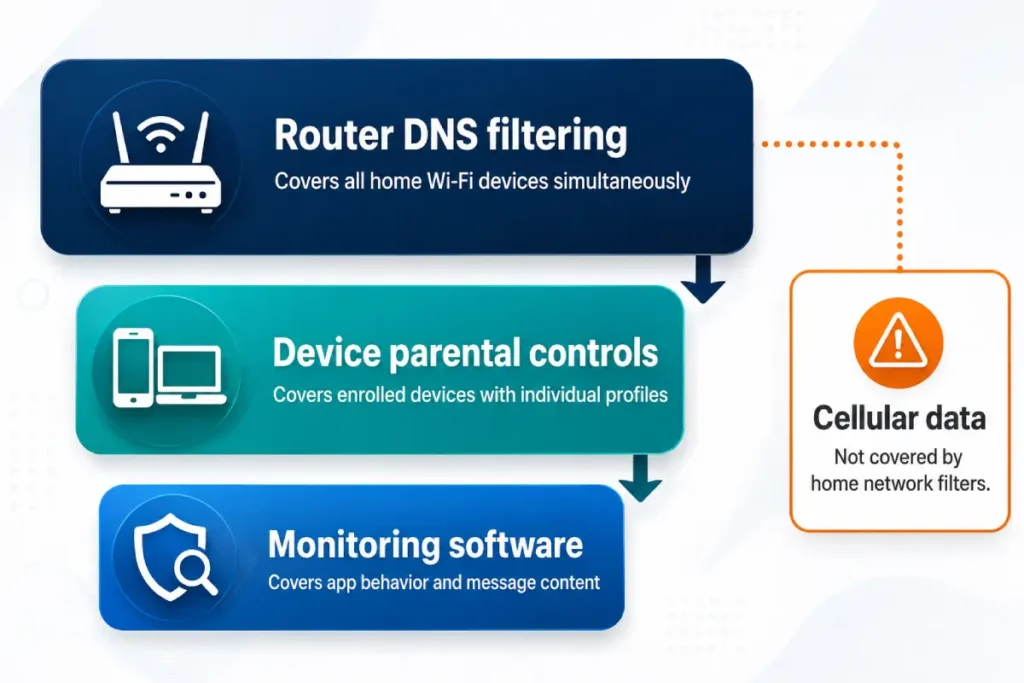
The fundamental ceiling on the router layer of any family internet protection setup is cellular data. A device that leaves home Wi-Fi and switches to cellular bypasses every router-level filter immediately and completely. For a nine-year-old with a Wi-Fi-only iPad, router-level filtering is close to sufficient inside the home. For a thirteen-year-old with a cellular smartphone, it covers roughly half of what needs covering at home and none of what happens outside it.
Carrier-level filters close part of that gap. Verizon Smart Family costs $4.99 to $9.99/month and travels with the device’s cellular connection. AT&T Secure Family is $7.99/month. T-Mobile FamilyMode is $10/month. Each applies content filtering regardless of which Wi-Fi network the device joins. None of them monitors message content or behavioral signals — they’re restriction tools, not monitoring tools — but they extend the home network security boundary to cellular data in a way no router can reach on its own.
For a full walkthrough of DNS configuration and the most effective built-in filtering tools for TP-Link, ASUS, Netgear, and third-party devices, see our home router parental controls setup guide.
Parental controls software: understanding what each type actually does
The practical decision in parental controls software runs along a single axis: monitoring-first versus restriction-first. They produce different outcomes, suit different ages, and most families need both at different points in a child’s development.
Bark is the primary monitoring-first tool in the parental controls software market. It reads message content, images, and search history across 30+ platforms — Gmail, iMessage, WhatsApp, Discord, Snapchat, Instagram, TikTok, Reddit, YouTube, and more than 20 others — and sends a parent alert only when it detects patterns associated with self-harm, depression, predatory contact, explicit content, cyberbullying, or substance references. Parents don’t receive access to every message. They see only what the algorithm flags as a concern. At $14/month or $99/year for a full household, it fits families with children aged 10 and up who are already on messaging platforms. It provides no screen time enforcement and doesn’t block apps or categories.
Qustodio is the benchmark restriction-first parental controls software. It blocks entire app categories, sets per-app daily usage budgets, enforces internet-off periods, and delivers a parent dashboard with full browsing history, app usage reports, and daily summary emails. $55/year covers five devices; $100/year covers 15. It operates across Windows, macOS, Android, iOS, and Kindle. Its filtering combines URL categorization with application-level controls, which catches more than DNS filtering alone but doesn’t reach encrypted in-app content inside social platforms.
Net Nanny uses dynamic content analysis instead of fixed blocked-domain lists. It reads the actual content of web pages in real time and applies filtering based on what’s on the page, not just what the domain’s address is. This catches adult content appearing on unblocked domains — a gap that pure domain-blocking tools miss. $54.99/year for five devices.
Circle Home Plus handles parental controls software functions at the router level rather than the device level. It covers every connected device in the household — smart TVs, gaming consoles, and devices where installing an app is impossible — without per-device configuration. Its gap is message content: it can see which platforms a device reaches but can’t read what’s inside them.
No parental controls software package builds a complete family internet protection solution independently. Three structural gaps persist across all tools. First: a VPN app on the child’s device bypasses nearly every parental controls software tool that operates at the DNS or network layer. Bark resists this partially because it operates at the application layer and reads content directly rather than inspecting network traffic — but Qustodio, Circle, and router-level tools lose visibility the moment a VPN activates. Second: devices belonging to friends. Online safety for kids at home doesn’t extend to an unmonitored phone a child uses at school or at a friend’s house. Third: offline content shared via AirDrop or Bluetooth, or content accessed on school-managed devices that operate under separate institutional policies.
Matching the right parental controls software to a child’s age and the household’s communication dynamic is the central decision in any family internet protection strategy. For a full side-by-side comparison of every tool covered above — with current Q2 2026 pricing, device coverage, and verdict by family type — see our best parental control apps guide for 2026.
Age-specific protection: why the approach changes as children grow
A family internet protection system calibrated for a nine-year-old produces either over-restriction or active circumvention by the time that child is fourteen. The technical layer and the conversational layer both need to evolve with the child. Four distinct stages define different protection strategies and different tool priorities.
Ages 0 to 5
No independent device access. All screen time happens with an adult present in the same room. The technical layer at this stage is access control, not filtering: devices stay where parents can see them, and sessions are parent-initiated and parent-ended. The YouTube Kids app is the correct choice if video content is part of supervised screen time — the main YouTube application is not. Web filtering and parental controls software are unnecessary at this stage because the child isn’t operating a device independently. Physical proximity is the protection system.
Ages 6 to 9
Restriction-heavy tools become the appropriate layer. A whitelisted approach works best here — meaning only explicitly approved applications are available for use. YouTube Kids continues; main YouTube does not. No social media in any form. Qustodio or Circle set to a child profile provides the right coverage. Location sharing is active. At this age, the child understands that rules around device use exist. They don’t need to understand the technical mechanics of how enforcement works.
Ages 10 to 13
Monitoring-first software becomes appropriate alongside restriction tools. Children in this range are using messaging platforms — iMessage, WhatsApp, Discord — where the risk profile is behavioral rather than browsing-based. A URL filter doesn’t read the content of a private message. Bark covers that layer in a way Qustodio and Circle cannot. Apple Screen Time or Google Family Link enforces daily usage limits without requiring a separate paid subscription. Limited access to one or two approved social platforms begins here, with parental visibility into the accounts. The internet filter for families at this stage shifts its priority from “block everything not whitelisted” to “block high-risk categories and monitor the rest.”
Ages 14 to 17
Monitoring becomes the primary layer as restriction steps back. Hard content blocks at the domain level produce two predictable outcomes at this age: VPN-based circumvention or resentment that damages the trust necessary for effective monitoring. Bark fits this stage because it detects behavioral signals — self-harm language, predatory contact patterns, depression indicators — without exposing every private conversation to a parent. The goal shifts from preventing exposure to detecting when a child is in genuine distress and needs a parent to respond. Online safety for kids at this age is as much a function of the family’s communication culture as of the software running on a device.
The transition from restriction-primary to monitoring-primary requires a direct conversation, not just a settings change. The family internet protection approach that works for teenagers is one where the child knows monitoring exists and understands the reason behind it — not a surveillance structure operating without their awareness.
Platform-specific safety settings your family internet protection plan must include
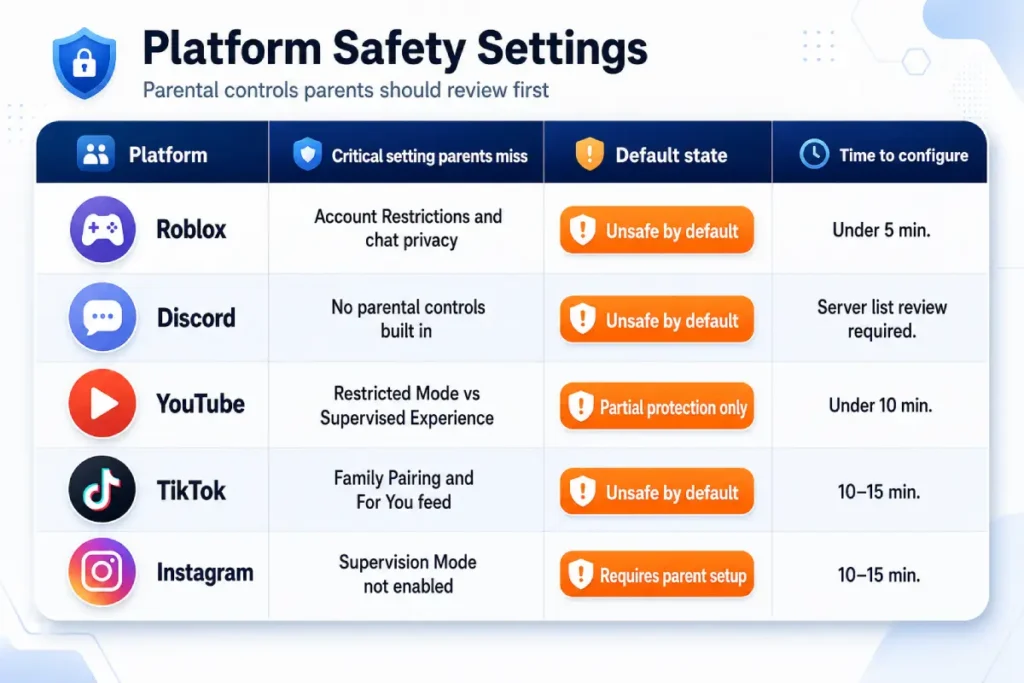
Any family internet protection and home network security plan that stops at the DNS and router layer misses approximately 40% of where a child’s documented risk exposure lives. The Internet Watch Foundation’s grooming incident data, Mozilla’s TikTok algorithm research, and the National Cybersecurity Alliance’s school survey all point to the same conclusion: the most serious incidents of the past three years occurred entirely inside platforms that standard network filters never touched. Platform-specific settings form a distinct layer of protection, and five platforms account for the majority of exposure incidents across children aged 7 to 17.
Roblox. The default chat setting for accounts registered as over 13 is fully unrestricted. Open the account settings panel on Roblox.com, navigate to Privacy, and set “Who can chat with me in-app?” to “Friends” rather than “Everyone.” Enable Account Restrictions mode for children under 10 — this limits play to Roblox-approved experiences and disables all chat simultaneously. Set “Who can trade with me?” and “Who can send me messages?” both to “No one” or “Friends.” All privacy changes require the parent PIN to reverse; configure that PIN under the Parental Controls section before handing the account to the child.
Discord. Discord has no native parental control panel and no functioning age verification. Its stated minimum age is 13. For teenagers with accounts, the highest-risk element isn’t the app’s global settings — it’s which servers the child has joined. Review the server list regularly. In Privacy & Safety settings, set “Safe Direct Messaging” to “Keep my DMs safe,” which scans incoming direct messages for explicit content. Set “Who can add you as a friend” to “Friends of Friends.” For children under 13, the correct decision is no Discord account at all.
YouTube. Restricted Mode and YouTube Kids are two different tools at different levels of protection. A 2024 Mozilla Foundation audit found Restricted Mode missed 18% of policy-violating content before human review reached it — it’s a useful filter, not a parental-grade one. For children under 10, YouTube Kids is the correct application: it’s genuinely separate from YouTube with supervised content libraries. For ages 10 to 13, enable Supervised Experience mode by linking the child’s Google account to a parent Google Family account through Google Family Link. This unlocks parental time limits and content sensitivity controls that Restricted Mode doesn’t provide.
TikTok. Family Pairing links a parent’s TikTok account to a child’s and enables remote management of screen time, content sensitivity, and search restrictions. Open TikTok’s Privacy settings, navigate to Family Pairing, and scan the QR code from the parent’s device. Enable Restricted Mode under the child’s settings. Direct messages are disabled by default for accounts registered as under 16 as of January 2025 — verify this remains active under the child’s Privacy panel. Switch the default feed from “For You” to “Following” to reduce algorithmic content exposure.
Instagram. Supervision Mode links a parent’s account to a teen account for users aged 13 to 17. The parent opens Instagram, navigates to Settings, then Supervision, and sends an invitation the teen must accept. This surfaces follower data, screen time reports, and account activity to the parent’s device. Under the teen’s content settings, select “Limit” for sensitive content. In Comments settings, enable “Manage Offensive Comments” with custom hidden word filters tailored to the child’s specific context.
These five configurations complete the platform coverage layer that DNS-based internet filter for families tools cannot reach on their own. Implementing all five takes 60 to 90 minutes as a one-time dedicated setup session.
The conversations that make every technical tool more effective
Technical family internet protection tools, from home network security layers to monitoring software, fail in two predictable circumstances: when a child discovers monitoring software without prior explanation, and when no framework exists for what to do when something goes wrong online. Both failure modes share the same solution — the conversation that happens before the software is configured.
The operative principle: explain first, configure second. Before Bark scans a first message or Qustodio blocks a first app, the child knows what the tool monitors, what triggers an alert, and what the parent does when one arrives. The framing that works, and that the research backs consistently, is “safety net” rather than “surveillance camera.” A child who experiences monitoring as a mechanism for getting caught will route around it through circumvention or silence. A child who understands it as a mechanism for getting help when something goes wrong is more likely to report proactively.
Four conversations form the practical foundation of online safety for kids, independent of which software runs in the background.
The first: what to do when something online feels wrong. This needs to be concrete rather than abstract. “If someone asks you to move your conversation to a different app, tell me immediately.” “If someone sends you an image you weren’t expecting, screenshot it and come find me.” Specific behaviors create automatic responses rather than judgment calls made under pressure.
The second: what personal information stays private permanently. Full name, school name, home address, phone number, neighborhood, and daily schedule. A list, memorized, with no ambiguity about exceptions.
The third: how to recognize when an online contact isn’t who they claim to be. For children 8 to 12: someone online who gives gifts, game items, or repeated special attention and then asks the child to keep the relationship secret from parents is running a predictable pattern. For 13 to 17: grooming follows an identifiable sequence — trust building, boundary testing, escalation, and isolation from trusted adults.
The fourth: what happens when they make a mistake online. A 2025 Common Sense Media survey found 67% of children aged 10 to 15 who experienced online distress didn’t tell a parent because they expected to lose their device as a result. Family internet protection conversations break that dynamic by making one explicit commitment: coming forward after an online incident will never result in device removal as punishment. The mistake and the device are separate decisions.
These conversations aren’t one-time events. A quarterly 15-minute check-in — what platforms are friends using, is anyone online making you uncomfortable, has anything felt off recently — maintains the reporting channel without making digital safety feel like an interrogation.
Building a complete family internet protection plan: the action framework
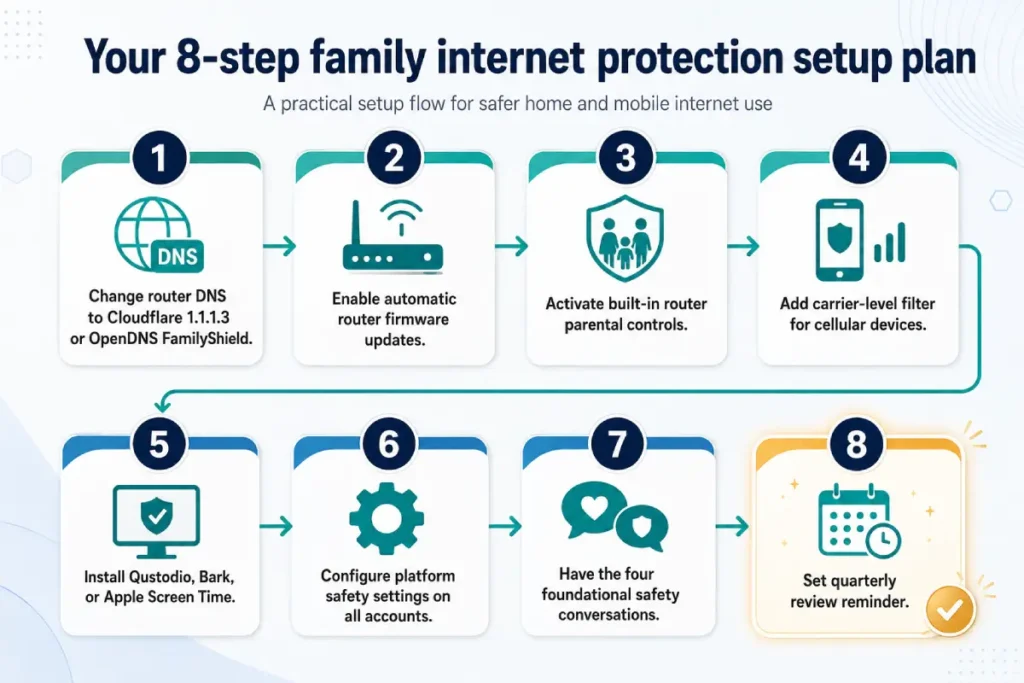
The eight steps below build a family internet protection system from scratch. They’re ordered by the combination of impact and speed — each step closes a significant gap or takes under 15 minutes to complete. No step requires a paid subscription until Step 5, and Step 5 includes free options.
- Change the router’s DNS to Cloudflare 1.1.1.3 as primary and 1.0.0.3 as secondary, or OpenDNS FamilyShield 208.67.222.123 and 208.67.220.123. Log into the router admin panel, locate the DNS configuration field, replace the ISP defaults, and save. Under five minutes. Applies to every device on the home network immediately.
- Enable automatic firmware updates in the router administration panel. This closes the CVE vulnerability window currently affecting millions of deployed consumer routers.
- Activate the built-in router parental controls layer — TP-Link Homecare, ASUS AiProtection Pro, or the equivalent for the router model in use. Set age-appropriate content category filters and daily internet-off schedules per device or per profile.
- Add a carrier-level filter for every device with a cellular data plan. This extends the home network security boundary to cellular traffic outside the home — the single gap no router-level tool can close. Verizon Smart Family, AT&T Secure Family, and T-Mobile FamilyMode each provide this for $5 to $10 per month.
- Install device-level parental controls. Qustodio ($55/year, 5 devices) for ages 6 to 12 where restriction is the primary need. Bark ($99/year, full household) for ages 10 and up where behavioral monitoring is the priority. Apple Screen Time and Google Family Link are free and appropriate for all age groups as a screen time enforcement layer.
- Configure platform-specific safety settings on every account the child uses — prioritizing Roblox, Discord, YouTube, TikTok, and Instagram using the configurations in the previous section. Budget 60 to 90 minutes for this as a one-time setup session.
- Have all four foundational conversations with the child before or alongside Steps 1 through 6. The internet filter for families and every technical layer in this framework performs better when children understand what each tool does and why it exists.
- Set a quarterly review reminder. Return to all active tools, verify platform privacy settings haven’t been reset by app updates, confirm monitoring software is active on all enrolled devices, and review any alerts received in the previous 90 days.
The ongoing maintenance requirement after this framework is in place: roughly 30 minutes per quarter for the technical review and four brief check-in conversations per year. The compounding return is the gradual shift from a technical protection system toward a household where online safety for kids is a standing subject of conversation rather than a crisis response.
Frequently asked questions
What is the best free internet filter for families?
Two options form the strongest free internet filter for families tier: OpenDNS FamilyShield and Cloudflare 1.1.1.3. OpenDNS FamilyShield (208.67.222.123 primary, 208.67.220.123 secondary) blocks adult content, proxy bypass sites, and phishing domains for every device on the home network. Cloudflare 1.1.1.3 (secondary: 1.0.0.3) adds malware and botnet protection alongside content filtering. Both require only a DNS server change in the router admin panel, take under five minutes, and represent a reliable cost-free first layer of family internet protection without a subscription.
Can a child bypass parental controls with a VPN?
A VPN app bypasses most parental controls software that operates at the DNS or network layer — including Qustodio’s web filter, Circle Home Plus, and all router-level DNS blocking. For a family internet protection setup built on iOS devices, the most effective counter-measure is Apple Screen Time’s content restriction that blocks VPN profile installation entirely, requiring the parent’s Screen Time passcode to override. On Android, Qustodio’s device administrator permission can be configured to block VPN applications under its app controls panel. Bark remains the parental controls software most resistant to VPN circumvention because it reads application-layer content directly rather than intercepting network traffic.
What parental controls are built into iPhones?
Apple Screen Time, included in iOS since version 12, provides app time limits, content restrictions by rating category, communication limits, downtime scheduling, and Screen Distance. Family Sharing links a parent’s Apple ID to a child’s account, enabling remote management of all Screen Time settings from the parent’s device without physical access to the child’s phone. The “Content & Privacy Restrictions” panel blocks app installations, in-app purchases, explicit web content, and Siri search results — the foundational lock in any iOS family internet protection setup. Set the Screen Time passcode to a code the child doesn’t know; it’s separate from the device unlock passcode and prevents any child-side changes to restriction settings.
Is Bark or Qustodio better for a 12-year-old?
The right choice depends on whether restriction or monitoring is the primary need. Qustodio enforces hard limits on app access, screen time, and web categories — the appropriate first layer for a 12-year-old new to messaging platforms who benefits from clear structural boundaries. Bark monitors message content across 30+ apps for behavioral signals without blocking apps or showing parents every conversation — the better fit for a 12-year-old already active on Discord, iMessage, or Snapchat who needs a safety net rather than a fence. Many families run both: Qustodio for screen time discipline and app control, Bark for behavioral monitoring in messaging. Combined annual cost for full household coverage is $154.
What should I do if my child sees something disturbing online?
Stay calm and avoid expressing immediate anger or blame — children who anticipate a punitive response are significantly less likely to report future incidents, which is a larger long-term risk than any single content exposure. Ask specific open questions: what did they see, where did they find it, and how are they feeling. Report the content through the platform’s built-in reporting tool. If it involves child sexual abuse material, submit a report directly to the National Center for Missing and Exploited Children at cybertipline.org, which routes cases to law enforcement. Use the incident as the entry point for a concrete conversation about online safety for kids and what to do the next time something similar appears.
Do parental controls slow down home internet speed?
DNS-level filtering adds fewer than 5 milliseconds to DNS resolution time, which is imperceptible under normal household conditions. Circle Home Plus adds a packet inspection layer to network traffic; a Tom’s Guide benchmark from Q4 2024 recorded a 2 to 3 millisecond latency increase on standard cable connections. App-based parental controls software — Bark, Qustodio, and Net Nanny — run as background processes that draw negligible processing power on devices manufactured after 2020. The practical answer for most households: no perceptible speed change under any of these tools at typical broadband speeds.
At what age should parental controls be removed?
There is no universal age. A more productive question: when should automated monitoring transition to trust and direct communication? Most child development research places the beginning of that transition between 15 and 16, with a phased reduction rather than a single removal event. Family internet protection at the teenager stage is as much a communication structure as a technical one — removing the technical layer before the communication layer is established creates a gap rather than closing one. A practical approach: at 15, review the monitoring setup openly with the child, discuss what has or hasn’t been flagged historically, and begin moving toward self-reporting rather than automated detection.
How do I start monitoring my child’s phone without damaging their trust?
Tell them before you start. Explain what the tool monitors, what triggers an alert, and what you will do when one arrives. A 2024 Pew Research Center analysis found teenagers who knew parental monitoring software was active and understood its purpose reported fewer conflicts over digital privacy than teenagers who discovered monitoring without prior disclosure. Frame it as a resource rather than a restriction: “If something goes wrong online, this means I can help you — not punish you.” Children who understand monitoring as a safety mechanism rather than a surveillance tool are more likely to come forward proactively when the situation actually warrants it.