

Most people plug in their router, connect their devices, and never touch another setting. That’s understandable — routers are boring. But in 2026, it’s also a real problem.
Your home network carries everything: bank logins, work files, family photos, and the dozen-plus smart devices that have slowly taken over the average house. For most households, all of that is running behind a door with a factory-default lock that millions of people share. An admin password of “admin.” Firmware from two years ago. No separation between your laptop and your smart TV.
Six changes fix most of this: change your router’s admin password, update the firmware, switch to WPA3 encryption, create a guest network for IoT devices, enable the built-in firewall, and disable WPS and UPnP. None of it requires technical expertise. The whole list takes under 30 minutes.
For the full security picture before diving into network specifics, see our complete cybersecurity guide for beginners.
What Is Home Network Security?
Home network security covers the practices, configurations, and tools used to protect a residential internet connection and the devices on it from unauthorized access, attacks, and data theft. A typical home network includes a router, a Wi-Fi access point, and a growing pile of connected devices — computers, phones, tablets, smart TVs, cameras, thermostats, and anything else with a Wi-Fi chip.
In 2026, the average household has 22 or more devices connected. A compromised router exposes all of them at once. Attackers can intercept traffic, access stored files, deploy malware, or use a vulnerable smart speaker as a stepping stone to your laptop. Securing your network means working through three layers: the router itself, the Wi-Fi configuration, and the connected devices — especially IoT devices, which rarely get updated and almost always ship with default credentials that nobody ever changes.
Why Your Home Network Is a Target
The image of hackers targeting corporations is outdated. Home networks are a primary attack surface now, and three things have made them worse over the past few years.
The IoT explosion. The average household has 22 devices on their network. Smart TVs, speakers, doorbells, baby monitors, thermostats, robot vacuums — each one is a computer running software, and most get no security attention from their owners or their manufacturers.
Remote work. Your home network now carries work emails, VPN traffic, video calls, and access to employer systems. A breached router can expose your professional life as directly as your personal one.
Automated scanning. Attackers don’t manually hunt for vulnerable home routers. Bots scan the entire public internet continuously, looking for devices running default credentials or unpatched firmware. The average compromised IoT device goes undetected for over six months — by the time you notice something is wrong, the access has been open half a year.
Step 1: Secure Your Router

Your router is the most important device on your network. Every byte of traffic between your home and the internet passes through it.
Change the Default Admin Password
Most routers ship with defaults like “admin/admin.” These are publicly known and trivial to exploit. Changing them takes three minutes.
To get into your router’s admin panel: type your router’s IP address into a browser — usually 192.168.1.1 or 192.168.0.1 (the label on the bottom of your router has it). Log in with the current credentials, go to Administration or System Settings, and change the username and password to something strong. Use a password manager to generate and store it.
This password protects the router’s control panel — it’s different from your Wi-Fi password.
Update the Router Firmware
Firmware is the operating system running your router. Manufacturers release updates to patch security vulnerabilities, but unlike your phone, routers almost never notify you when updates exist.
In the admin panel, look for Firmware Update, Software Update, or Advanced Settings. Check for updates and install them. Enable automatic updates if the option exists. If it doesn’t, set a quarterly reminder.
Change Your Wi-Fi Network Name (SSID)
Default names like “NETGEAR_5G” or “Linksys_Home” tell anyone scanning for networks exactly what hardware you’re running, which makes it easy to look up known vulnerabilities for that model. Change it to something neutral — nothing that identifies you, your address, or your unit number.
Step 2: Set the Right Encryption Standard
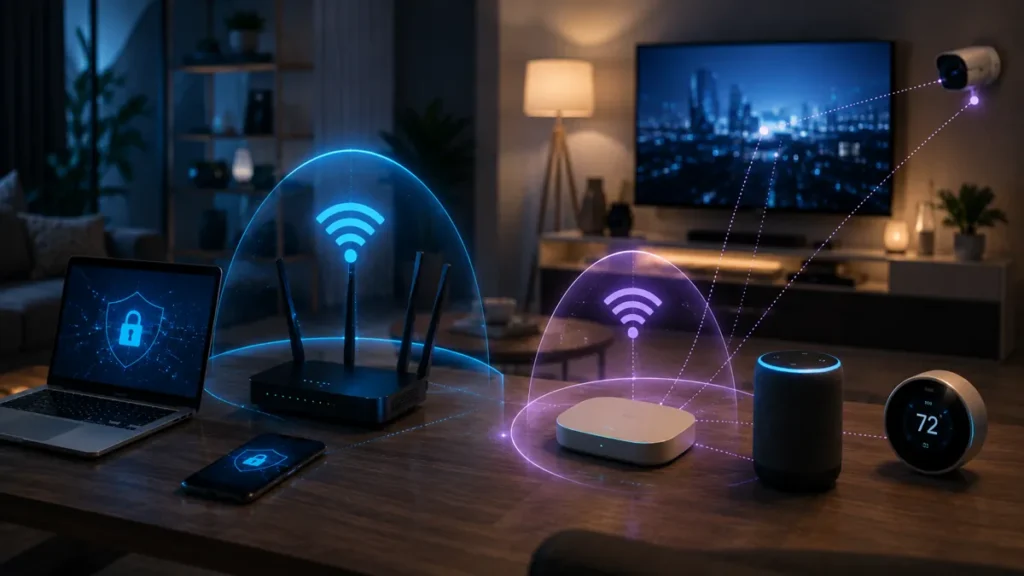
Wi-Fi encryption determines how your wireless traffic is protected. In 2026, three standards are still in the wild:
| Encryption | Status | What to Do |
|---|---|---|
| WEP | Broken — crackable in minutes | Disable immediately |
| WPA2 (AES) | Still acceptable with a strong password | Use if WPA3 unavailable |
| WPA3 | Current standard | Enable wherever supported |
WPA2 with AES and a strong password (16+ characters) is still secure enough for most home users. WPA3 adds protection against offline dictionary attacks. If your router supports it, use it.
To check: log into your admin panel, go to Wireless Settings or Wi-Fi Security, and look for WPA3 or WPA3-SAE. If it’s not listed, your router doesn’t support it — use WPA2-AES instead. If you have older devices that only work with WPA2, use WPA2/WPA3 mixed mode.
Your Wi-Fi password should be at least 16 characters. Store it in a password manager.
Step 3: Disable WPS and UPnP
Both features are on by default on most routers. Both create unnecessary risk.
Disable WPS
WPS was designed to make connecting devices easier — press a button, devices connect automatically. The problem is that WPS has known vulnerabilities that let attackers brute-force the PIN and get into your network. Turn it off.
In the admin panel, find WPS under Wireless Settings and toggle it off.
Disable UPnP
UPnP lets devices automatically open ports on your router. It also lets malware on a compromised device open ports without your knowledge. Most home users have no legitimate need for it.
Disable UPnP in Advanced Settings or the Firewall section.
Step 4: Create a Guest Network for IoT Devices
This is the single most impactful change most homeowners skip. It takes about five minutes.
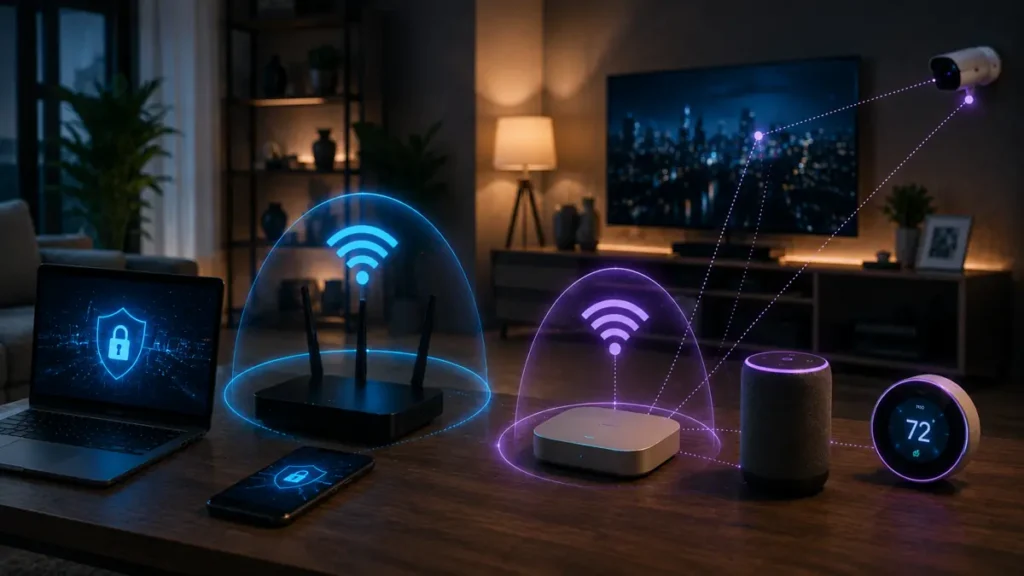
Instead of every device sharing one network — where a compromised smart TV can communicate freely with your laptop — you split into two:
- Primary network: trusted devices — laptops, phones, tablets, work devices
- Guest/IoT network: everything else — smart TVs, speakers, cameras, thermostats, gaming consoles, robot vacuums
83% of IoT devices carry known security vulnerabilities, according to Palo Alto Networks. The question isn’t whether an IoT device will be compromised. It’s whether that compromise reaches the rest of your network.
Network Segmentation for Home Users
Network segmentation splits a home network into isolated subnetworks so devices in one segment can’t directly communicate with devices in another. For home users, the practical version is a guest Wi-Fi network — a separate SSID sharing the same internet connection, but isolated from the primary network. IoT devices go on the guest network. Computers, phones, and tablets stay on the primary. If a smart bulb gets compromised, the attacker can’t reach your files or credentials. Most modern consumer routers support this through the admin panel or a companion app — no advanced networking required.
How to Create a Guest Network
- Log into your router admin panel
- Look for Guest Network, Guest Wi-Fi, or a second SSID option under Wireless Settings
- Enable it and give it a name unrelated to your primary network
- Set a strong password
- Enable client isolation — “AP Isolation” or “Client Isolation” in the settings — so guest network devices can’t communicate with each other or cross over to the primary network
- Move all your IoT devices to the guest network
A separate SSID is a perfectly reasonable starting point. You don’t need VLANs or enterprise-grade hardware to get real protection from this.
Step 5: Lock Down Your IoT Devices
The guest network helps a lot. But the devices themselves need attention too.
Change Default Credentials on Every Device
Every smart device ships with defaults — often “admin/admin” or “1234.” Attackers keep databases of these and scan for devices still running them.
For every IoT device: open its companion app or web interface, find Settings → Account or Security, and change the username and password to something unique. Use a password manager.
Keep IoT Firmware Updated
IoT devices need firmware updates just like your laptop needs OS updates. The difference is they almost never remind you. Set a monthly reminder to check for updates in each device’s app. Enable automatic updates where available.
Audit Your Connected Devices Regularly
Open your router admin panel and look at the connected device list. Recognize everything? An unfamiliar device might be a neighbor on your Wi-Fi, or it might be something worse. Most routers show this under Device List, Connected Devices, or DHCP Clients. Label what you know. Investigate or disconnect anything you can’t place.
Disable Features You Don’t Use
IoT devices ship with features enabled that most people never touch — remote access from outside the home, voice activation, camera sharing. Each is a potential attack surface. Audit each device’s settings and turn off what you don’t actively need.
Step 6: Enable Your Router’s Built-In Firewall
Most routers include a stateful packet inspection (SPI) firewall that filters incoming traffic and blocks unsolicited connection attempts. It’s usually on by default — but worth a quick check.
In the admin panel, find Firewall under Security or Advanced Settings. Verify it’s enabled.
Some routers also offer:
- DNS filtering: Routes DNS queries through a service that blocks known malicious domains before they load. Cloudflare’s 1.1.1.1 for Families and OpenDNS are free and easy to configure.
- Intrusion Detection/Prevention (IDS/IPS): Available on higher-end routers; monitors traffic for suspicious patterns and blocks known attack signatures.
Step 7: Use a VPN on Your Home Network
A VPN encrypts all traffic leaving your network, keeping your ISP from logging your activity and adding protection wherever you connect.
Device-level VPN: Install a VPN app on each device. It protects that device anywhere — at home, at work, on public Wi-Fi. The right starting point for most people.
Router-level VPN: Configure the VPN directly on the router so every device is automatically covered. More involved to set up, but it handles IoT devices that can’t run their own VPN apps.
Step 8: Secure Your Smartphone
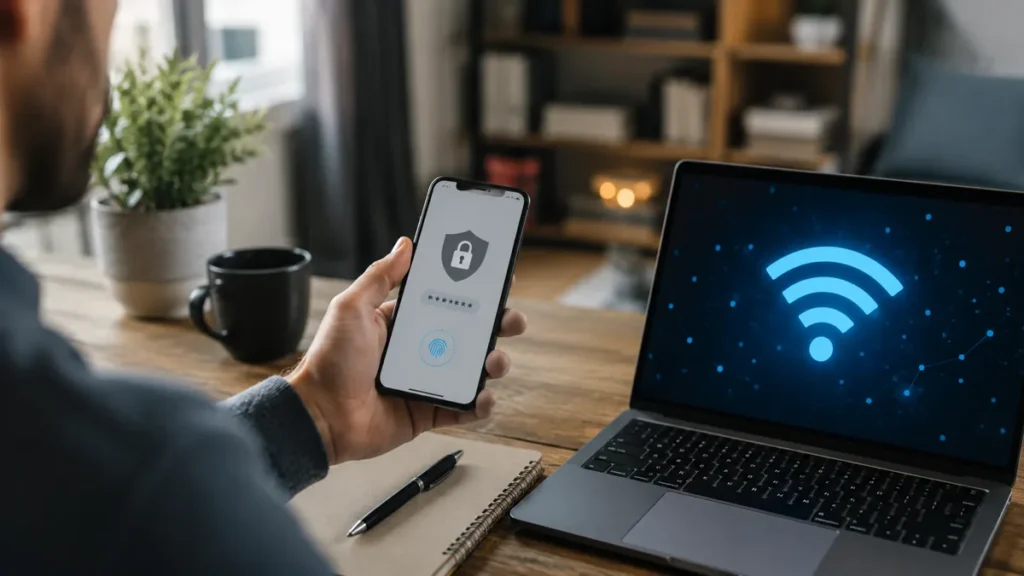
Your phone is often the most sensitive device on your network and the most overlooked.
- Keep the OS and apps updated — mobile updates frequently patch network-level vulnerabilities
- Review app permissions regularly: which apps have access to your local network, camera, microphone, and location?
- Enable Find My Device (Android) or Find My (iPhone) so you can remotely lock or wipe the phone if it’s lost
- Don’t auto-connect to unknown networks — disable “Auto-join” in Wi-Fi settings for networks you don’t control
Home Network Security Checklist (2026)
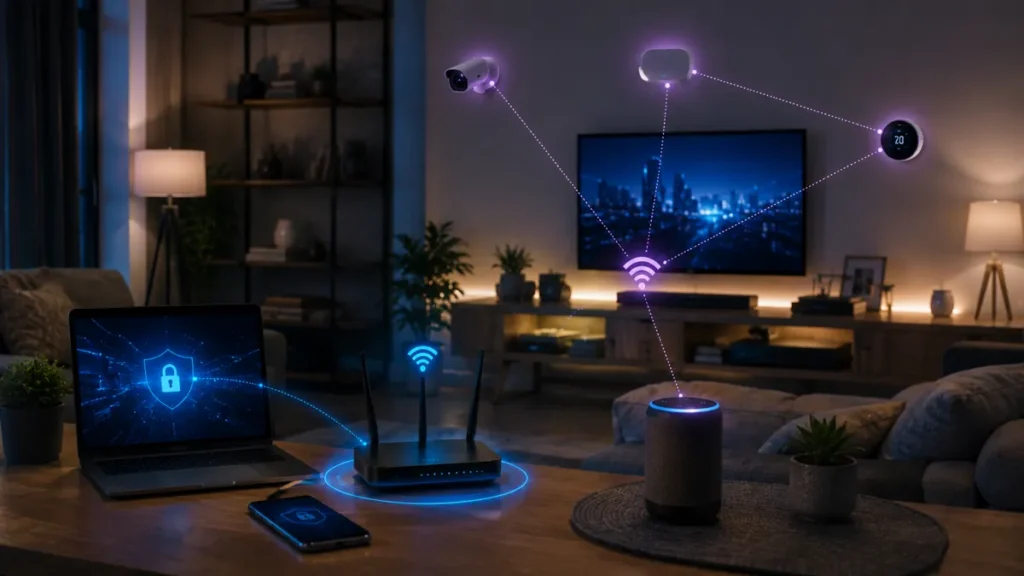
Work through this in order. The first six items take under 30 minutes combined.
| Priority | Action | Location | Time |
|---|---|---|---|
| Critical | Change router admin password | Router admin panel | 3 min |
| Critical | Update router firmware | Router admin panel | 5 min |
| Critical | Set encryption to WPA3 (or WPA2-AES) | Router wireless settings | 3 min |
| Critical | Create guest network for IoT devices | Router wireless settings | 5 min |
| Critical | Disable WPS | Router wireless settings | 2 min |
| Critical | Disable UPnP | Router advanced settings | 2 min |
| High | Change default passwords on all IoT devices | Each device’s app/settings | 10–20 min |
| High | Enable router firewall (verify it’s on) | Router security settings | 2 min |
| High | Update firmware on all IoT devices | Each device’s app | 10–15 min |
| Medium | Enable DNS filtering (Cloudflare 1.1.1.1) | Router DNS settings | 5 min |
| Medium | Audit connected devices list | Router admin panel | 5 min |
| Medium | Configure router-level VPN | Router VPN settings | 20–30 min |
Frequently Asked Questions
How do I know if my router has been hacked?
Warning signs: your internet slows down significantly without explanation, devices connect and disconnect on their own, the router admin password suddenly stops working, unfamiliar devices appear in the connected device list, or your browser redirects to sites you didn’t navigate to. If you suspect a compromise, reset the router to factory settings, update the firmware, and reconfigure from scratch with strong credentials.
Should I hide my Wi-Fi network name?
It adds a small barrier for casual observers — not much more than that. Determined attackers can still discover hidden networks. It’s a minor inconvenience for you and a minor inconvenience for attackers. Not worth treating as a real security control. Focus on encryption and strong passwords instead.
Is my ISP-provided router secure enough?
Often, no. ISP routers frequently run outdated firmware, use shared default credentials across thousands of identical units, and may not support WPA3 or guest networks. If yours is more than three years old, it’s worth looking at replacing it with a consumer router that gets regular updates. Check with your ISP first — some allow you to use your own hardware.
Do I need a separate security device?
For most households, a properly configured modern router covers it. Dedicated home security appliances exist — Firewalla and Eero offer additional monitoring and filtering — but buying one before implementing the fundamentals above is putting the cart before the horse.
What’s the difference between 2.4 GHz and 5 GHz? Does it matter for security?
Both use the same encryption and security settings. The difference is range and speed. 2.4 GHz travels further and penetrates walls better but is slower and more congested. 5 GHz is faster with a shorter range. Security-wise, both should use WPA3 and strong passwords. Wi-Fi 6E adds a 6 GHz band — same rules apply.
How often should I update router firmware?
Monthly if your router doesn’t have automatic updates. Enable automatic updates if the option exists. If a vulnerability affecting your specific router model makes the news, update immediately regardless of your regular schedule.
What’s the safest way to set up a new smart home device?
Before connecting it to your network: change the default password first, update the firmware, put it on the guest/IoT network, review app permissions and disable anything you won’t use, and check whether the manufacturer still releases security updates for that model. A device that’s been out of support for a year or more is a security liability, no matter how convenient it is.
Key Takeaways
None of this requires networking expertise. It requires doing six things, once, and checking in occasionally.
Change default credentials on your router and every IoT device. Update firmware on both. Use WPA3 encryption. Put IoT devices on a guest network. Disable WPS and UPnP. Check the connected device list monthly and update firmware quarterly.
Your home network is the foundation everything else sits on. Strong passwords, 2FA, and a VPN all matter — but they’re weakened if the network carrying all that traffic is running on factory defaults. Fix the foundation first.
Continue building your defenses:
- Cybersecurity for Beginners: The Complete Guide — Your full security foundation
- 10 Most Common Cyber Threats for Beginners — Understand every threat your network faces
- What Is Phishing? How to Recognize and Avoid It — Protect yourself from the #1 attack vector
- How to Create Strong Passwords and Set Up 2FA — Lock down every account you own
- Online Privacy and VPN Guide for Beginners — Control what the internet knows about you