


This malware removal guide covers every step a Windows, Mac, or Android user needs to detect and eliminate an active infection in 2026. The process starts with identifying which type of malware is on your system, because a browser hijacker and a rootkit do not come out the same way. Running a standard one-click scan on both clears the hijacker cleanly and leaves the rootkit running at kernel level — invisible to every tool you just used, and fully intact.
Malware is not a single thing. It covers ransomware, spyware, adware, trojans, rootkits, keyloggers, worms, fileless threats, and potentially unwanted programs (PUPs). What each type does, how it hides itself, and how it comes out differs considerably. This malware removal guide addresses each family with separate procedures and clear criteria for when a free scan resolves the problem versus when you need a bootable scanner or professional recovery.
Malwarebytes’ Threat Intelligence Division logged 6.08 billion malware detection events on Windows consumer devices in 2025, up 13% from 2024. The dominant category was adware and PUPs at 71% of detections — frustrating and slow, but removable in under 10 minutes with a free tool. Ransomware accounted for 4.2% of those detections. That fraction translates to tens of millions of incidents globally, with an average cost per home user of $2,400 including recovery time and data loss. Both ends of the severity scale are covered here in full.
What malware actually does to your system
Malware’s damage is not random. Each threat family has a specific operational logic, and that logic tells you where to look, what “removal” actually means for that type, and whether a standard scan is sufficient or you need to escalate.
Adware and browser hijackers exist to redirect your web traffic to advertising networks. They get there through bundled software installers — downloads from unofficial sites that package a secondary payload behind a pre-checked “recommended settings” checkbox. Once in place, they write registry entries that overwrite your browser’s default search engine, modify the Windows hosts file to redirect specific domains, or install browser extensions that replace your homepage. The payload generates per-click revenue for the operator every time you search. On Windows 11, browser hijackers were the most-reported consumer malware category in 2025 per Malwarebytes’ consumer threat data, accounting for 38% of all detected PUPs.
Spyware is invisible by design. It logs keystrokes, captures periodic screenshots, monitors browser sessions, reads clipboard contents, and transmits all of that to a remote server. CPU load stays low deliberately — high resource usage would trigger performance warnings that bring a user to a technician. The average dwell time for credential-stealing spyware on consumer devices was 92 days in 2025, according to CrowdStrike’s Global Threat Report. It operates for roughly three months before a compromised bank account or an eventual security scan exposes it. You will not feel spyware running. You will notice a login attempt from an IP address in a country you have never visited.
Ransomware announces itself, but only after the real damage is complete. The ransom note is the final stage of a multi-day process. In the 48-72 hours before encryption begins, ransomware maps your file directories, disables Windows Shadow Volume Copies, terminates antivirus processes through targeted API calls, and verifies connectivity to its command-and-control server. When the note appears, AES-256 encryption has already processed every document, photo, and video in your user folders. Discovering a ransom note does not mean running a removal tool is the correct next step — isolated response is. The full crisis procedure is covered separately in the how to remove ransomware guide.
Rootkits operate at the Windows kernel level. The name comes from Unix systems where “root” means administrator access — a rootkit obtains that level of control and uses it to intercept the API calls that antivirus software uses to enumerate running processes, returning falsified results even while malicious code runs undetected. A standard scan cannot reliably detect or remove a rootkit because the scanner uses the same compromised operating system API. Removal requires a bootable scanner that loads before Windows initializes, reading the drive from entirely outside the infected OS.
Fileless malware writes nothing to disk. It injects code into legitimate Windows processes — explorer.exe, powershell.exe, svchost.exe — and executes entirely in RAM. There is no file for a signature scanner to detect, because no file exists. Detection requires behavioral analysis: real-time monitoring of what processes are doing in memory, watching for execution patterns inconsistent with the legitimate process’s expected behavior. This is why Malwarebytes and Bitdefender both now use behavioral detection as their primary engine, with signature databases as a secondary fallback.
This malware removal guide uses these distinctions throughout. Knowing what you’re dealing with before you run any tool is not a formality — it determines whether you resolve the problem in 10 minutes or waste three hours running scans that cannot reach the threat.
How to recognize a malware infection before you run a scan
Symptoms map to threat types. Reading behavioral signals before opening any tool narrows your removal approach and cuts total resolution time considerably.
CPU running at 60-80% with no active applications is a strong early indicator. Open Task Manager with Ctrl + Shift + Esc, go to the Processes tab, and sort by CPU usage. If explorer.exe, svchost.exe, or any unsigned process with no publisher name consumes high CPU while nothing is visibly running, two explanations are most probable: a cryptojacker using your processor to mine cryptocurrency, or fileless malware executing injected code inside a legitimate process. Cryptojackers deliberately cap resource usage at 70-80% — a complete CPU freeze brings the user to a repair shop immediately, but a persistent slowdown goes uninvestigated for weeks and generates steady mining income.
A browser search engine you did not set is the clearest sign of a hijacker. Open Chrome, Firefox, or Edge and check Settings → Search engine. If the default is “Search Marquis,” “Nearbyme.io,” or any URL you do not recognize, a hijacker has written itself into your browser profile via registry entries or an installed extension. Check your full extensions list. Any entry with no icon, a generic name like “New Tab Redirect,” or a “Managed by your organization” label on a personal machine is a candidate for immediate removal.
Boot time that has doubled or tripled without a recent Windows update signals malware embedding itself in the startup sequence. Go to Task Manager → Startup tab. Any entry with no publisher name, a file path that passes through AppData\Roaming or %Temp%, or a random alphanumeric string as its name is worth investigating. Trojans and spyware prefer the startup sequence because it guarantees the payload reloads after every reboot, ensuring persistence even if the user clears visible browser issues.
Antivirus software that has turned itself off and will not re-enable is serious. Ransomware, advanced trojans, and rootkits target security software as an early priority — they terminate the process and write registry keys that block it from restarting automatically. If Windows Security shows real-time protection as off and the toggle does not respond, treat this as an active infection rather than a software glitch. Do not attempt to reinstall the security software before removing the malware; the same registry modifications that disabled the original installation will block the reinstall.
Sustained outbound network traffic with no active downloads is a behavioral fingerprint of spyware and command-and-control trojans. If your router activity LEDs blink steadily while no browser or application is visibly active, open Task Manager → Performance → Open Resource Monitor → Network tab. Any process making sustained outbound connections to external IP addresses — especially on ports like 4444, 1080, 8080, or anything in the dynamic range above 49152 — is transmitting data to a server it should not be reaching.
A ransom note or full-screen lock requires no further diagnosis. Disconnect from the internet immediately. Do not restart the machine — some ransomware variants trigger a second encryption pass on reboot, and restarting destroys forensic data needed for decryptor tools. The complete crisis protocol is in the how to remove ransomware guide. For every other symptom on this list, the removal steps below apply directly.
Reading symptoms before running a tool determines which scan mode you use. A targeted Malwarebytes threat scan takes 4-8 minutes. A full system scan takes 25-60 minutes. Knowing which one to run before you open the application is not a minor efficiency — on an actively communicating trojan, those 50 minutes of difference matter.

Malware removal guide: the step-by-step Windows procedure
The procedure below resolves the majority of consumer infections: adware, PUPs, browser hijackers, most trojans, spyware, and non-destructive ransomware variants that have not disabled all recovery paths. Rootkits, persistent kernel-level threats, and active ransomware require modified procedures covered in Part 2.
Step 1: Disconnect from the internet. Pull the Ethernet cable or enable Airplane Mode before anything else. This stops active malware from communicating with its command-and-control server, halts any in-progress data exfiltration by spyware, and prevents ransomware from downloading secondary payloads if it has not completed its initial infection cycle. Every removal tool runs more effectively when the malware cannot receive updated evasion instructions.
Step 2: Boot into Safe Mode with Networking. Press Start → Power, hold Shift, and click Restart. Select Troubleshoot → Advanced Options → Startup Settings → Restart, then press F5 when the menu appears. Safe Mode loads only essential Windows drivers and processes, blocking most malware from initializing alongside the OS. The “with Networking” option preserves your internet access for downloading tools if you have not already retrieved them on a clean device.
Step 3: Download and run Malwarebytes Free. Malwarebytes Free performs on-demand threat scans at no cost. Its detection rate was 99.4% in AV-Test’s Q3 2025 evaluation, with zero false positives in the same cycle. Download it directly from malwarebytes.com. Open the application, click Scan, and select Threat Scan. The scan processes active memory, startup programs, Windows Registry entries, and the file system. Runtime on a standard SSD drive is 4-8 minutes. When the scan completes, quarantine everything flagged — quarantine holds threats in an isolated container where they cannot execute but remain recoverable in case of a false positive.
Step 4: Run AdwCleaner immediately after. Malwarebytes focuses on malware. Malwarebytes’ own AdwCleaner focuses specifically on adware, browser hijackers, and PUPs that sometimes fall below standard malware-grade detection thresholds. Download it free from the Malwarebytes site. Click Scan, review the results list, and click Clean & Repair. AdwCleaner resets altered browser settings, removes hijacker extensions, and cleans the registry entries that browser-targeting threats write for persistence.
Step 5: Clean your browsers manually. Even after AdwCleaner runs, verify each browser directly. In Chrome: Settings → Search engine → confirm the default. Settings → Extensions → remove anything you did not install. In Edge: the same path under Settings → Extensions. In Firefox: open about:addons in the address bar. After that, right-click your browser’s desktop shortcut, select Properties, and examine the Target field. The path should end at the browser’s .exe file with nothing appended after the closing quotation mark. Any URL appended after the executable path is a hijacker shortcut modification and must be deleted.
This five-step sequence resolves the overwhelming majority of consumer malware infections. Part 2 of this malware removal guide covers what to do when these steps return clean results despite active symptoms — which points to fileless malware, rootkits, or a threat that has been deliberately designed to avoid the tools used above. It also covers the full best free malware removal tools breakdown for situations requiring secondary scanners, and the procedure for removing malware from PC systems where the infection has damaged core Windows components.
When standard scans find nothing but symptoms persist
A clean scan result against active symptoms points to one of three situations: fileless malware operating entirely in RAM, a rootkit that has modified what the OS reports to scanning tools, or a deeply embedded PUP sitting below the detection threshold of the tools you ran. Each requires a different response, and this malware removal guide covers all three.
Fileless malware in active memory cannot be found by a scanner looking for files, because no file exists. A standard on-demand scan returns nothing. Detection requires a tool running in real-time behavioral mode — watching what processes do rather than what they contain. If you ran only Malwarebytes Free’s on-demand scan, switch to Malwarebytes Premium with real-time protection enabled and let it run in background mode for 24-48 hours, or run Windows Defender’s offline scan as an immediate alternative.
Windows Defender offline scan runs before Windows fully loads, capturing some fileless threats at an earlier execution stage before they inject into protected system processes. Access it through Settings → Windows Security → Virus & Threat Protection → Scan options → Microsoft Defender Antivirus offline scan. The machine restarts, runs a pre-Windows scan environment, then reboots to your normal desktop with results. It takes 10-15 minutes and requires no additional download. It does not catch all fileless threats — specifically, threats that only execute after the OS is fully loaded will still evade it — but it catches a meaningful subset of injection-based fileless malware.
For deeper memory analysis, ESET’s Advanced Memory Scanner actively monitors code executing in RAM, including encrypted payloads that decrypt themselves only in memory. If you have ESET Internet Security installed, enable it under Settings → Computer → Real-Time File System Protection → Advanced Memory Scanner. For users without ESET, Malwarebytes Premium’s behavioral engine covers the same category under a different architectural approach.
Rootkit removal requires getting outside the infected OS entirely. GMER (free, portable, no installation required) scans for hidden processes, hidden registry keys, hidden files, and hooks into Windows system calls — the exact modifications a rootkit makes to evade detection. Download it on a clean machine and transfer it via USB. Run it in Safe Mode and examine anything highlighted in red in the scan output. Kaspersky TDSSKiller (free) focuses specifically on the TDSS and Alureon rootkit families, which remain among the most prevalent consumer rootkit strains in 2026 per Kaspersky’s threat intelligence reporting.
If either tool identifies an active rootkit, move to a bootable scanner. Bitdefender Rescue CD and Kaspersky Rescue Disk 18 are both free ISO downloads. Use Rufus (free, Windows-based) to write the ISO to a USB drive of 2GB or more. Restart your PC, enter BIOS setup — typically by pressing F2 or Del at the manufacturer splash screen — and change the boot priority so the USB drive loads first. The bootable environment launches its own stripped OS, scans your internal drive from entirely outside the infected Windows installation, and removes what it finds without Windows being able to intercept the scan.
For a deeply embedded PUP below single-tool detection thresholds, run Emsisoft Emergency Kit as a second-opinion scanner. It is free, portable, and requires no installation — download it as a ZIP, extract to a USB drive, and run emsisoft_emergency_kit.exe directly on the target machine. It uses two independent scan engines (Emsisoft and Bitdefender) simultaneously, and it surfaces threats that a single-engine scanner misclassifies as low-risk or skips entirely. A clean Malwarebytes result followed by a positive Emsisoft result is not rare, and it confirms the value of second-opinion scanning as a standard step in any complete malware removal process.
The best malware removal tools in 2026
Choosing the right tool depends on whether you need an on-demand scanner, real-time protection, a second-opinion scanner, or emergency bootable rescue. These are not interchangeable categories. Malware removal tools split into three operational types, and the best malware removal outcome comes from knowing which type matches the task.
On-demand scanners run when you launch them and do nothing in between. Malwarebytes Free, HitmanPro (30-day trial), and Microsoft Safety Scanner all operate this way. They detect and remove existing threats but provide zero protection against new ones after the scan window closes. Use them for a one-time cleanup run after an infection, not as a substitute for continuous protection.
Real-time protection tools monitor continuously and intercept threats before they execute. Malwarebytes Premium, Bitdefender Total Security, Norton 360, and ESET Internet Security run in the background at all times, consuming 50-200MB of RAM depending on tool and configuration, and intervene at the moment of execution rather than after installation completes.
Bootable emergency scanners load an entirely independent operating system from a USB drive or disc. Bitdefender Rescue CD, Kaspersky Rescue Disk 18, and the Avira Rescue Scanner operate this way. These are the correct malware removal tools for rootkits, MBR-level infections, and any situation where the malware has disabled or corrupted tools running inside Windows.
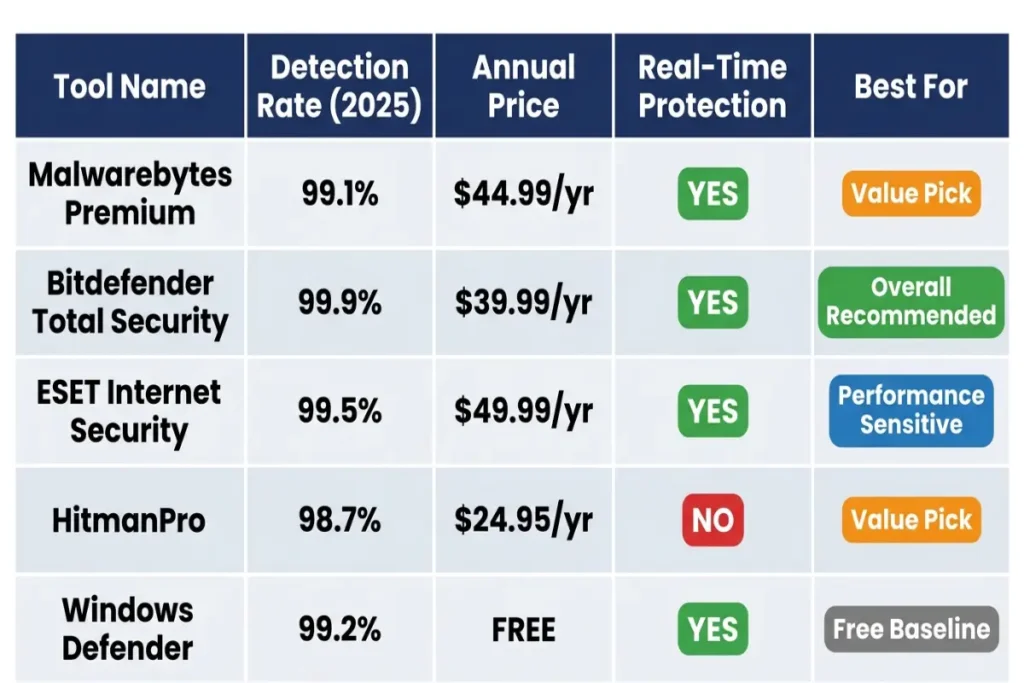
The five tools below represent the strongest options across standard consumer removal scenarios in 2026, with detection rates sourced from AV-Test and AV-Comparatives independent testing.
Malwarebytes Premium. AV-Test detection rate: 99.4% (Q3 2025). Annual cost: $44.99. Real-time protection, ransomware rollback feature (automatically restores encrypted files after a blocked ransomware attempt), exploit protection, and a browser guard extension. The free version is limited to on-demand scanning — real-time protection requires the paid license. Malwarebytes runs alongside Windows Defender without conflicts, which makes it the most practical upgrade path for users who already have Defender active. The best malware removal choice for most home users who want a reliable scanner that adds a second engine without replacing the OS-native one.
Bitdefender Total Security. AV-Test detection rate: 99.9% (Q3 2025, achieving a perfect score across eight consecutive monthly test cycles). Annual cost: $49.99 for up to five devices. Includes a bundled VPN with a 200MB/day free tier, webcam protection, microphone access monitoring, and a hardened browser for banking sessions. System performance impact is negligible — Bitdefender scored 99 out of 100 on AV-Test’s performance benchmark, meaning no measurable slowdown on a standard machine running current-generation hardware. The best malware removal tool for users who want the highest documented detection rate and are willing to pay slightly more for it.
ESET Internet Security. AV-Comparatives Real-World Protection Test detection rate: 99.1% (2025). Annual cost: $39.99. The most resource-efficient premium option on this list. ESET’s scanner operates on under 80MB of RAM even during active scans, making it the practical choice for older or low-specification machines where heavier tools cause perceptible slowdowns. Its UEFI scanner detects threats embedded in firmware — a capability available in very few consumer tools at this price point — and its Network Inspector audits connected devices for vulnerabilities, which most competing tools do not include at the same tier.
HitmanPro. AV-Comparatives detection rate: 98.8% (2025). Annual cost: $24.95 for one PC. Cloud-based scanning sends suspicious files to Sophos’ analysis infrastructure rather than relying on a local definition database, which keeps the installer under 12MB and makes the tool extremely fast to deploy. HitmanPro’s 30-day trial removes all detected threats at no cost — the paid license covers ongoing real-time use after the trial ends. Use it as a second-opinion scanner after your primary tool has run, particularly in cases where the primary scan resolved symptoms but behavioral indicators persist.
Windows Defender (Microsoft Defender Antivirus). AV-Test detection rate: 95.6% (Q3 2025). Cost: free, built into Windows 10 and 11. Defender is an adequate baseline against high-volume, well-known threats and imposes zero additional performance overhead since it is native to the OS. The 4.4% detection gap against premium tools sounds minor until you account for scale — 4.4% of 450,000 new daily malware samples is approximately 19,800 threats per day that Defender does not catch. Use it as a secondary layer alongside Malwarebytes or Bitdefender, not as a sole protection layer.
How to remove malware from a PC manually when automated tools fall short
Manual removal has a specific application: an automated scanner has identified a threat and quarantined it, but the malware left behind persistent components that reload the payload on the next reboot. Rebooting after a quarantine run and finding the same symptoms return is the trigger for moving to manual steps. This is not the starting procedure for any malware removal guide — it is the follow-up when tools cannot fully reach a threat’s persistence mechanism.
Kill the malicious process first. Open Task Manager with Ctrl + Shift + Esc and go to the Processes tab. If the scanner’s removal report listed the malware’s executable name, find it in the process list. Right-click → End Task. If the process restarts within seconds, a watchdog process is relaunching it — a secondary process whose only function is to restart the main payload if it gets terminated. Download Process Explorer from Microsoft’s Sysinternals suite. It is free, portable, and shows parent-child process relationships in a tree view. Kill the watchdog process first by identifying which process spawned the malware executable, then kill the main process. The order matters: killing the payload without killing the watchdog first means it relaunches in under five seconds.
Delete the file. Navigate to the file path listed in your scanner’s report. In Safe Mode, most locked files become accessible. Select the file, press Delete, and empty the Recycle Bin. If Windows returns “Access Denied,” right-click the file → Properties → Security → Advanced → Change Owner, take ownership under your current user account, then retry deletion. For files that remain locked even in Safe Mode, IObit Unlocker (free) forces deletion of files held open by running processes. It overrides the file lock and schedules the deletion to complete on next system restart if the lock cannot be broken in the current session.
Clean registry startup entries. Press Win + R, type regedit, and press Enter. Navigate to these four keys and examine every entry for any value that points to the deleted file’s path:
- HKEY_CURRENT_USER\Software\Microsoft\Windows\CurrentVersion\Run
- HKEY_LOCAL_MACHINE\Software\Microsoft\Windows\CurrentVersion\Run
- HKEY_CURRENT_USER\Software\Microsoft\Windows\CurrentVersion\RunOnce
- HKEY_LOCAL_MACHINE\Software\Microsoft\Windows\CurrentVersion\RunOnce
Delete every entry pointing to the malware’s former file path. A leftover registry key pointing to a deleted file causes a harmless startup error on the next boot, but its presence confirms incomplete cleanup — something is still trying to run. Remove it.
Use System Restore as a final manual option. If the infection occurred within the past 7-14 days and a restore point exists from before the infection date, System Restore reverts system files, installed programs, and registry settings to that earlier state without touching personal documents. Access it via Control Panel → System → System Protection → System Restore, then review available restore points by date. System Restore does not remove all malware variants — threats that write exclusively to user profile directories like %AppData% or %LocalAppData% are unaffected by a system-level restore — but it reliably reverses most adware and PUP installations that modified system-level registry keys and Program Files entries.
Run a full Malwarebytes scan immediately after completing any manual removal step. A clean result combined with zero symptom recurrence across the following 48 hours is the standard confirmation threshold for successful manual cleanup. If symptoms return after that window, the infection has a persistence mechanism you have not yet reached, and the escalation paths covered later in this guide apply.
Removing malware from a Mac: what works differently
Mac infections follow a different distribution than Windows threats, and the removal process reflects that. Ransomware targeting Macs remains rare in consumer contexts — zero confirmed widespread Mac ransomware campaigns hit home users in 2025. What Mac users do encounter is adware, browser hijackers, fake antivirus installers, and spyware, with Malwarebytes’ 2025 State of Malware report recording a 54% increase in Mac-specific threat detections year-over-year. The category driving that increase: Trojan-type adware distributed through fake Adobe installers and pirated software packages on third-party download sites.
The core malware removal guide procedure for Mac starts with Malwarebytes for Mac (free). Download it directly from malwarebytes.com. The interface is identical in logic to the Windows version — open the application, click Scan, review the results, and quarantine what it flags. Mac-specific threats it reliably detects include OSX.Shlayer, OSX.Bundlore, and the various GENIEO adware family variants. Run time on a standard MacBook is 3-7 minutes for a threat scan.
For browser cleanup on Mac, AdwCleaner has no Mac version. Handle it manually. In Safari: Preferences → Extensions → remove anything unfamiliar. Check Preferences → Search → confirm the default search engine is what you set. In Chrome or Firefox on Mac, the extension and settings paths are identical to the Windows versions. After removing browser extensions, clear the browser cache: History → Clear History → select All History, then close and reopen the browser.
Mac’s built-in protections run in the background without user interaction. Gatekeeper blocks unsigned applications from running. XProtect updates automatically via software updates and provides basic signature-based detection against known Mac malware families. Both can be bypassed — Gatekeeper specifically by packages distributed through notarized installers that Apple’s review process did not catch — which is why a supplemental scan from Malwarebytes for Mac remains the correct first response to suspected infection rather than assuming XProtect handled it.
For persistent Mac adware that survives a Malwarebytes scan, Bitdefender Antivirus for Mac ($29.99/year) and ESET Cyber Security for Mac ($39.99/year) both carry AV-Test Mac certifications and provide real-time protection. Both offer free trials covering the full removal phase.
For Android-specific threats — a separate malware removal problem with a distinct procedure — the complete step-by-step process is in the Android malware removal guide.
How to clean your browser after a malware infection
Browser cleanup is a separate procedure from a malware scan, and most users skip it. A scanner removes the malware’s executable and registry entries. It does not automatically undo every change the malware made to the browser environment. A hijacker that has been removed from the file system may have already written a modified browser shortcut, altered a synchronized browser profile, and installed an extension that now exists independently in the browser’s data directory.
Check every browser you use, in order. In Chrome: Settings → Search engine → verify the default matches what you set. Settings → Extensions → examine every listed extension. Remove any entry you did not install deliberately, especially anything with generic names like “Search Helper,” “Quick Tabs,” or any extension showing a “Managed by your organization” badge on a personal machine. In Firefox: navigate to about:addons in the address bar and review all installed add-ons under both Extensions and Plugins. In Edge: Settings → Extensions → same review process.
After extensions, check the browser shortcuts on your desktop and taskbar. Right-click the browser icon → Properties → Shortcut tab → Target field. The path should end at the browser’s executable — for Chrome, something like “C:\Program Files\Google\Chrome\Application\chrome.exe”. If anything follows the closing quotation mark around that path — a URL, a flag like –load-extension, or any additional string — a hijacker modified the shortcut. Delete the appended text and click Apply.
Clear cached data that may contain malicious scripts. In Chrome: Settings → Privacy and Security → Delete browsing data → check Cached images and files and Cookies and other site data → set the time range to All time → Delete data. This forces the browser to re-download all page assets on next visit, eliminating any cached malicious scripts that a hijacker may have loaded from compromised domains.
If the browser profile itself was modified at a deep level — synchronized extensions, saved passwords showing unfamiliar entries, or homepage settings that re-set themselves after manual changes — create a new browser profile. In Chrome: click your profile icon → Add → complete the setup without importing settings from the old profile. Export bookmarks from the old profile first (Bookmarks → Bookmark manager → three-dot menu → Export bookmarks), then import that single file into the new profile. Do not transfer any extensions or settings from the old profile to the new one.
How to prevent reinfection: the last step in any malware removal guide
The 48 hours after confirming a clean scan are the highest-risk window for reinfection. The infection vector that allowed the original entry is still present, whatever security gap made the system vulnerable has not yet been addressed, and if spyware ran for any length of time before removal, credential compromise is a real possibility regardless of how thoroughly the malware was removed.
Change your passwords immediately. Do not change passwords from the device you just cleaned until you have confirmed a clean scan result and observed 48 hours of clean behavior. Change them from a second clean device first — a phone that was never on the same network as the infected PC is ideal. Prioritize accounts in this order: email (recovery account for everything else), banking and financial services, work accounts, and then social media. Use unique passwords of at least 16 characters for each. A password manager like Bitwarden (free) or 1Password ($2.99/month) makes this sustainable long-term.
Enable two-factor authentication on every critical account. Even if spyware captured your credentials before removal, 2FA blocks an attacker from using those credentials without the second factor. Enable it in your email provider’s security settings first, then banking, then work accounts. App-based 2FA (Google Authenticator, Authy) is more resistant to SIM-swapping attacks than SMS-based 2FA, though SMS-based 2FA is still a meaningful improvement over none.
Install real-time protection if you do not already have it. On-demand scanning after infection is reactive. Real-time protection blocks the threat at execution, before it installs. Malwarebytes Premium at $44.99/year layered alongside Windows Defender covers the detection gap between Defender’s 95.6% rate and Malwarebytes’ 99.4% rate with minimal performance impact.
Run Windows Update immediately. Settings → Windows Update → Check for updates → install everything pending. A significant portion of malware enters through known OS vulnerabilities that Microsoft has already patched — running a months-old Windows build with unpatched vulnerabilities leaves the exact same entry vector open after removal. The same applies to all installed software: browsers, PDF readers, Java, and any application that connects to the internet. Flexera’s 2025 Vulnerability Review found 71% of vulnerability-based attacks targeted third-party applications rather than the OS itself.
Create a system image backup now. Backups made immediately after confirmed clean status create a known-good restore point for future recovery. Windows Backup (Settings → System → Backup) covers user files. Macrium Reflect Free covers full disk images that can restore the entire system to this clean state. Store the backup on an external drive that is disconnected from the machine when not in active use — ransomware that infects the system while the backup drive is connected will encrypt the backup too.
When this malware removal guide’s standard steps are not enough
Persistent symptoms after completing every step in this guide — clean scan results, manual registry cleanup, browser reset, Safe Mode scan, bootable scanner run — narrow to three remaining causes: malware that modified Windows system files below what a scanner can cleanly reverse, a rootkit that survived the bootable scanner, or reinfection from a compromised device still on the same network. Each has a specific resolution.
Windows Reset (Keep My Files). Go to Settings → System → Recovery → Reset this PC → Keep my files. This reinstalls Windows from scratch while preserving the contents of your personal folders: Documents, Downloads, Desktop, Pictures, Videos, and Music. Installed programs and system settings are removed entirely. It resolves infections embedded in Windows system files, corrupted Windows Security Center installations, and any malware that survived quarantine by partially integrating into the OS. Estimated time: 45-90 minutes depending on hardware. After the reset completes, run Windows Update immediately before reinstalling any applications.
Full clean reinstall. If a Keep My Files reset returns the same symptoms — which happens when malware has modified the Windows Recovery partition itself — a full clean reinstall on a reformatted drive is the definitive solution. Download the Windows 11 Media Creation Tool from Microsoft’s official site, create a bootable USB drive, restart the machine and boot from the USB. During the installation setup, select Custom install and manually delete the existing Windows partition before creating a new one. Back up all personal files to an external drive before starting. No malware survives a fresh OS installation on a freshly formatted drive. Estimated time: 60-120 minutes.
Professional removal services. For users unwilling or unable to perform a reinstall, local repair shops charge $50-$150 for malware removal services. Geek Squad’s in-store virus and spyware removal service is $99.99 per session with a same-day turnaround at most locations. Remote-access services like Asurion Tech Support ($29.99/month) handle removal without physically bringing in the device. Professional services are worth the cost when critical data is at risk and the chain of custody for the cleanup process matters.
Check every other device on your home network after resolving a PC infection. A compromised router, a second infected laptop, or an infected Android phone on the same Wi-Fi can reinfect a clean machine through network-level attacks or shared drives. The signs of malware infection guide covers the diagnostic procedure for confirming whether other devices on your network show active indicators.
The clean machine is the starting point, not the goal
Malware removal is a defined procedure: identify the threat type, disconnect from the network, run the right tools in the right order, clean the browser environment, change compromised credentials, and rebuild your defenses. Every step in this guide has a specific function, and skipping any of them leaves a gap that a persistent infection will occupy.
The most predictable failure mode is users who remove the visible symptom — the browser redirect disappears, the pop-ups stop — and consider the job complete. The underlying threat that generated those symptoms may still be present. Run the full scan sequence even when the visible symptoms resolve partway through the procedure.
The second predictable failure is not addressing credentials after removal. Removing spyware from the machine does not change the passwords it already captured. Every account that was logged in during the infection window is potentially compromised, regardless of how cleanly the malware was removed. A clean machine with compromised credentials is a breach waiting to happen. Change passwords first, add 2FA second, then reconnect to the internet.
A standard Malwarebytes Free scan, followed by AdwCleaner, browser cleanup, and a password change across critical accounts resolves the majority of consumer malware incidents within 45 minutes. The steps that go beyond that — rootkit scanners, bootable recovery environments, manual registry edits — are escalation paths for a minority of infections, not routine requirements. Know the escalation exists and apply it when the standard procedure is not enough.