


Secure browsing public Wi-Fi environments require a different approach in 2026 than most guides acknowledge. The old threat — passive credential interception over unencrypted HTTP — has largely been neutralized by the near-universal adoption of HTTPS. What remains is narrower but real: DNS observation, SNI metadata exposure, rogue captive portal attacks, and the persistent gap left by non-browser applications that still transmit data in plaintext. Understanding which threats are genuine, which are overstated, and which countermeasures actually address each one is the difference between a configuration that protects you and one that creates false confidence.
This guide covers the actual current threat model for open networks in 2026, distinguishes between threats that are realistic for most users and threats that require targeted, sophisticated attackers, and gives you the specific configuration steps that address each category. It does not overstate risks, and it does not understate the scenarios where genuine danger exists.
The browser security guide covers the broader threat model your browser faces regardless of network. This guide focuses specifically on the additional risks introduced by connecting to a network you do not control.
What open networks actually expose in 2026
The threat landscape for public Wi-Fi has changed substantially since the era of Firesheep, the 2010 Firefox extension that automated session cookie hijacking on unencrypted networks. The primary reason: HTTPS adoption has gone from approximately 40% of web traffic in 2015 to over 95% in 2026. The content of your browser sessions — your passwords, your messages, your banking transactions — is encrypted in transit on virtually every mainstream site.
What an attacker on the same public network can observe in 2026 is narrower but not insignificant.
Your DNS queries — if not using DNS-over-HTTPS. Without encrypted DNS, every domain name you resolve is sent as plaintext to the network’s DNS resolver. Anyone monitoring the network — the café owner, someone running a passive capture on the access point, a network-level adversary — can see every domain you visit as you visit it. They cannot see the specific pages you load on HTTPS sites, but the domain list alone reveals a great deal: banking institutions, medical information sites, legal services, political affiliations visible through news outlet preferences.
The Server Name Indication (SNI) field in TLS handshakes. Even with HTTPS, the initial TLS handshake includes a plaintext SNI field that tells the server which hostname the client is connecting to. This is technically necessary for servers hosting multiple domains on the same IP to serve the correct certificate. The result: an observer on the network sees the hostname of every HTTPS site you connect to, even if they cannot see the content. DNS-over-HTTPS encrypts the DNS lookup but does not encrypt SNI. Encrypted Client Hello (ECH), an extension to TLS 1.3, encrypts the SNI field — Firefox supports it and enables it when the server supports it, but server-side adoption is not yet universal.
The IP addresses your device connects to and the timing of connections. Traffic analysis — observing which IP addresses your device connects to, how often, and for how long — can reveal behavioral patterns even without reading content. This type of metadata analysis is primarily relevant to nation-state surveillance rather than café-level opportunistic attacks.
Unencrypted traffic from non-browser applications. While your browser enforces HTTPS on websites, other applications on your device may communicate over unencrypted channels. Older email clients, some IoT apps, software that checks for updates over HTTP, and certain enterprise applications transmit data in plaintext. A VPN that covers all device traffic addresses these non-browser applications that a browser-only hardening approach leaves exposed.
The rogue access point threat: more specific than most guides describe
A rogue access point — a device broadcasting a Wi-Fi network name designed to attract automatic connections — is the most cited public Wi-Fi threat. The reality is more nuanced than “anyone can sit in a café with a laptop and steal your passwords.”
Modern operating systems have reduced automatic rogue AP connection significantly. iOS, Android, macOS, and Windows no longer auto-connect to open networks that match previously remembered network names by default — a change implemented after years of research demonstrating how dangerous that behavior was. Manual connection is still required in most cases.
HTTPS significantly limits what an attacker controlling a rogue access point can do with intercepted traffic. If you connect to a rogue AP and visit your bank’s website, the attacker sees the domain name (via SNI or DNS) and the encrypted TLS traffic. They cannot decrypt it without compromising the TLS session — which requires either a valid certificate for your bank’s domain (which Certificate Transparency logs make nearly impossible to obtain fraudulently for major domains) or an active TLS downgrade attack (which HTTPS-Only mode and HSTS preloading defeat).
What a rogue access point operator can realistically do in 2026:
- Observe your DNS queries if you are not using DNS-over-HTTPS
- Observe SNI fields in your TLS handshakes, revealing hostnames
- Intercept traffic from non-HTTPS applications on your device
- Conduct a captive portal attack — redirecting your initial HTTP requests to a fake login page before you establish your first HTTPS connection
- Perform a timing-correlation attack on your traffic patterns (requires sophisticated tooling and is not a realistic café threat)
The captive portal attack is the most practically dangerous for typical users. When you connect to a new Wi-Fi network, your device attempts to detect the captive portal by making an HTTP request to a known URL. If the network has a captive portal, that request is intercepted and redirected to the portal’s login page. A rogue AP can intercept this same request and redirect you to a convincing fake captive portal that collects credentials. HTTPS-Only mode limits this — any credential input should happen on an HTTPS page, and a fake captive portal that uses HTTP will trigger a browser warning if HTTPS-Only mode is enabled.
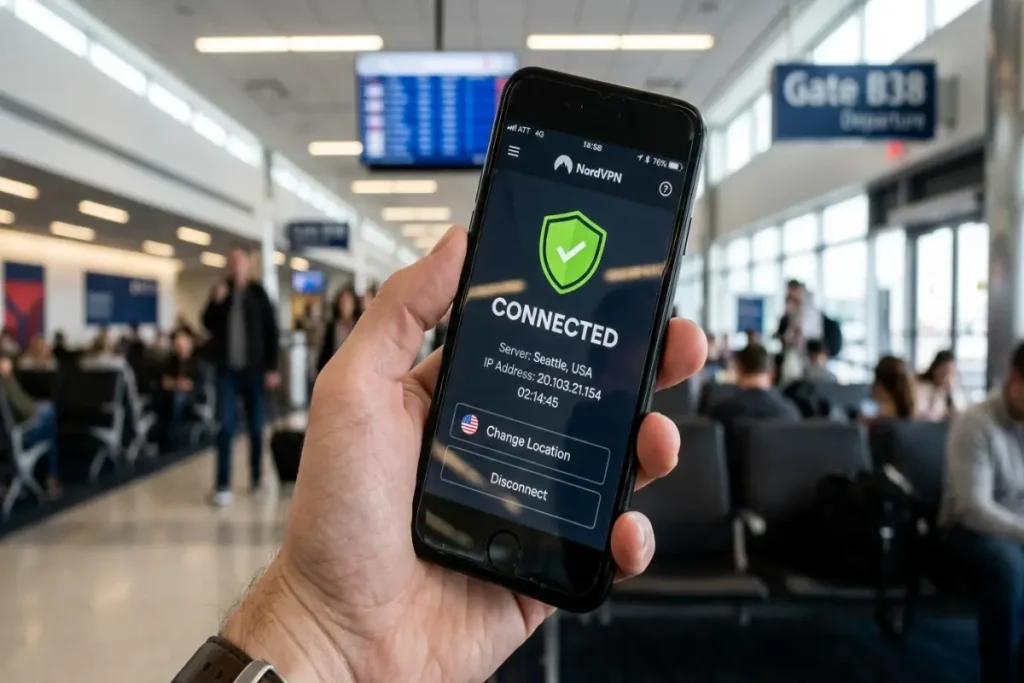
VPNs on public networks: what they protect, what they do not, and how to choose one
A VPN on a public network encrypts all traffic between your device and the VPN server before it enters the public network infrastructure. The café router, a rogue access point, and a passive network observer all see encrypted traffic flowing to a single IP address — the VPN server. They cannot determine which sites you are visiting, cannot read your DNS queries, and cannot intercept the SNI fields from your TLS handshakes, because those fields are themselves inside the VPN tunnel before they reach the network.
What a VPN protects on public networks:
- DNS queries — encrypted inside the tunnel, invisible to the local network
- SNI fields — encrypted inside the tunnel before exiting to the public network
- Non-HTTPS application traffic — covered by the VPN tunnel regardless of whether the app uses TLS
- IP address and connection metadata visible to the local network — masked behind the VPN server’s IP
- Traffic from all applications on the device, not just the browser
What a VPN does not protect:
- Traffic analysis between the VPN server and the sites you visit — the VPN server itself is a new observation point
- Your activity from the VPN provider — you are trusting the VPN provider with the traffic log your ISP previously held
- Browser fingerprinting — the VPN has no effect on how your browser responds to fingerprinting API queries
- Behavioral tracking by sites you log into — a VPN does not prevent a site from tracking your on-site behavior once you are connected to it
- Malware already on your device — a VPN is not a security tool in that sense
The trust transfer problem: Using a VPN on public Wi-Fi removes trust from the local network operator and places it on the VPN provider. This trade is worth making if the VPN provider’s trustworthiness exceeds the local network’s trustworthiness — which is almost always true for public networks in cafés, airports, and hotels. But it is not a zero-risk arrangement. The choice of VPN provider matters.
Evaluating VPN providers for public network use
The following criteria distinguish VPN providers worth trusting from those that should be avoided.
Independently audited no-logs policy. The most important criterion. A VPN provider’s no-logs claim is only as credible as the evidence supporting it. Mullvad VPN published audit results from Cure53 in 2023 confirming no user connection logs are stored. ProtonVPN published an audit from SEC Consult in 2022 with equivalent findings. These audits are not permanent guarantees — policies and infrastructure can change — but they establish a baseline of accountability that unaudited providers cannot offer.
Jurisdiction. A VPN provider incorporated in a country with mandatory data retention laws can be compelled to retain and produce user connection logs. Switzerland (ProtonVPN), Sweden (Mullvad), and Panama (NordVPN) are commonly cited for their limited data retention requirements. The UK, US, and EU have legal frameworks that can compel disclosure from providers operating within their jurisdiction.
Open-source client. A VPN client whose source code is publicly available allows security researchers to verify that the client behaves as claimed — that it actually routes all traffic through the tunnel, that the kill switch functions as described, and that no hidden data collection occurs. Mullvad’s desktop and mobile clients are fully open-source. ProtonVPN’s clients are open-source. NordVPN’s clients are not fully open-source as of 2026.
Kill switch capability. A VPN kill switch halts all internet traffic if the VPN connection drops unexpectedly. Without a kill switch, a momentary VPN disconnection — which happens on unstable public networks — briefly exposes your traffic in plaintext on the local network before the VPN reconnects. Most reputable VPN clients include a kill switch; confirm it is enabled in your VPN application’s settings, as it is typically not the default state on mobile.
Providers to avoid: Free VPN services, browser extension-only VPNs with no audited no-logs policy, and VPNs operated by companies whose primary business is data brokerage or advertising technology. Hola VPN’s peer-to-peer model literally routes other users’ traffic through your device. Opera’s built-in “VPN” is a proxy service that does not meet the technical definition of a VPN and sends traffic through Opera’s servers without a published audit.
Configuring your device for public network security
Beyond a VPN, several device-level settings reduce exposure on public networks independently of your browser configuration.
Disable automatic Wi-Fi connection
On iOS: Settings → Wi-Fi → tap the network name → disable “Auto-Join” for public networks you have previously connected to. More broadly, Settings → Wi-Fi → “Ask to Join Networks” → set to “Ask” rather than “Automatic.”
On Android: Settings → Network & internet → Wi-Fi → Wi-Fi preferences → disable “Connect to open networks.”
On macOS: System Settings → Wi-Fi → disable “Ask to join networks” for open networks. Review the “Known Networks” list and remove public networks you no longer use.
On Windows: Settings → Network & Internet → Wi-Fi → “Manage known networks” → select each public network and disable “Connect automatically.”
Automatic connection to previously seen network names is the mechanism by which rogue access points exploit device behavior. Disabling it requires manual confirmation before connecting to any public network, which takes three seconds and eliminates the passive attack surface.
Enable your operating system’s firewall
A firewall that blocks unsolicited inbound connections prevents other devices on the same public network from initiating connections to your device. This matters because public Wi-Fi networks place all connected devices in a shared broadcast domain — other customers at the same café are on the same network segment as you.
On macOS: System Settings → Network → Firewall → enable it. Under Firewall Options, enable “Block all incoming connections” for maximum protection (this will block file sharing and some network discovery features, which are appropriate to disable on a public network).
On Windows: Start → Windows Security → Firewall & network protection → ensure the firewall is active for “Public networks.”
On Linux: ufw enable from the terminal, with ufw default deny incoming set.
Use HTTPS-Only mode at the browser level
The browser hardening described in the browser privacy settings guide applies on public networks with equal force. HTTPS-Only mode in Firefox and Chrome’s “Always use secure connections” setting are particularly important on public Wi-Fi because they prevent any HTTP connection — including captive portal interception attempts — from proceeding without a visible browser warning.

Threat scenarios by environment: calibrating your response
Not all public Wi-Fi environments carry equal risk. Calibrating your countermeasures to the actual threat level in each environment produces a more rational security posture than treating every coffee shop as an equivalent risk to an airport in a high-surveillance jurisdiction.
Coffee shops and restaurants with named networks. Threat level: low to moderate. The realistic threat is passive DNS and SNI observation and occasional captive portal manipulation. Countermeasures: DNS-over-HTTPS, HTTPS-Only mode, VPN if the network is particularly busy or the content of your session is sensitive. The specific threat of credential interception via HTTP is largely moot on HTTPS-enforced browsers.
Hotel networks. Threat level: moderate. Hotel networks are more commonly subject to legal interception than café networks in many jurisdictions, and they are frequently poorly secured at the infrastructure level. Hotel networks have been used as attack vectors in state-sponsored campaigns — the DarkHotel APT group specifically targeted business travelers on hotel networks for over a decade. A VPN is appropriate on any hotel network for users whose work involves sensitive information.
Airports and transit hubs. Threat level: moderate to high depending on jurisdiction. High-volume transit networks attract both opportunistic attackers and, in certain countries, active government interception. A VPN with kill switch enabled is appropriate at any major airport network. Avoid performing sensitive transactions — banking, work email, file transfers — on airport networks without a confirmed VPN connection.
Corporate or university networks. Threat level: different in character. These networks are typically monitored by the network operator — your employer or institution — rather than by external attackers. A VPN to an external server routes your traffic outside the corporate network’s monitoring scope but may violate acceptable use policies. The relevant threat model here is internal monitoring rather than external attack, which requires a different risk calculus than a public coffee shop.
Mobile data as an alternative. For sensitive transactions on the move, your cellular data connection is significantly safer than any public Wi-Fi network. Cellular connections are encrypted by the carrier at the radio layer, are not shared with other users in the same physical space, and are not subject to rogue access point attacks. Using your phone as a personal hotspot for laptop traffic on sensitive tasks — banking, work documents, credential-related operations — eliminates the public network threat model entirely for those sessions.
The specific operations to avoid on public networks without a VPN
Even with HTTPS-Only mode enabled and DNS-over-HTTPS configured, certain operations carry elevated risk on unprotected public networks that warrants either using a VPN or deferring the task until you are on a trusted connection.
Banking and financial transactions. Not because the transaction itself is interceptable — TLS protects the content — but because the combination of SNI observation, IP address logging, and behavioral timing on a network whose operator you do not know creates an unnecessary record of your financial institution access patterns.
Work email and document access. Corporate email often contains sensitive information whose exposure could have consequences beyond the individual user. More practically, corporate VPN policies typically require VPN connection for remote access anyway.
Two-factor authentication flows. Receiving and entering a 2FA code involves an SMS message or authenticator app interaction followed immediately by a credential submission. While TLS protects the credential submission, the authentication flow on an observed network provides more behavioral signal than most other browsing activities.
Software downloads and updates over HTTP. Some software update mechanisms still use HTTP rather than HTTPS for downloading update packages, even if the update check itself is encrypted. A man-in-the-middle attack on an HTTP software download can substitute a malicious binary for the legitimate one. Run software updates on trusted networks.
Building a public network security habit in three steps
The configuration described in this guide does not need to be re-established every time you connect to a public network — it should be set once and operate automatically.
Step one: enable automatic VPN connection on untrusted networks. Most reputable VPN applications allow you to configure automatic connection whenever you join a network that is not on your trusted list. In Mullvad’s application, this is under Settings → VPN Settings → “Always require VPN.” In ProtonVPN, the equivalent setting is under Connection → “Always-on VPN.” Configure this once and your VPN connects before any traffic leaves your device on any new network.
Step two: verify the kill switch is enabled. In your VPN application’s settings, confirm the kill switch is active. Test it by manually disconnecting the VPN while connected to a public network and verifying that internet access stops immediately rather than reverting to the unprotected connection.
Step three: remove public networks from your device’s known networks list after each use. This prevents your device from broadcasting probe requests for previously seen network names — a passive information leak that tells nearby observers which networks you have previously connected to.
These three steps take approximately 15 minutes to configure and require no maintenance afterward. Combined with the browser-level hardening described in the browser security guide, they address every realistic threat on public networks for non-targeted users.

Frequently asked questions about secure browsing on public Wi-Fi
Is public Wi-Fi safe to use for browsing in 2026?
For general browsing on mainstream HTTPS sites with a properly configured browser, the risk from passive eavesdropping is low. An observer on the same network sees the hostnames you visit via SNI and DNS, but not the content of your sessions. The practical risk increases for sensitive transactions — banking, work email, credential entry — and for devices that run applications with unencrypted network traffic. A VPN eliminates most remaining risk for these higher-sensitivity operations.
Can someone steal my passwords on public Wi-Fi?
Not through passive interception if you are using HTTPS-enforced browsing and a password manager. The credential submission itself is encrypted by TLS. The realistic password theft vector on public networks is phishing via a rogue access point’s captive portal — which HTTPS-Only mode and a password manager that refuses to autofill on unrecognized domains both address. Direct password interception from HTTPS traffic requires an active TLS attack that is not feasible against properly configured modern browsers.
Does it matter which VPN protocol I use on public Wi-Fi?
Yes. WireGuard is the recommended protocol for public network use in 2026. It has a smaller code surface than OpenVPN (approximately 4,000 lines versus 70,000), faster connection establishment, and better performance on unstable connections — which matters on public Wi-Fi where signal quality varies. Most reputable VPN providers offer WireGuard as a protocol option. OpenVPN is a proven fallback if WireGuard is unavailable. Avoid PPTP entirely — it uses encryption that was broken in the early 2010s and should not be considered secure.
Should I use a VPN on my phone’s mobile data connection?
Mobile data connections do not have the same threat model as public Wi-Fi. Cellular connections are encrypted at the carrier level and are not shared with other users in your physical location. A VPN on mobile data provides ISP-level privacy (your carrier cannot see your traffic destinations) and is worth using if ISP monitoring is part of your concern. For the specific threat model of public Wi-Fi attacks — passive network observation, rogue access points — mobile data does not require a VPN because those attack vectors do not apply to cellular connections.
Is using a browser in private mode safer on public Wi-Fi?
No. Private browsing mode does not affect network-level behavior in any way. Your traffic takes the same path through the same network infrastructure in private mode as in regular browsing. Private mode clears local history and cookies when the session ends — it provides no protection against network observation, DNS interception, SNI logging, or rogue access point attacks.